Run a secure online exam that carries consequences
When an online exam decides a grade, a license or a hiring step, its result has to hold up when someone questions it. EduBase protects such high-stakes exams in four ways: Safe Exam Browser locks the participant's computer, parameterized questions give every participant their own numbers, a recorded activity log with a Suspicion Score points reviewers to attempts worth a second look, and serialized certificates can be verified by anyone. This guide explains how the pieces fit together, and what stays your responsibility.
What EduBase covers, and what it does not
| Risk | What EduBase does | Where you set it |
|---|---|---|
| Looking things up in another window or program | Requires Safe Exam Browser, which locks the computer to the exam. Without it, EduBase records every time the participant leaves the test. | Exam: Basic data and settings → Additional settings |
| Copying answers from a neighbor | Parameterized questions give each participant different numbers, so a neighbor's answer is wrong for them. Downloaded files carry each participant's own data too. | Question editor: Parameters |
| Outside help, including AI tools | The Suspicion Score rates each attempt from 0 to 100 and lists the reasons. The Quiz Flow shows the attempt second by second. | On by default; can be switched off per exam |
| Someone else taking the exam later with the same account | Block repeated exam logins for users with passwords stops a participant from logging back in during the exam period. | Exam: Additional settings |
| A forged or altered certificate | Certificates are serialized PDFs with a QR code that opens a public verification page. | Exam: certificate settings |
EduBase does not use the camera, the microphone or screen recording, and it does not check identity documents. It cannot see who sits at the keyboard or what is in the room. If that matters for your exam, hold it in a supervised room, or have invigilators check identities before participants sign in. The Suspicion Score is a triage aid for reviewers, not evidence, and EduBase never acts on it automatically.
Set up the exam
Each step links to the page with the full procedure.
- Write questions that cannot be copied. Add parameters to calculation questions, so every participant gets their own values at the same difficulty. For data tasks, attach a CSV, Excel or Word file with parameterized content: each participant downloads their own dataset.
- Build the Quiz set. Use question groups to draw a random selection from a larger pool. By default, each participant sees the questions and the answer options in a different order.
- Create the exam and set the time. Create the exam from the Quiz set, then schedule it and set the time limit.
- Require Safe Exam Browser. In Basic data and settings → Additional settings, turn on Secure Exam Mode (using Safe Exam Browser). Set a quit password for invigilators, and list any outside websites the exam needs. See Require Safe Exam Browser.
- Close the door behind each participant. In the same section, turn on Block repeated exam logins for users with passwords.
- Give extra time to those entitled to it. In Users and results, open a participant's menu and choose Set extra time. It applies to that person only. See Give extra time or reopen an attempt.
- Decide what participants see afterwards. Hold results back until you have reviewed them: set Visibility under View results to After manual approval per test. See Decide what participants see afterwards.
- Issue certificates. If the exam leads to a qualification, set up certificates with a validity period.
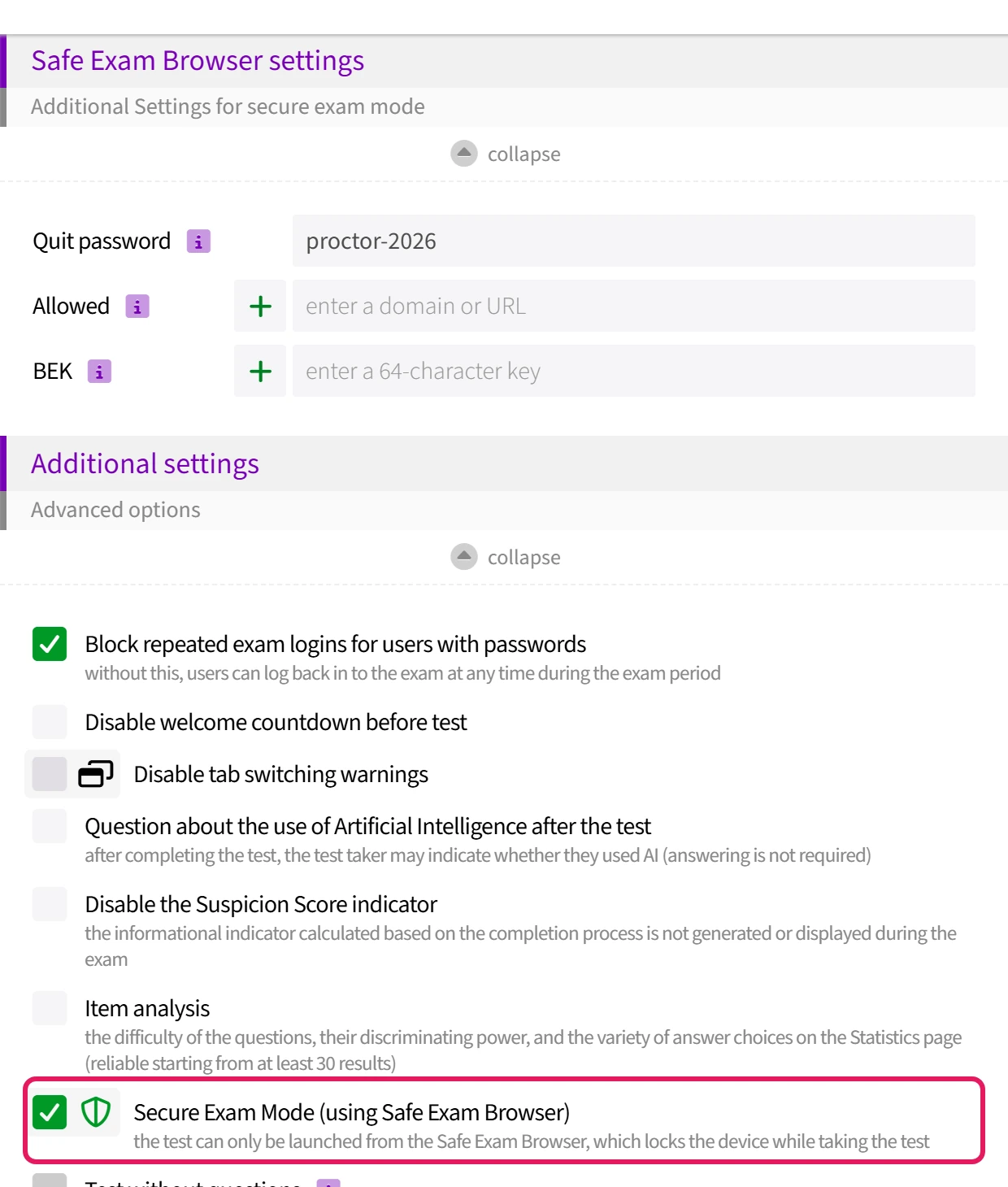
Manage exam → Basic data and settings → Additional settings
What participants are told
Before the test starts, EduBase tells every participant what it records: leaving the test window, copying and pasting (but not the text itself), screenshots, typing speed and the pace of answers. It also tells them there is no camera, microphone or screen recording, and that the indicator the organizer sees is not proof. When Safe Exam Browser is required, the start page also says that the exam opens only in Safe Exam Browser.
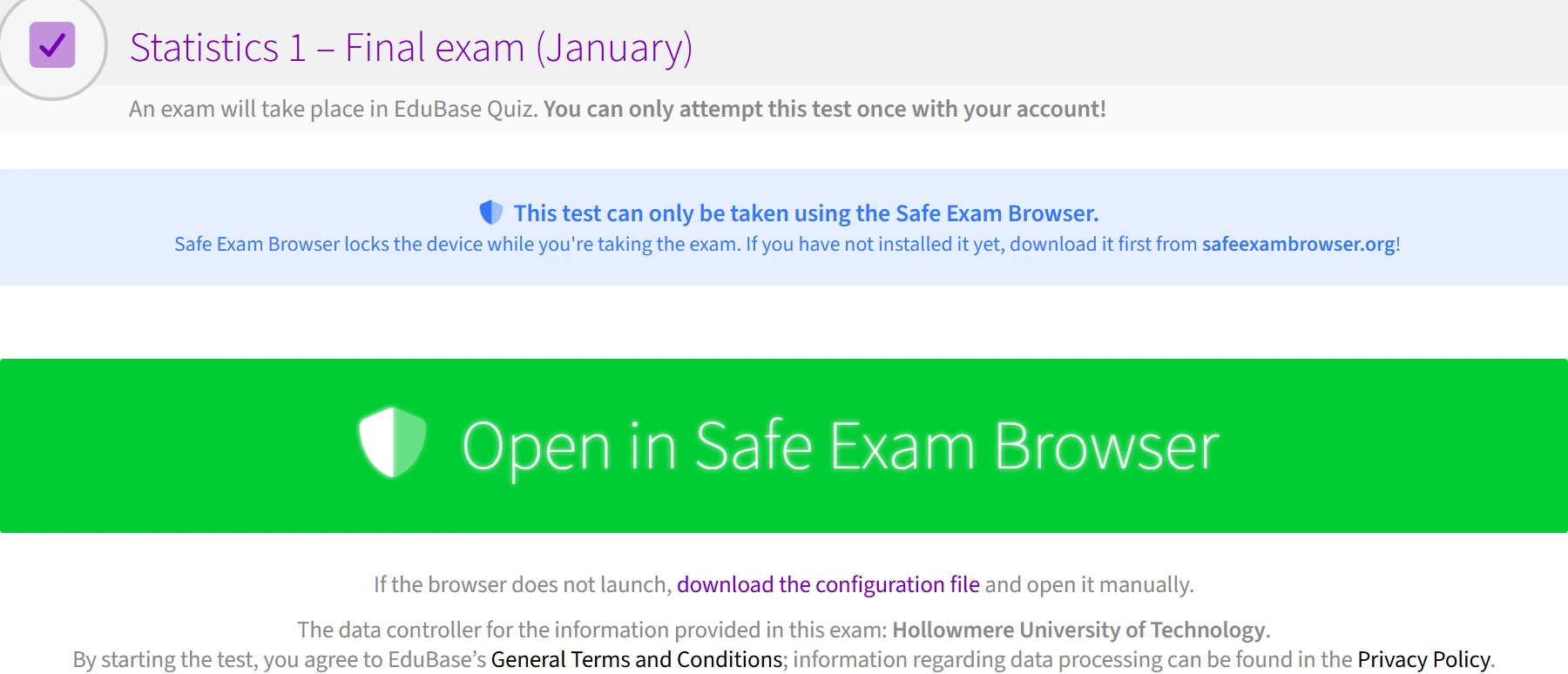
The exam start page, seen by a participant
What you can show afterwards
Users and results lists every participant with their state and result. An attempt with a Suspicion Score of 45 or more gets a suspicious attempt tag with its score, highlighted from 70, and the suspicious attempt filter lists only those attempts. EduBase reminds reviewers on the tag that the score is not proof: an accessibility tool or an unstable network can also raise it, so review the attempt and talk to the participant before deciding. Export the list with the Suspicion Score column for your records.
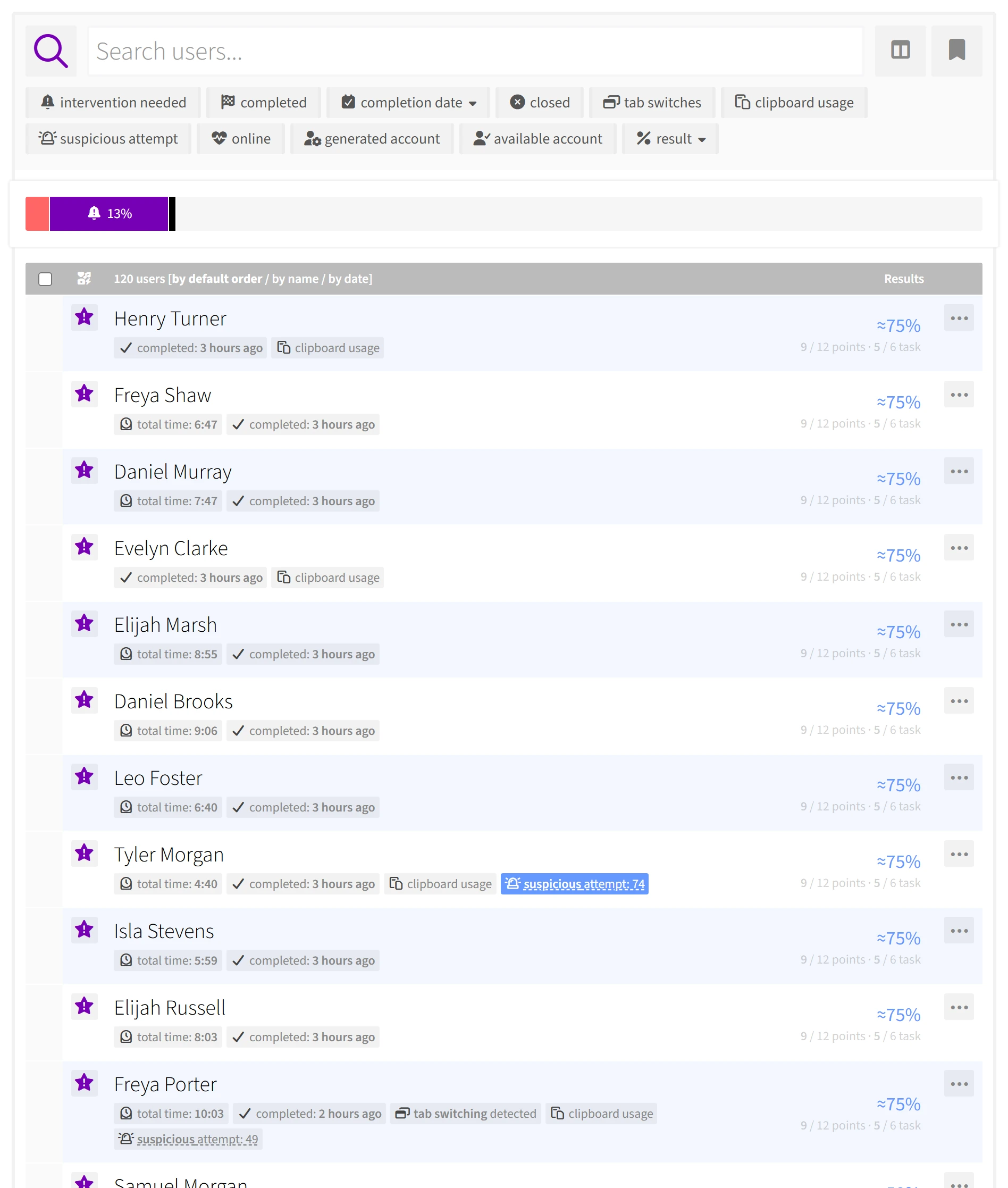
Manage exam → Users and results
Open an attempt with Open results in its menu to see the score with the reasons itemized, for example long absences right before answering or a pasted answer. Flow opens the attempt's timeline. Use these to decide whether to talk to the participant, re-score a question by hand or reopen the attempt. If the score turns out to be unfounded, clear next to it deletes the score of that attempt for good.

Users and results → Open results for one attempt
For an audit, results stay readable after the exam, and exams finished about a year earlier are locked against changes. If you archive the exam to clear the working views, export the results with the answers first: on EduBase cloud, archiving a whole exam removes the detailed answers and keeps only the scores, grades and certificates.
Limits
- Safe Exam Browser must be installed in advance. Participants download it from safeexambrowser.org before the exam. Without a Browser Exam Key in the settings, EduBase checks only that the participant uses the right configuration file, not that the browser really is Safe Exam Browser. Changing the settings ends any Safe Exam Browser session already running, and participants have to restart the browser.
- What counts as leaving the test. Leaving the test window for more than 5 seconds is recorded as a tab switch; shorter absences are recorded as glances. While a question with an attachment or a file upload is open, leaving the window is not counted, because opening the file takes the focus. From the third tab switch, the participant sees a warning that further switching is recorded with the result. You can turn this warning off with Disable tab switching warnings.
- The Suspicion Score flags, it does not decide. No single signal can raise the score to 45 on its own. An attempt without a recorded activity log gets no score rather than a low one. You can turn the score off for an exam with Disable the Suspicion Score indicator.
- Extra time needs a time limit. Set extra time appears only when the exam has a time limit.
Related
- What EduBase records during an exam, and what it does not
- Keep exams meaningful when participants have AI tools
- Run university exams for large cohorts
- Run an exam without registering participants
- Take an exam in Safe Exam Browser, for participants
- API: exam settings and results are available through the EduBase REST API and the EduBase MCP server.