Set up your first competency
In about 20 minutes you will set up one competency in EduBase and see who has it: a competency names what people must know, its requirements say how they prove it, and EduBase tracks a status for every member it is assigned to. The screenshots show the demo food manufacturer's GMP hygiene competency: read the hygiene rules, then pass a short quiz, for everyone in Production and Quality.
What you need
- An organization on the Business plan, with its members already in departments or job roles.
- An account that manages the organization's library and competencies.
- The document people must read, as one or more files (PDF, for example).
- Optionally, an exam about it that belongs to the organization. To create one, see Create your first quiz and exam; choose the organization under Organization in the exam's Basic data and settings.
Everything below starts from the organization's management page: open the organization and choose Manage.
1. Create the competency
- Open Competencies and choose new competency.
- Give it a Name and a Description. Members can see the description.
- Choose expand, and under Assign choose who needs it:
- Organizational units and job roles, then pick the Departments or Job roles. Everyone in them gets the competency, and so does everyone who joins them later.
- All members of the organization.
- Individually on the members page, to assign it person by person.
- Add.
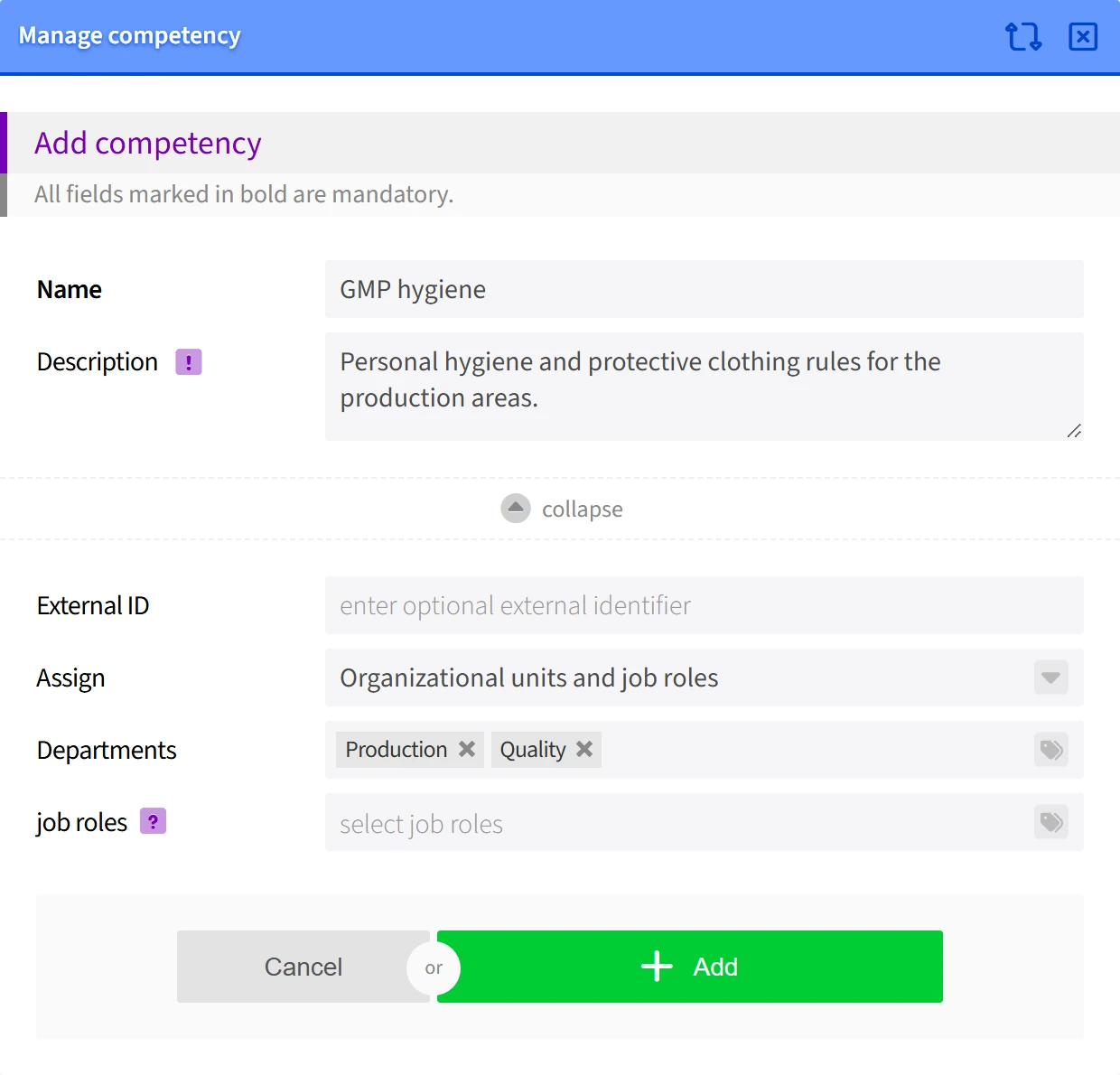
Manage → Competencies → new competency
2. Add the document to the library
- Back on the management page, open Library and choose new document.
- Give it a Name and a Prefix (or a Type, if your organization uses document types): the prefix starts the code of every version, for example GMP-1, GMP-2.
- Under Competencies, choose the competency you just created. Members see the document when they have one of its competencies; a document without competencies is visible to everyone.
- To make it required reading for everyone, expand the form and set Mandatory to Yes, every member must read it. Add.
- Open the document's menu (⋮), choose Add new version, add the Files and Upload. The version is published right away, unless your organization approves new versions first.
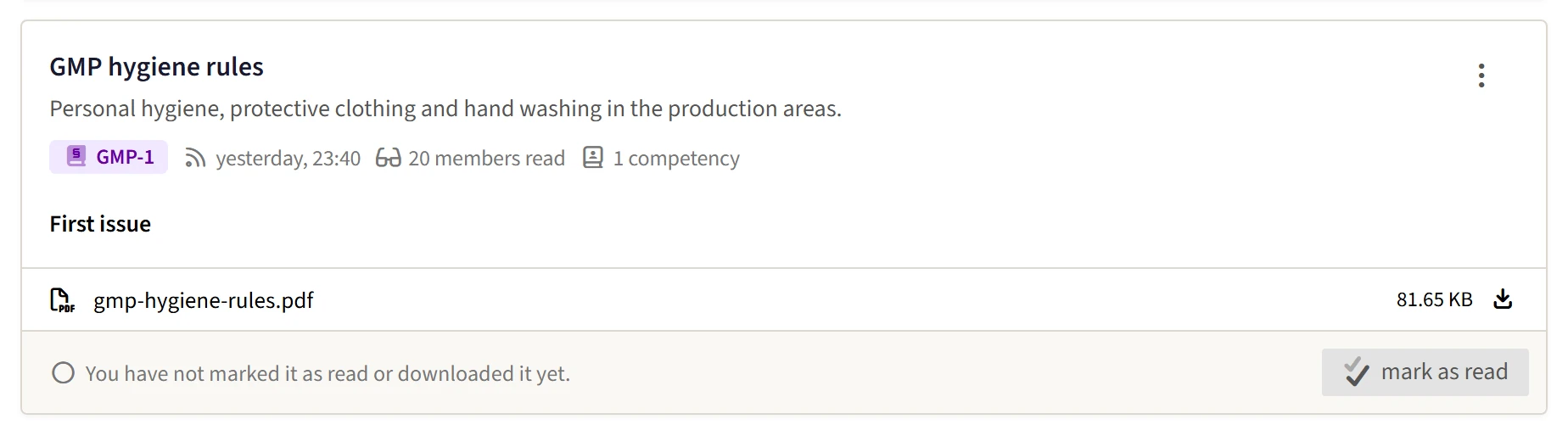
Manage → Library
Each new version of a document has to be read again, so members stay current. See Versions, identifiers and document types.
3. Add the requirements
- Open Competencies, open the competency's menu (...) and choose Requirements.
- Choose new requirement, give it a Name, and set the Type:
- Document, then the document. It is completed when the member has downloaded every file of the latest version, or signed it if the document needs a signed statement.
- Exam, then the exam. Members who get the competency are added to the exam automatically. A finished attempt completes it once its result is published; if the exam has a pass mark, only a passed attempt does.
- Leave Optional on No, it is a mandatory requirement. Set a Deadline if there is one: Counting from the date of the competency assignment (a number of days) or By a specific date.
- Add, and repeat for the second requirement.
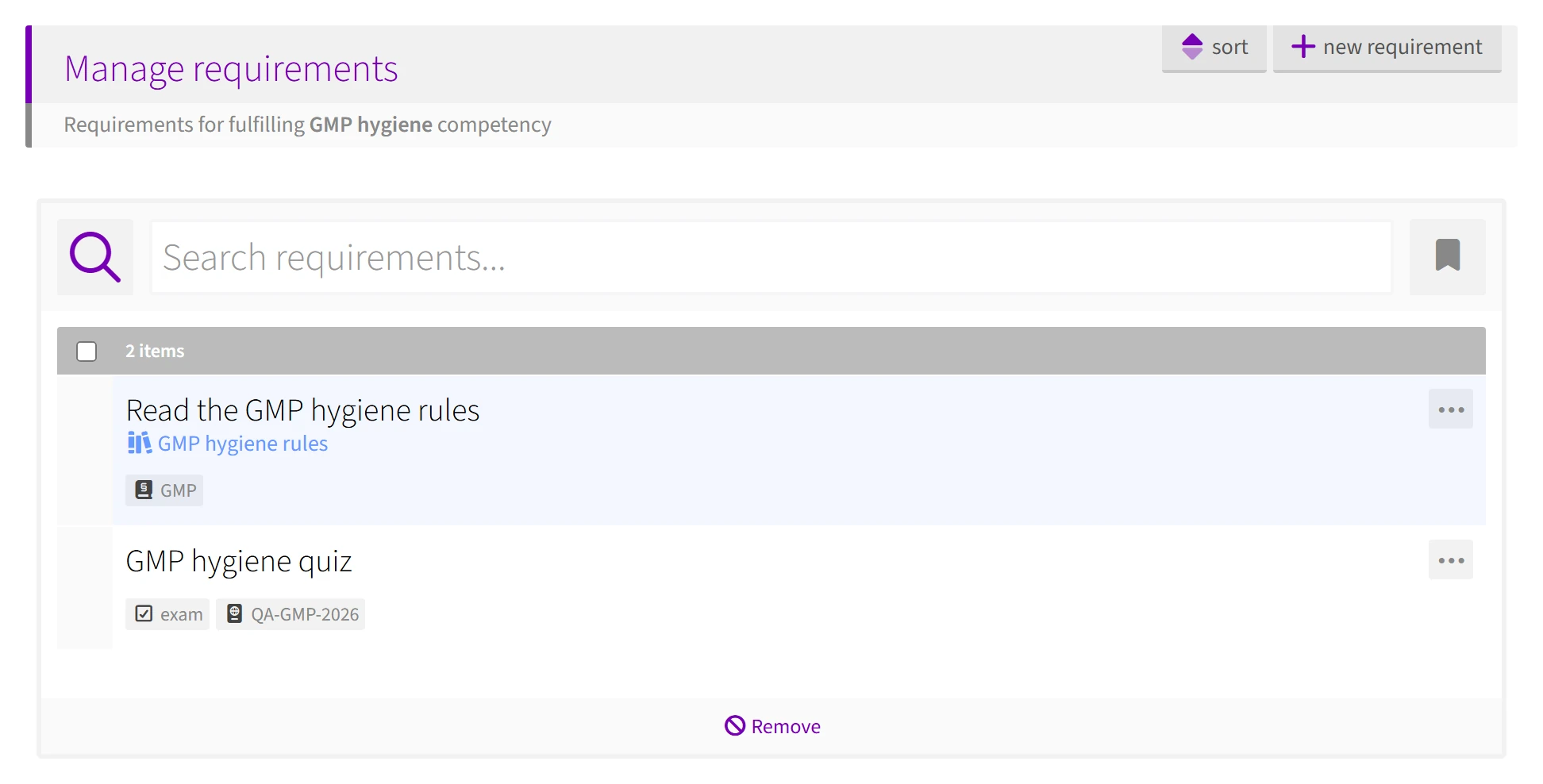
Competencies → the competency → Requirements
Other requirement types are a class, a learning journey, and a To do for anything outside EduBase, such as a license or an in-person training. See Requirement types.
4. See who is compliant
Open Compliance on the management page. The totals count every member and competency pair by status, and the table shows, for each department and competency, how many members have completed it. The darker the cell, the fewer have.
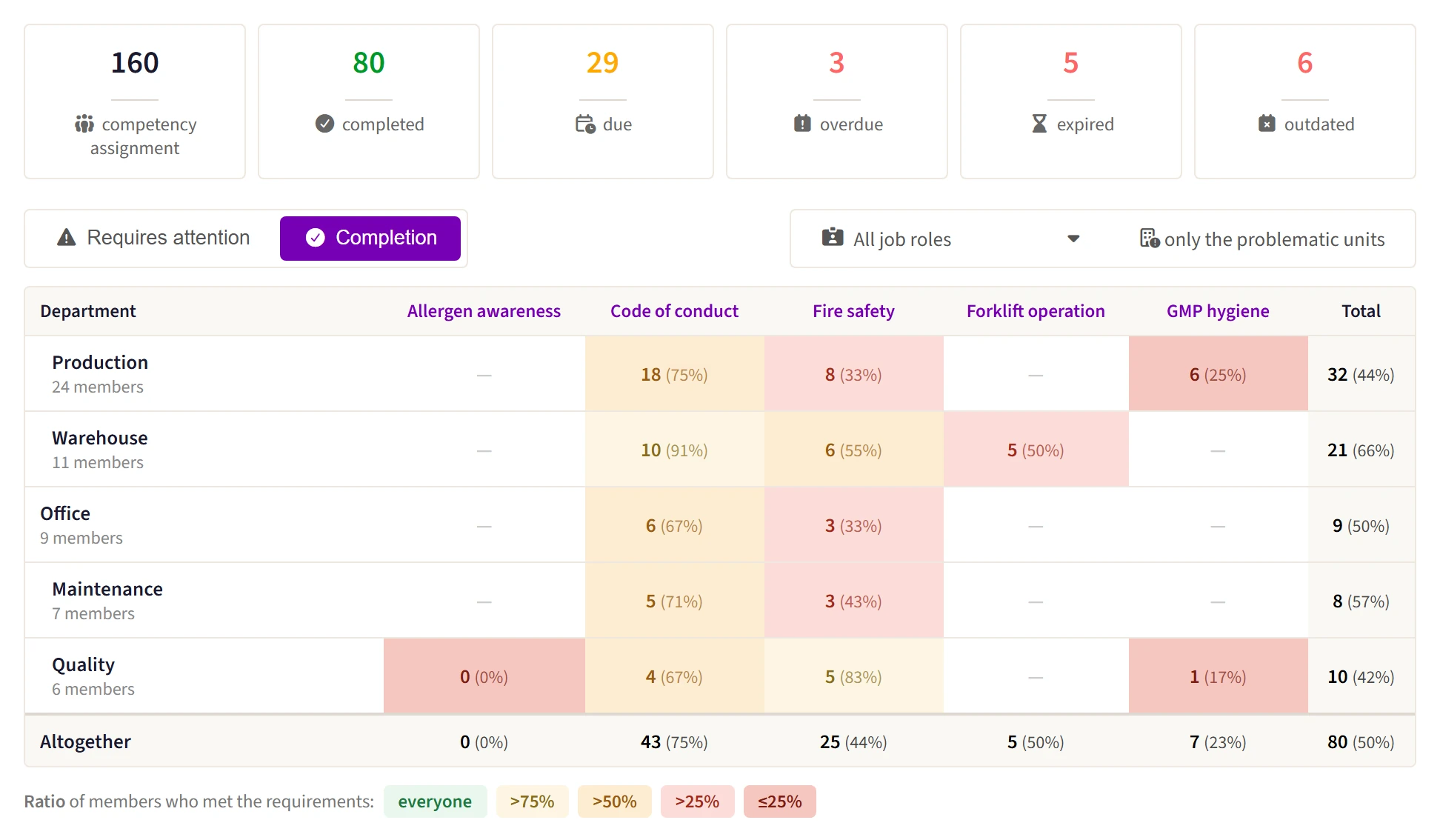
Manage → Compliance
Requires attention switches the table to the members who are due, overdue, expired or outdated, and only the problematic units hides the departments with nothing to do. What each status means is explained in Competency statuses explained.
What you built
You have a competency that EduBase assigns to the right people by department, a document they must read in its latest version, and an exam they must pass. Every member who gets the competency sees it with its requirements, and their status updates as they read and finish the exam, and again every day for deadlines.