Exports and scheduled reports
EduBase exports competency records for audits, HR systems and spreadsheets in two ways: a download on the spot from the competency, compliance and team pages, and organizational reports that EduBase generates once or on a schedule, keeps for you and announces to the people you choose. Both use the same stored statuses as the pages.
Download now
| Where | Button | What you get |
|---|---|---|
| Competencies | export [CSV] | Every member and competency of the organization |
| Compliance | export [XLSX] | The compliance overview: per department and competency, how many members need attention and how many comply. If you filtered the overview by a job role, the export is filtered too |
| My team | export [CSV] | The members of the departments you lead |
| A member's competencies | export [CSV] | That member only |
The CSV has one row per member and competency, separated by semicolons: name, email and phone where you may see them, your organization's custom user fields, username, competency, its external ID, completed and total requirements, completed and total optional requirements, status, completion date, validity and deadline. It opens in a spreadsheet and imports into HR or EHS systems that match on the competency's external ID.
Schedule a report
- On the organization's management page, open Reports and choose new report.
- Enter a Name and choose the Type: Competency progress (CSV, as above), Compliance (XLSX), Exam results (CSV) or Exam certificates (every valid certificate as PDF, in folders, in one ZIP).
- For competency reports, choose which Status values to include, for example only overdue and expired; empty means all.
- Choose the Frequency: Once, Daily, Weekly, Monthly or Annual. Repeats follow the scheduled day, or the day you save the report: a report scheduled for a Monday comes every Monday.
- Expand the form for the Schedule (generate the first report on a later day), the Retention (how many generated files EduBase keeps) and the Notification: the members who get a message with a download link each time. Only members who can open the reports page can be chosen.
- Add.
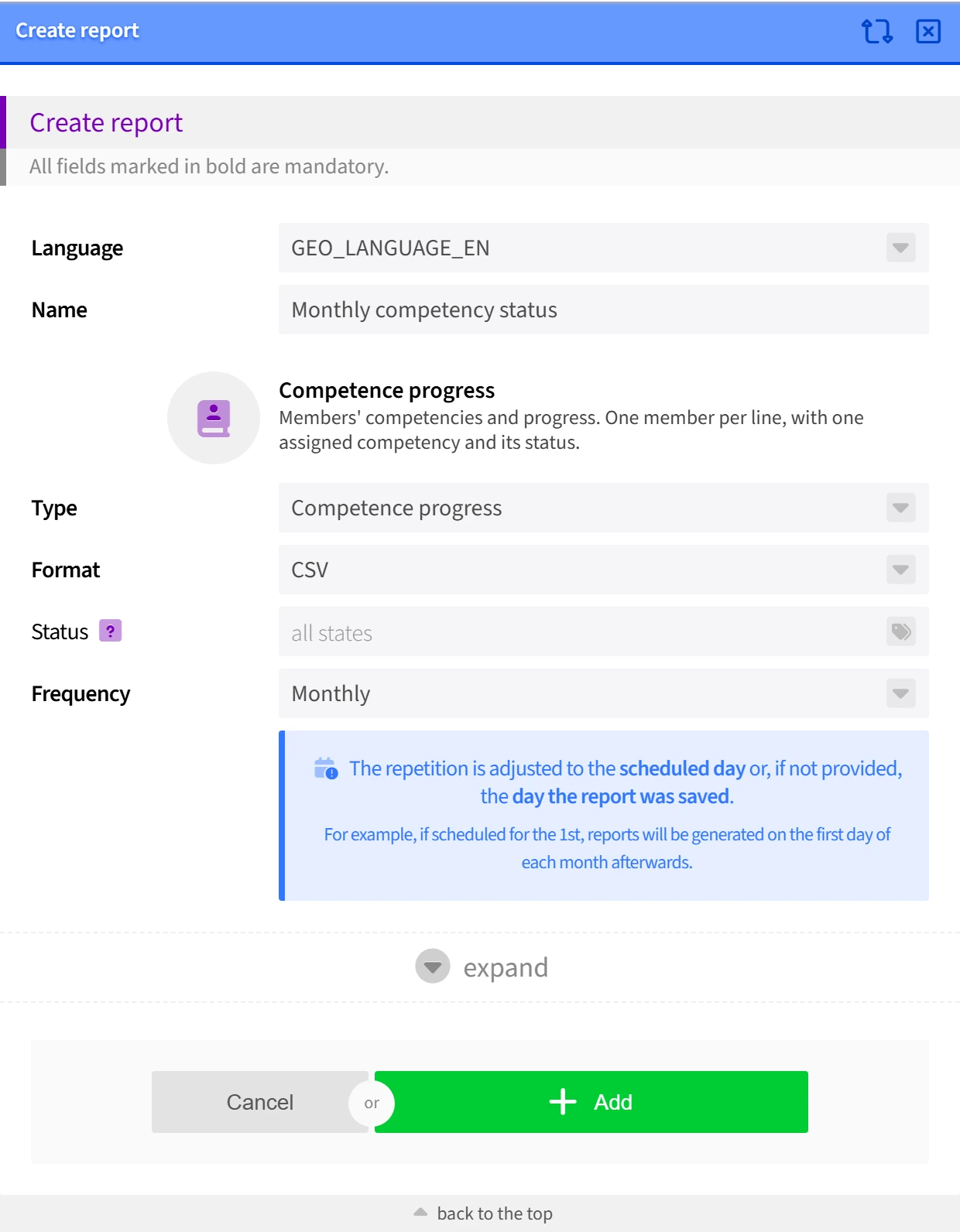
Organization → Reports → new report
Generated files appear on the Reports page for download. Retention limits how many files are kept, not how many are made: "the generation of reports will not stop automatically!" Edit or remove the report to stop it.
Who can export
- Organization managers and members with reporting access: everything above.
- Department leaders: the export of My team and of their members, limited to the departments they lead. See My team for department leaders.
Limits
- The CSV files use semicolons as separators, not commas.
- Exports reflect the stored statuses. After changing requirements, use Update the status of competencies on the competency list first if you need the new statuses in the file.
- There is no PDF version of the competency or compliance exports; certificates are the only PDF report.
- The Reports page is part of the organization's contract; if the tile does not appear, ask your EduBase contact.
Related
- Show an auditor who was trained, on what, and when
- Read the compliance overview
- Define a competency
- Organizational reports and storage
- Drive training assignments from your HR system