Schedule an exam and set time limits
An exam runs between a start and an end; within that period, each test can have its own time limit. Both are set in the exam's Basic data and settings, in the Time and Date sections.
Set the exam period
Under Date:
- Start: when the test can begin. Participants can sign in half an hour earlier, to be ready on time.
- End: when the exam closes. Participants can still sign in for half an hour afterwards.
Once an exam round has started, its start can no longer be moved. To run the exam again with a new start, start a new round; for an exam that has ended, extend its end first.
expand under the dates shows three more settings:
- Deadline: the date by which participants are expected to start. It appears on their dashboard and in notifications as the latest point to start; it does not block later starts.
- Reminder: an automatic notification, a given number of hours before the deadline, to those who have not started yet. EduBase sends it once per round, before the deadline or, without one, before the end, and again if you change the deadline.
- Last test start: no new tests after a given date and time, or a given number of minutes after the start. Tests already running continue. You can also allow new tests again from a later date and time.
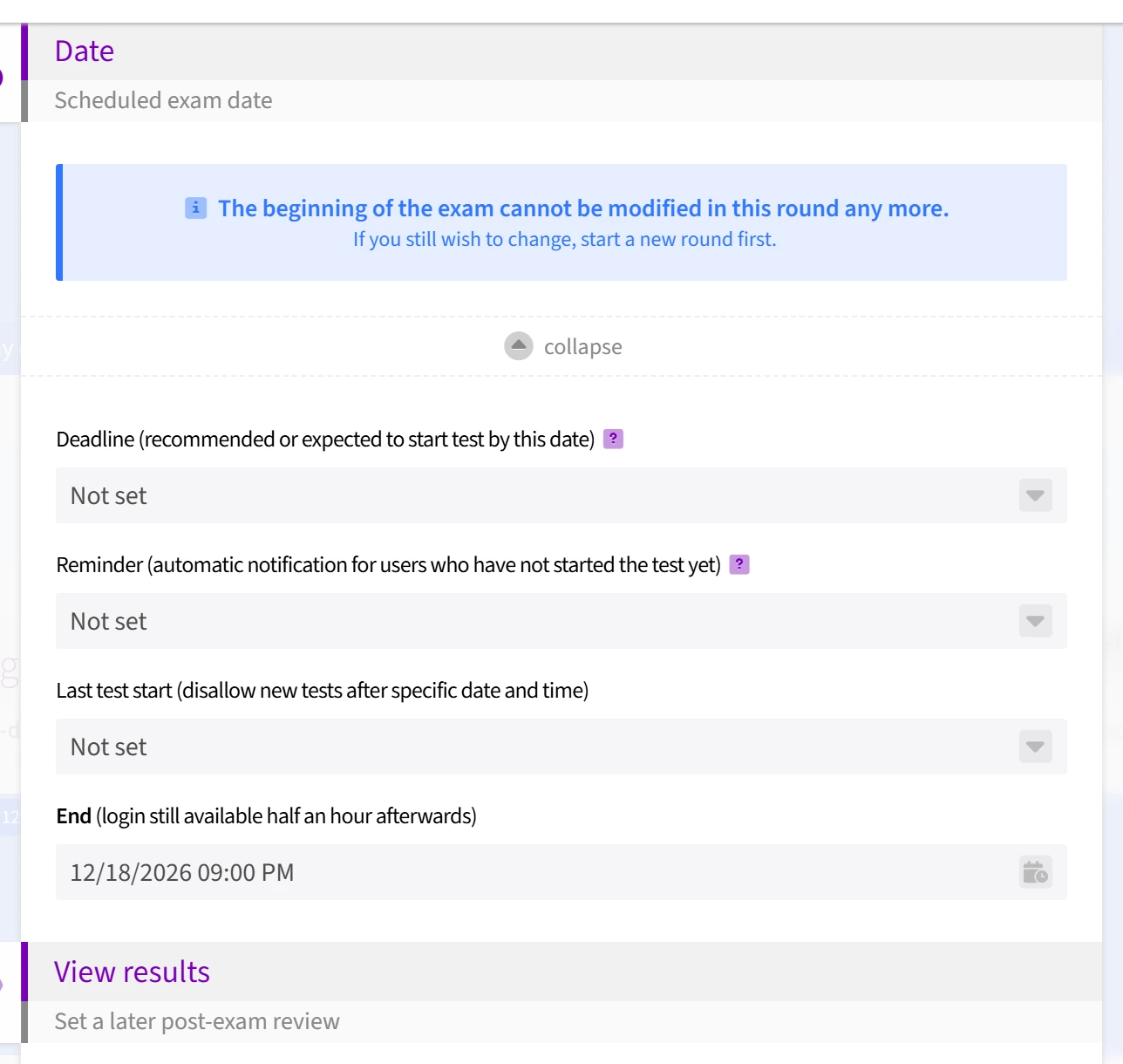
The exam → Basic data and settings → Date
Your account may limit how long an exam can last and how many exams can run at the same time; the window says so when you reach a limit. Changing the dates of an exam with class-based attendance can remove recorded presence, so check the attendance events afterwards.
Stop or allow new tests by hand
Under Advanced features on the exam's page, Start new tests switches new tests off and on at once, for example to stop latecomers. Participants already in their test can finish it.
Set the time limit
Under Time:
- Total time: the time each participant has for the test, from No limit to a set number of minutes. When it runs out, the test is submitted with the answers given so far.
- expand for Hide time, which hides the elapsed and remaining time during the test, and Round time feature, which limits the time for each question, as in the Rounds mode of a Quiz set.
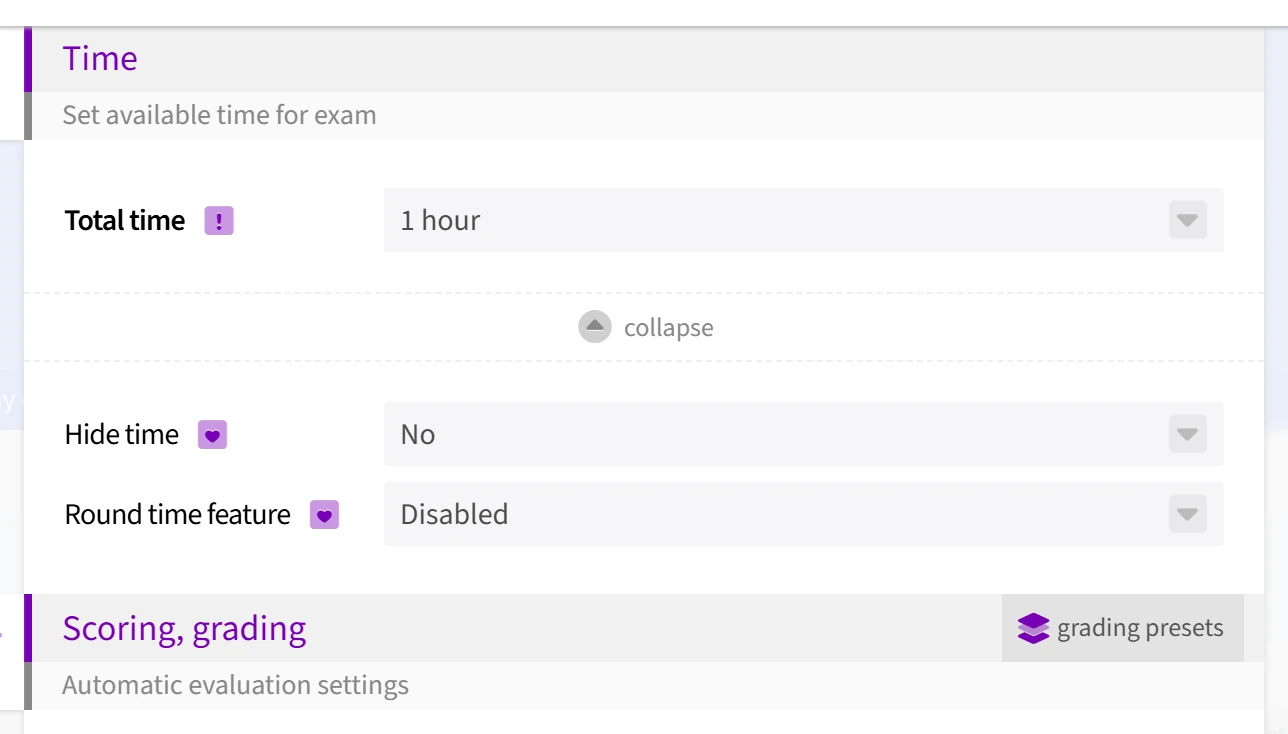
The exam → Basic data and settings → Time
To give one participant more time, for example as an accommodation, see Give extra time or reopen an attempt.