Create an exam
An exam runs one Quiz set for a set group of people between a start and an end. The Quiz set holds the questions; the exam holds the participants, the dates and the exam settings. For a first walkthrough, see Create your first quiz and exam.
Create the exam
- Start the exam from either place:
- My Exams, then new exam/homework (new exam on corporate installations).
- The Quiz set's page, then Exams and Homeworks → add exam/homework. The Quiz set is then already chosen.
- Under Data, set the Language, the Name, and the Organization the exam belongs to, if any.
- Under Type, choose Exam, Homework, Championship or Survey; the list shows the types your account may create. A survey can also be made Anonymous. See Exams, homework, surveys, championships and questionless tests.
- Under Date, set the Start and the End. Participants can sign in half an hour before the start and until half an hour after the end, but the test itself runs between the two. See Schedule an exam and set time limits.
- Under Quiz set, choose the set to run, or Create new set with the name of the exam and add its questions afterwards. Only sets in the exam's language are listed.
- Choose Add.
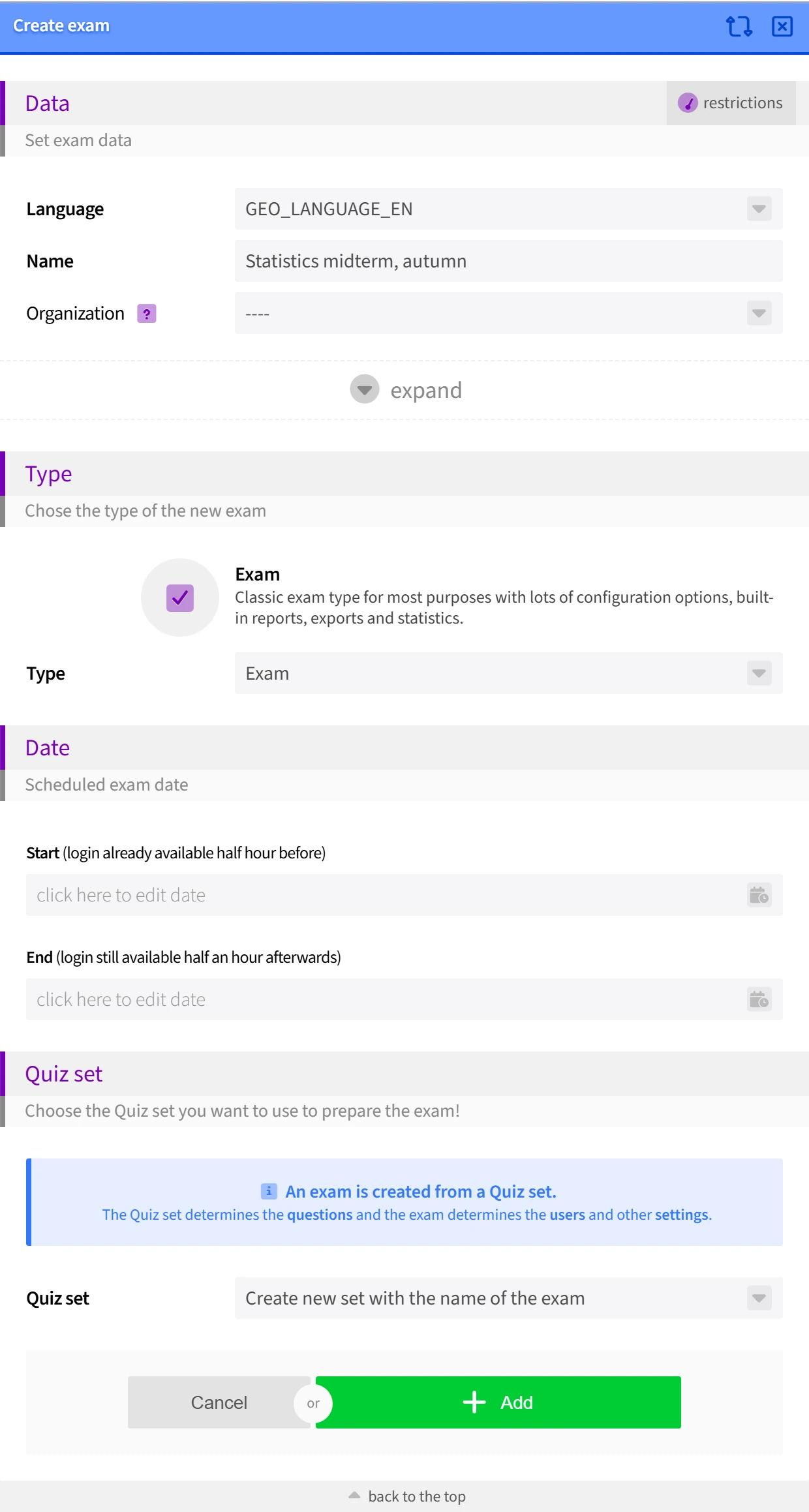
My Exams → new exam/homework
expand under Data adds Tags and the Settings choice: start with the default settings, or Copy settings from another exam, so that a repeated exam keeps its security, grading and result options.
Your account may limit how long an exam can last and how many exams can run at the same time; when it does, the window says so under Date.
After creating it
EduBase opens the exam's page. Before the start:
- Open Users and results and add the participants: from classes, existing accounts, or generated accounts for a link, QR code or PIN. See Add participants and QR code, link and PIN access.
- Check Basic data and settings: time limits, attempts, result visibility and exam security. See Language, branding, folders, printing and other settings.
- Take the test yourself with try Quiz on the Quiz set's page.