Connect an AI assistant to EduBase
If you already use an AI assistant such as Claude or ChatGPT, you can connect it to EduBase and ask it to do things in your account: list your exams, turn a document into questions, summarize results, check who is behind on training. This takes about five minutes. You need an EduBase account and an assistant that lets you add MCP connectors.
1. Add EduBase to your assistant
In your assistant's connector settings, add a custom connector with the address https://www.edubase.net/mcp. If your organization has its own EduBase domain, use that instead, for example https://yourcompany.edubase.net/mcp. There are no keys to copy. For Claude Code and other clients, see Connect Claude, ChatGPT or another assistant.
2. Approve the connection in EduBase
The assistant opens EduBase in your browser. Sign in if you aren't already, and read what you approve:
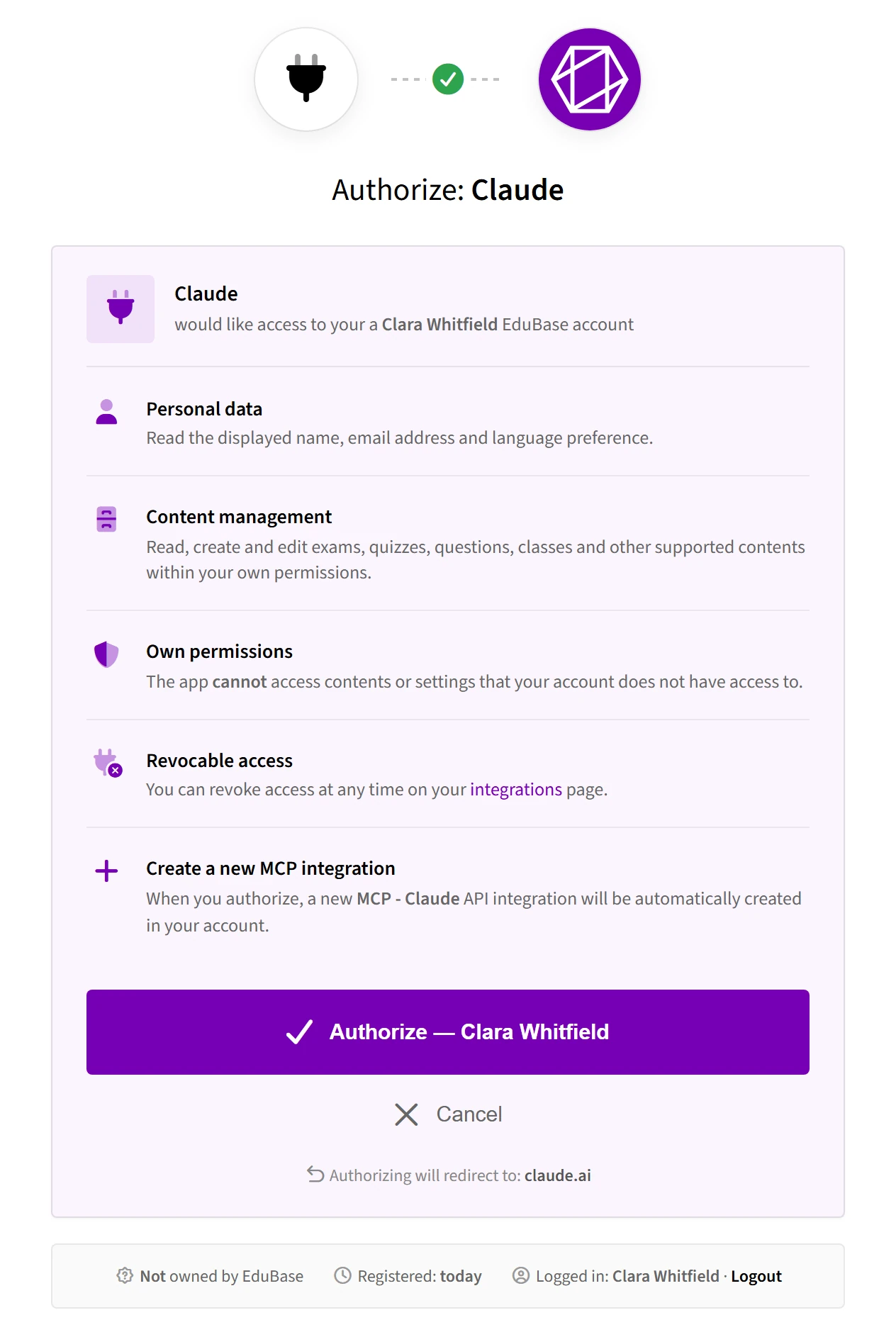
The consent screen
The assistant acts as you: it can do what your account can do, and nothing more. Approve with Authorize. EduBase creates an integration for the assistant, where you can revoke the access later.
3. Try three requests
Ask in plain language. These were asked against the EduBase demo data on 20 November 2026 (shortened); your assistant's wording and your data will differ.
See what you have.
You: What exams do I have, and when do they close?
Assistant: You have one exam, Statistics 1 – Final exam (January). It's active from 16 November 2026, 08:00 to 18 December 2026, 20:00, and requires Safe Exam Browser.
Ask about compliance (if you manage an organization's training):
You: Which competencies need attention at Morrowfield Foods?
Assistant: Forklift operation in the Warehouse comes first: 3 of 10 overdue and 2 expired. Allergen awareness in Quality is outdated for all 6 people, so its requirement needs a new exam. Fire safety is due within 30 days for 29 people across all departments.
Create something.
You: Here's our forklift operation procedure. Create a short refresher Quiz set from it.
Assistant: I suggest four questions: [plan]. Shall I create them?
You: Yes.
Assistant: Done. The four questions are in a new Quiz set, Forklift operation refresher, marked as AI-generated and waiting for your review.
The full conversations, and which EduBase tools the assistant used, are in What to ask: worked examples.
4. Review what the assistant created
Questions an assistant creates are marked as AI-generated and stay pending review until an educator checks them. Open the Quiz set's questions and use the unverified AI filter:
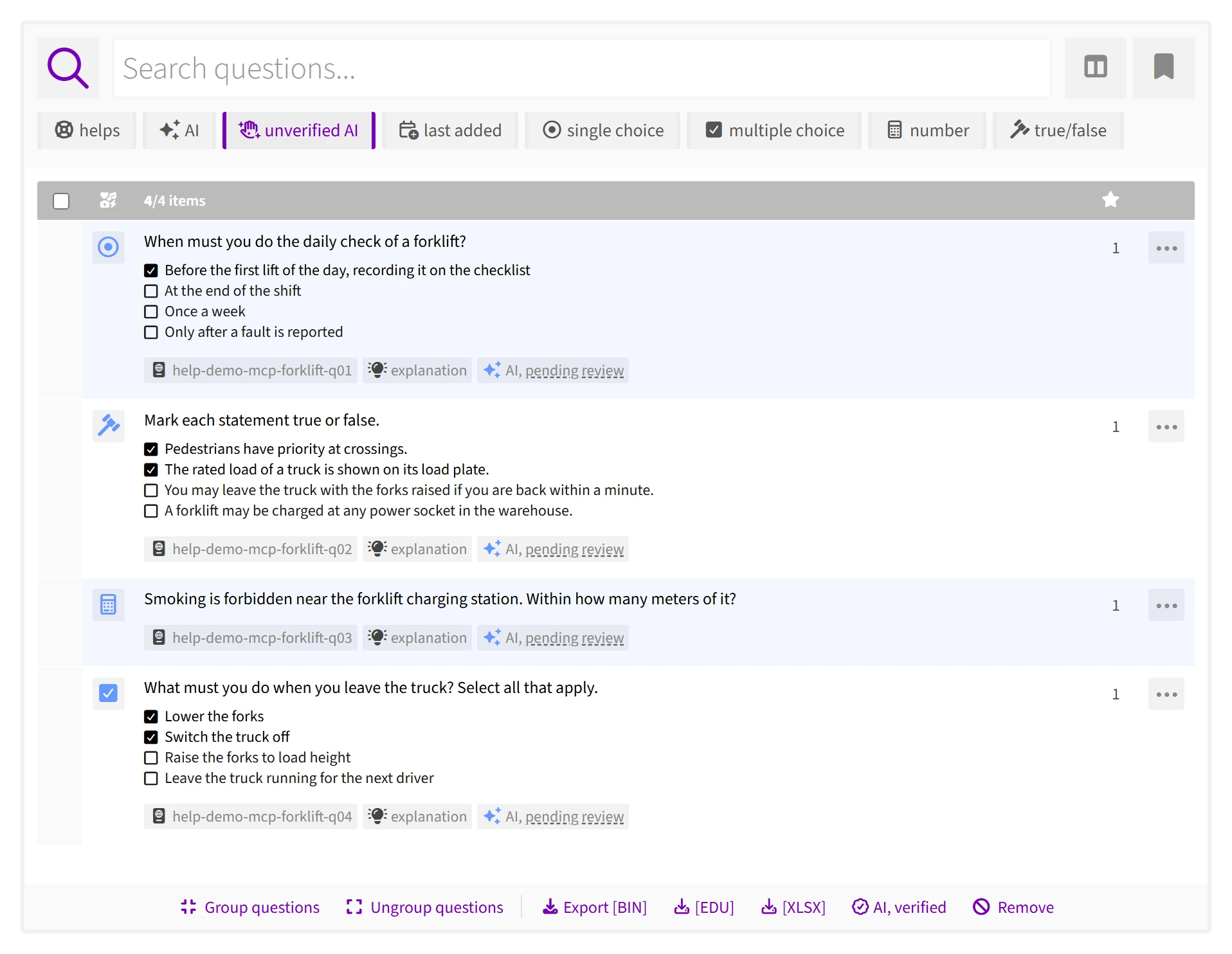
My Quiz sets → the Quiz set → questions → unverified AI
Check each question, then select the ones you are happy with and choose AI, verified. EduBase records who reviewed them and when. See AI marking and human review.
Good to know
- Before deleting or other changes that cannot be undone, assistants that support it ask you to confirm. Read those confirmations.
- A few things are done only in the EduBase interface, such as manual scoring, Safe Exam Browser settings and extra time for one participant.
- You can connect read-only, or only for some areas such as exams and results. See Connect Claude, ChatGPT or another assistant.