The document library
The document library is where an organization keeps its governing documents: policies, standard operating procedures, work instructions and forms. Every document keeps all its versions, each with a permanent code, and each member sees the documents that belong to their competencies. Documents are also what competency requirements point to when someone has to read or sign something.
Open the library
On the organization's management page, open Library. Managers see every document; the buttons at the top add a new document, manage document types, open the competencies and, where it is used, the approval of new versions.
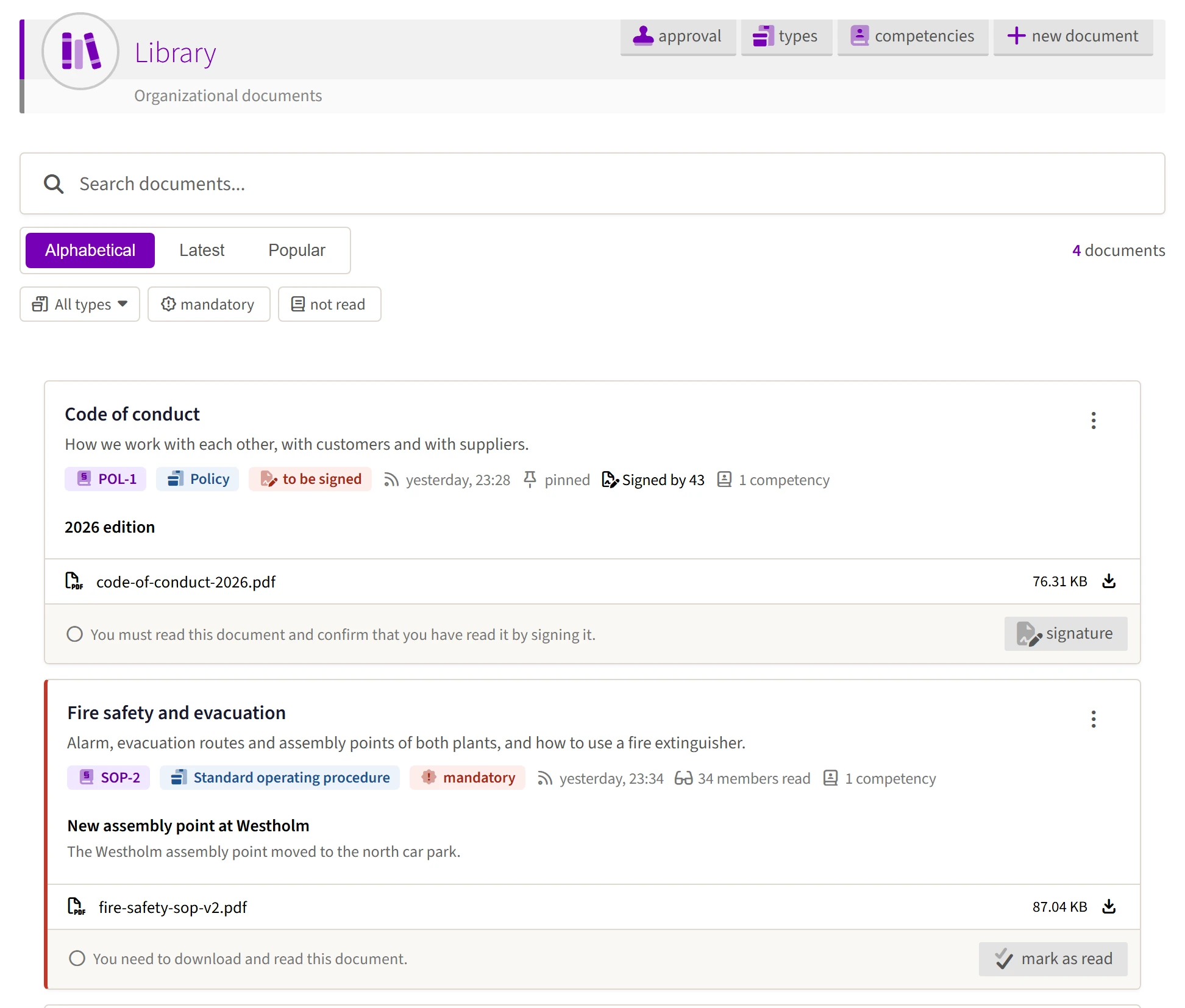
Organization → Manage → Library
Each document shows:
- its name, description and the current version's code (for example SOP-2), title and files;
- its type, and labels such as mandatory, to be signed and pinned;
- for managers, how many members read or signed the current version, and how many competencies it belongs to.
Search finds documents by name, description, type, version code and title, file name and tag. Sort them Alphabetical, Latest or Popular, and filter by type, mandatory or not read.
Add a document
- Choose new document, give it a Name and a Description.
- Choose a Type, or enter a Prefix for the version codes.
- Under Competencies, choose the competencies it belongs to. This decides who sees it.
- Expand the form for Mandatory (required reading), Pin (show it above the others) and Signed statements (signed attestation). Add.
- Open the document's menu (⋮) and choose Add new version to upload its files.
Every later change of content is a new version: see Versions, identifiers and document types. The document's menu also holds Edit version, Manage (the settings above), Signed statements, Archive and Remove.
What members see
Members see the documents that belong to at least one of their competencies, plus every document without competencies. Each document tells them what to do: download and read, mark as read, or sign.
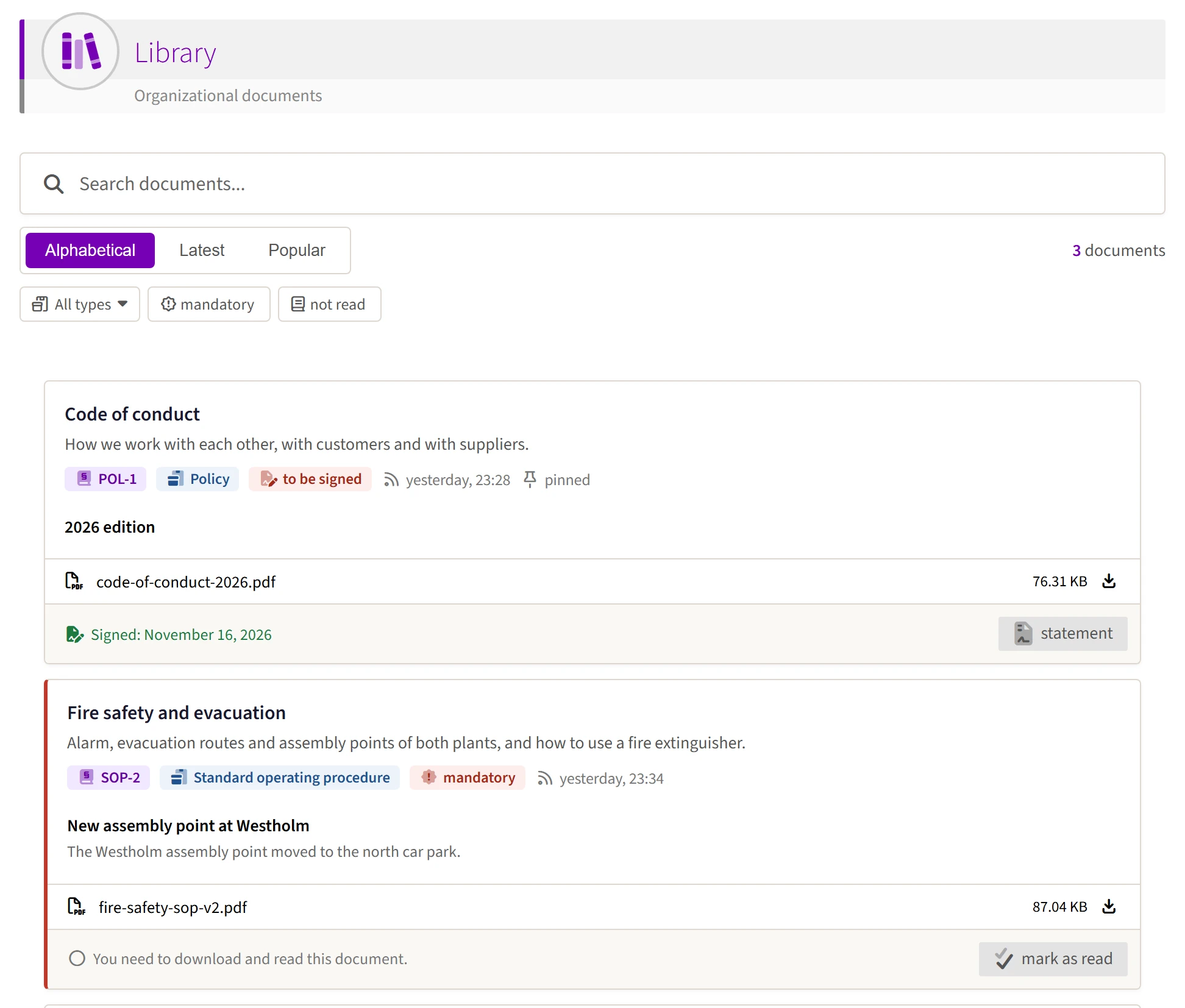
The library, as a member
Here the forklift procedure is missing, because it belongs only to the forklift operators' competency.
Limits
- The largest file a document version can hold is set for your organization, up to 100 MB per file; the upload window shows the limit (20 MB on the demo account).
Related
- Set up required reading
- Require a signed attestation
- Versions, identifiers and document types
- Tag, pin and link documents
- Competency management