Create a question
The question editor creates one question at a time. To add many at once, import them from Excel or an EDU file; to reuse questions you already have, add them to a Quiz set From my Quiz questions.
Open the editor
- For a Quiz set: on the Quiz set's page, open Tasks, choose add questions, then Add new question. The saved question goes into the set and into your Quiz questions.
- On its own: open My Quiz questions and choose new question. You can add the question to Quiz sets later.
Choose the type and write the question
- Under Type, choose the Question type. The editor describes the type you chose and shows only the fields it needs. See Question types at a glance for what each type checks.
- Under Question, write the question text. The toolbar formats text and adds tables; for formulas, see Images, audio, video, LaTeX and graphs.
- Fill in the answer fields of the type. For a Choice question:
- Correct answers: the right answer.
- Additional options: the wrong options. Choose + to add more; EduBase shuffles them with the answer.
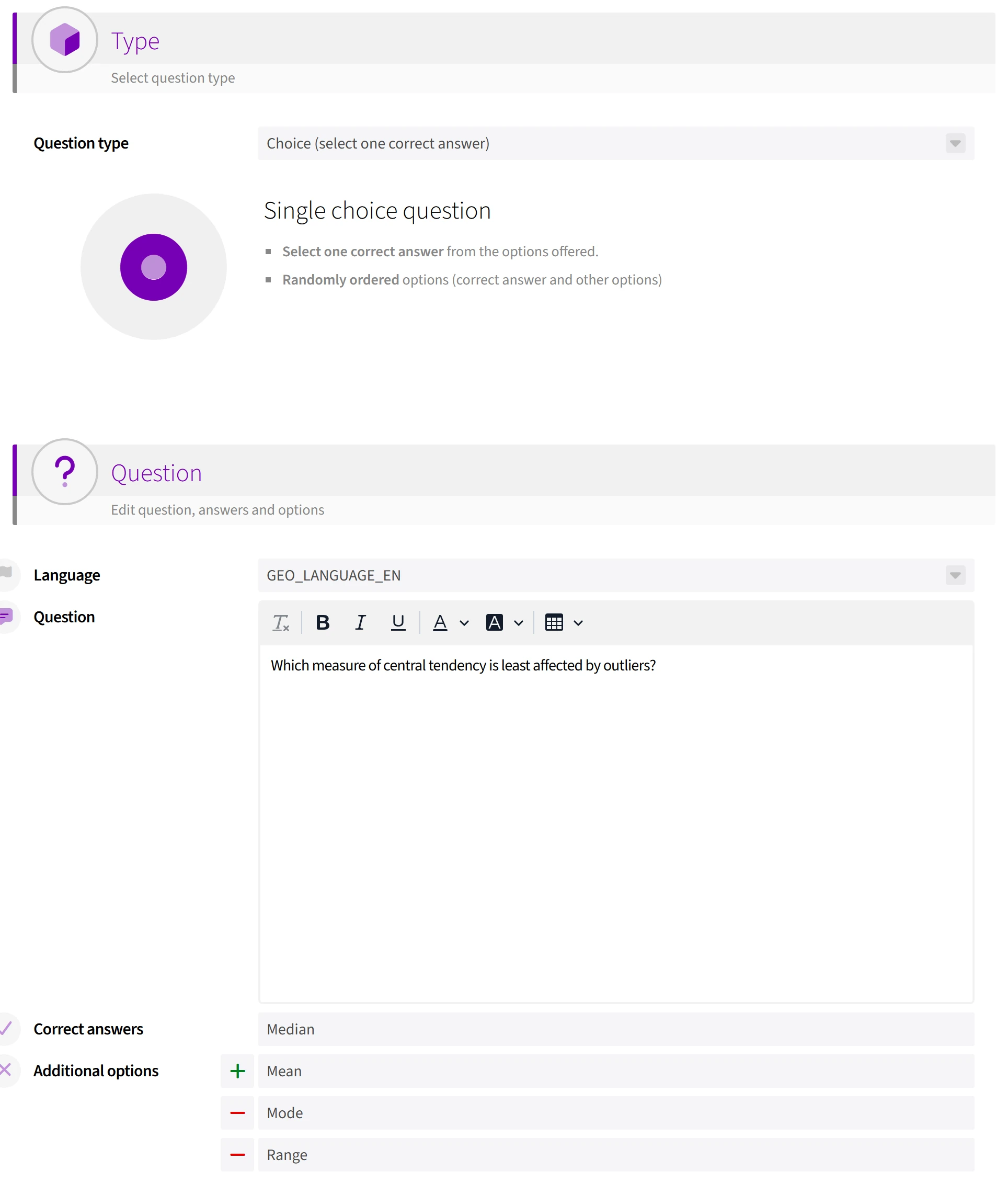
Tasks → add questions → Add new question
The menu lists the types by short names, such as Choice, Numerical and Free-text, each with a hint in brackets. File upload and Hotspot appear only for accounts that have them.
Categorize it
Categorization keeps a large question bank searchable: School subject, a Category (up to three levels, separated by /), Tags, Difficulty, the Source of a question you have the right to use, and an External ID from another system. See Tags, categories, difficulty and sharing.
More settings
Choose more options to open the rest of the editor. Each section opens with expand:
- Answering and Scoring: points, partial credit, penalty points, manual and rubric scoring, skills, and answer rules such as order and labels. See Tolerance, partial credit, penalties, rubrics and skills.
- Hints: hints and solution steps. See Hints, solutions and their penalties.
- Add or manage images, media and attachments: pictures, video and audio, and files to download.
- Parameters: values that change for every participant. See Give every participant different numbers.
- Other settings: further options for the question.
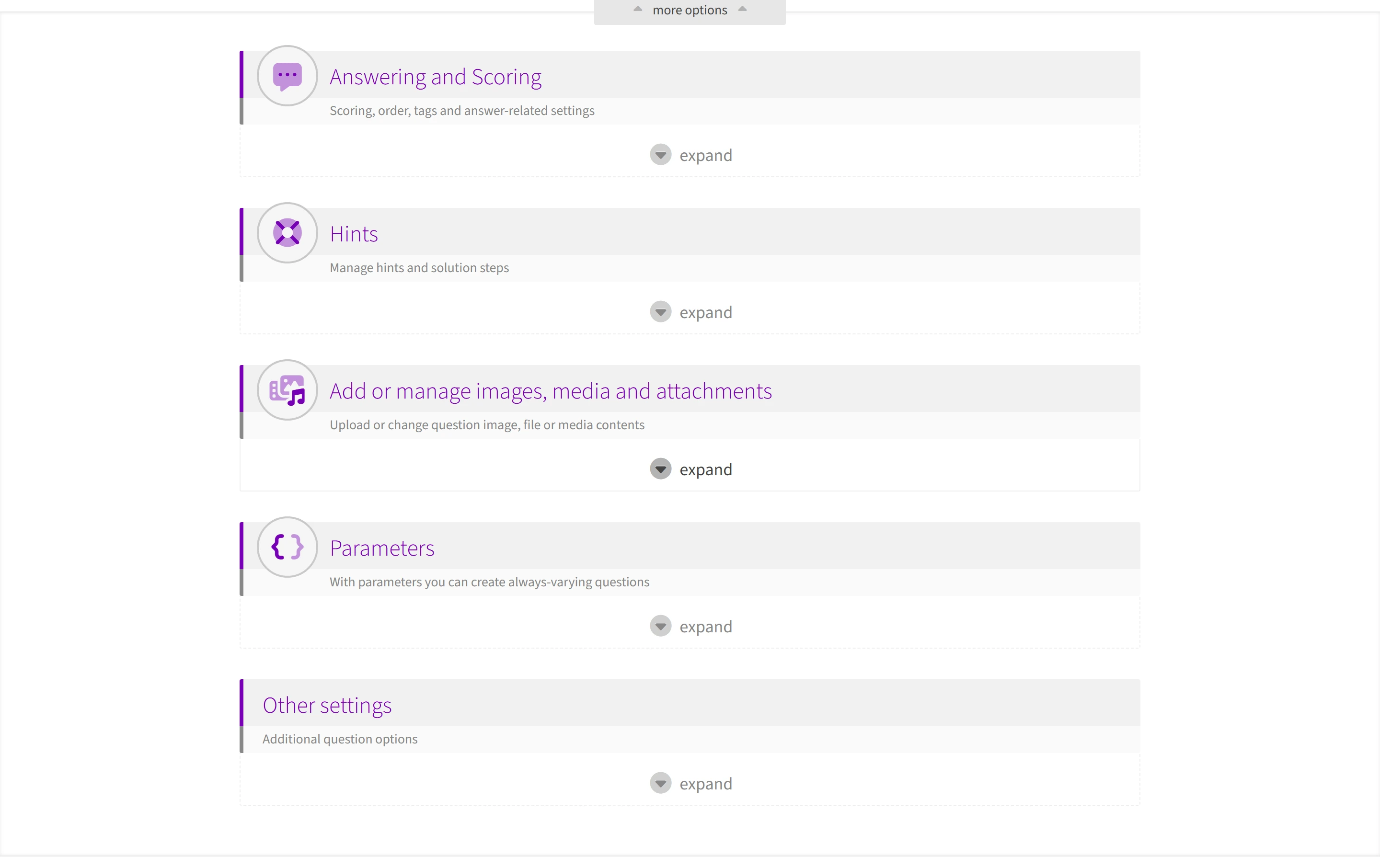
Question editor → more options
Save and try it
Choose Save. If something is missing or a parameter cannot be evaluated, the editor lists the Problems at the top; fix them and save again.
Once saved, try shows the question the way participants see it, so you can answer it yourself.