Create your first quiz and exam
In about 15 minutes you will build a small test in EduBase and run it as an exam: a Quiz set holds the questions, and an exam gives that Quiz set a date, participants and results. The screenshots show the demo statistics exam; your screens look the same with your own content.
What you need
- An EduBase account that can create Quiz sets and exams.
- Three or four questions you want to ask.
1. Create a Quiz set
- Open My Quiz sets from your dashboard and choose new set.
- Choose the Language, give the set a Name, and under Type choose Exam, Survey, Homework or Championship.
- Keep Create blank Quiz set and save.
EduBase opens the new Quiz set's management page. Tasks holds the questions; Basic data and settings holds the mode, time limit and grading; Exams and Homeworks lists the exams that use the set.
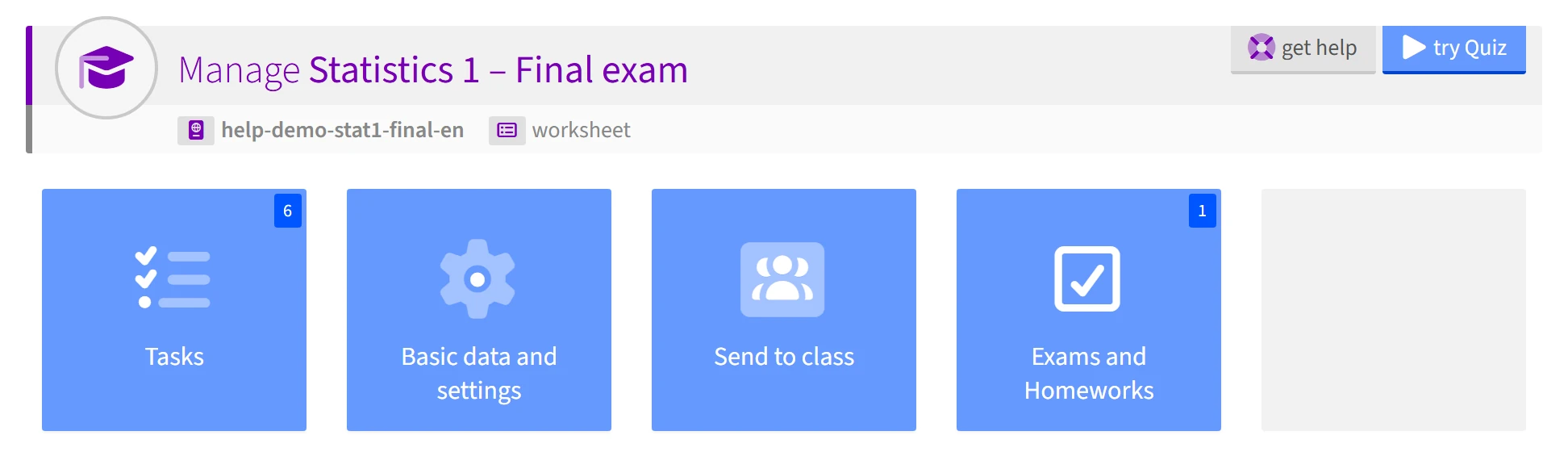
My Quiz sets → the Quiz set
2. Add questions
- Open Tasks and choose add questions.
- Choose how to add them:
- Add new question opens the question editor. Pick the type, write the question, enter the correct answer and, for choice questions, the wrong options. Save.
- Upload as file takes many questions at once from Excel or an EDU file. See Import questions in bulk.
- From my Quiz questions reuses questions you already have.
- Add three or four questions.
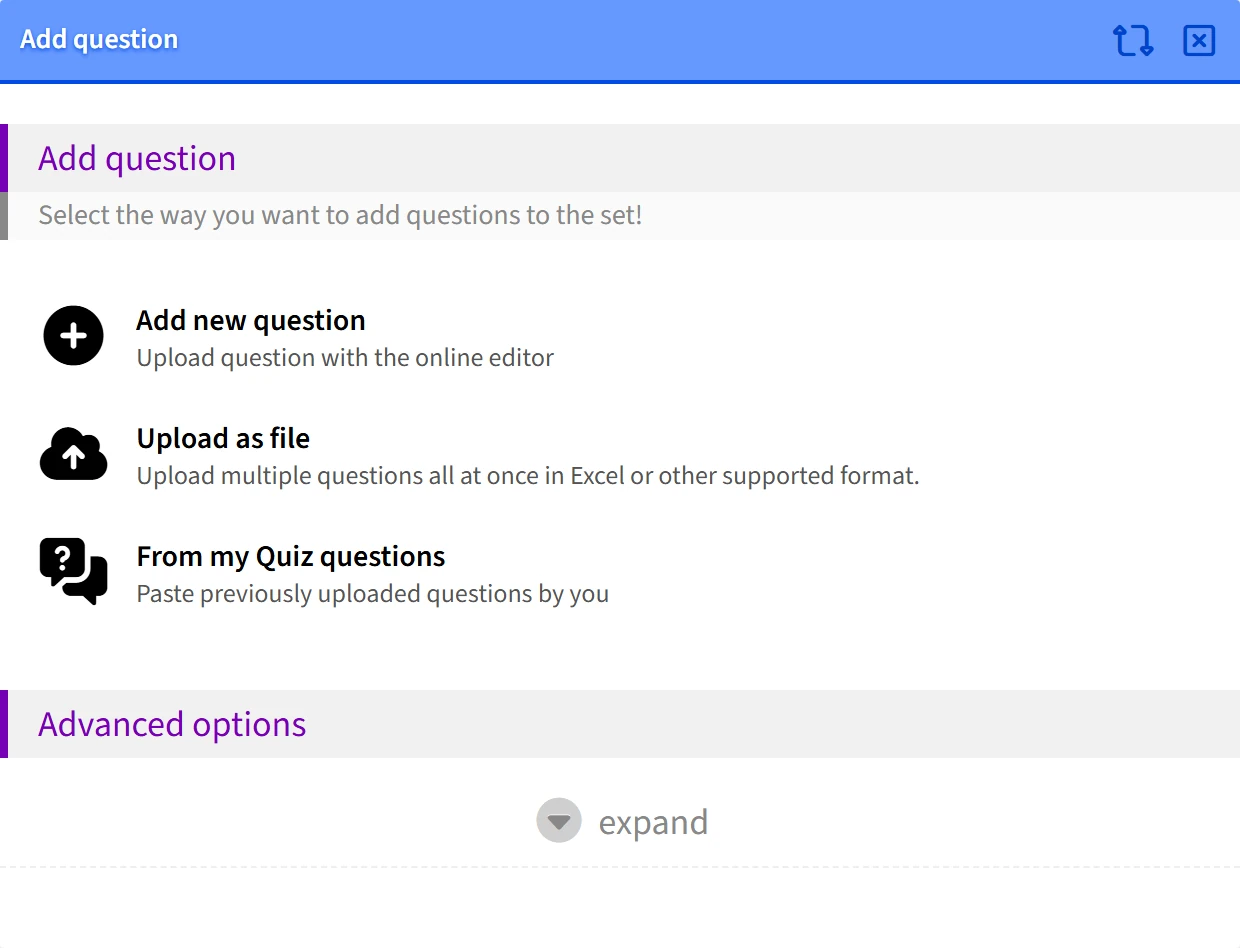
Tasks → add questions
Before you go on, choose try Quiz on the Quiz set's page and take the test yourself.
3. Create the exam
- On the Quiz set's page, open Exams and Homeworks and choose add exam/homework. (From My Exams, new exam/homework does the same and lets you pick the Quiz set.)
- Give it a Name, leave the Type on Exam, and set the Start and End of the exam. Participants can sign in half an hour before the start and until half an hour after the end.
- Add.
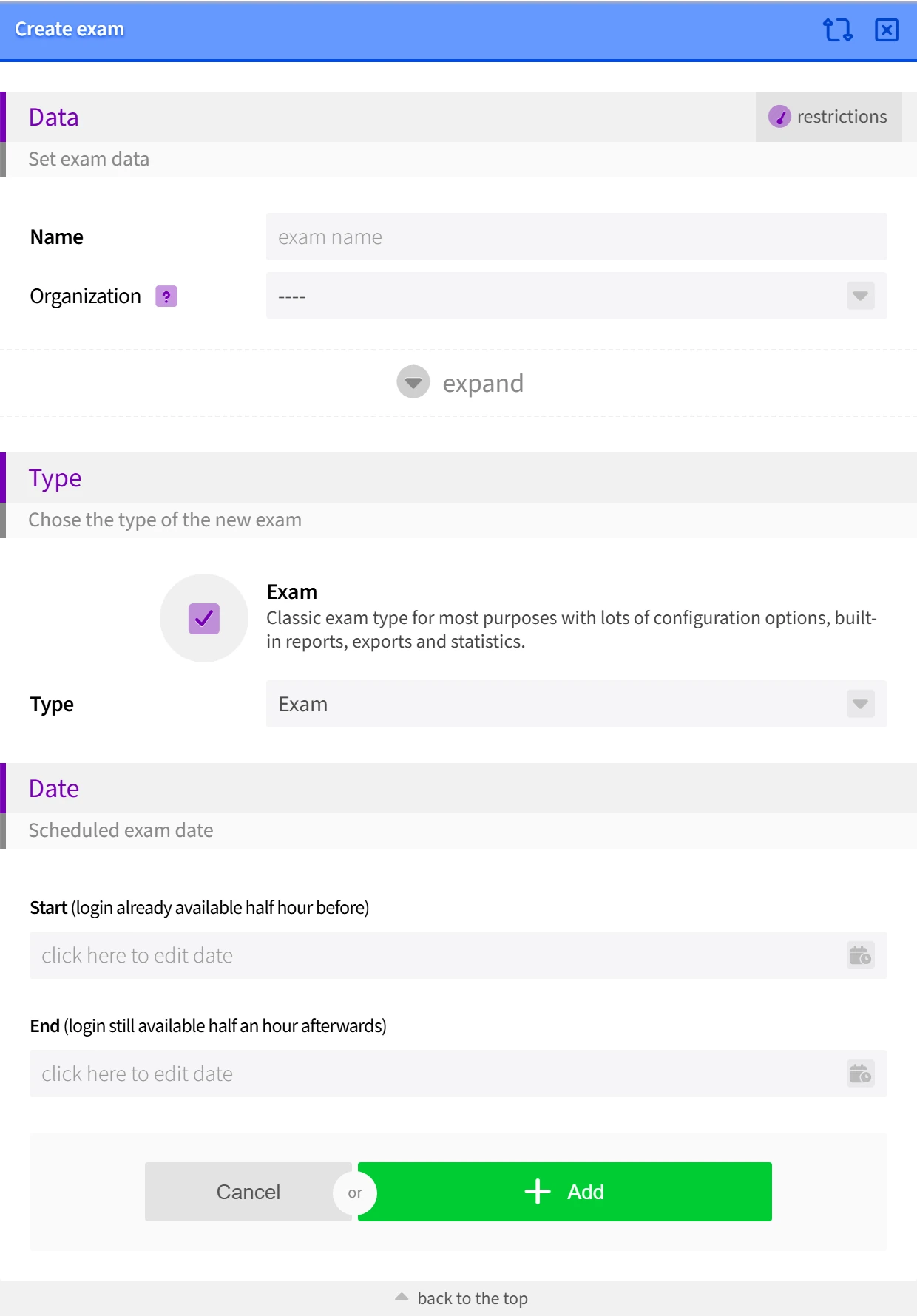
Exams and Homeworks → add exam/homework
4. Add participants
On the exam's page, open Users and results and add participants:
- From classes, if your participants are members of an EduBase class;
- Add accounts, for people who already have EduBase accounts;
- Generate accounts, for an exam without registration: EduBase creates accounts and gives you a link, QR code or PIN. See QR code, link and PIN access.
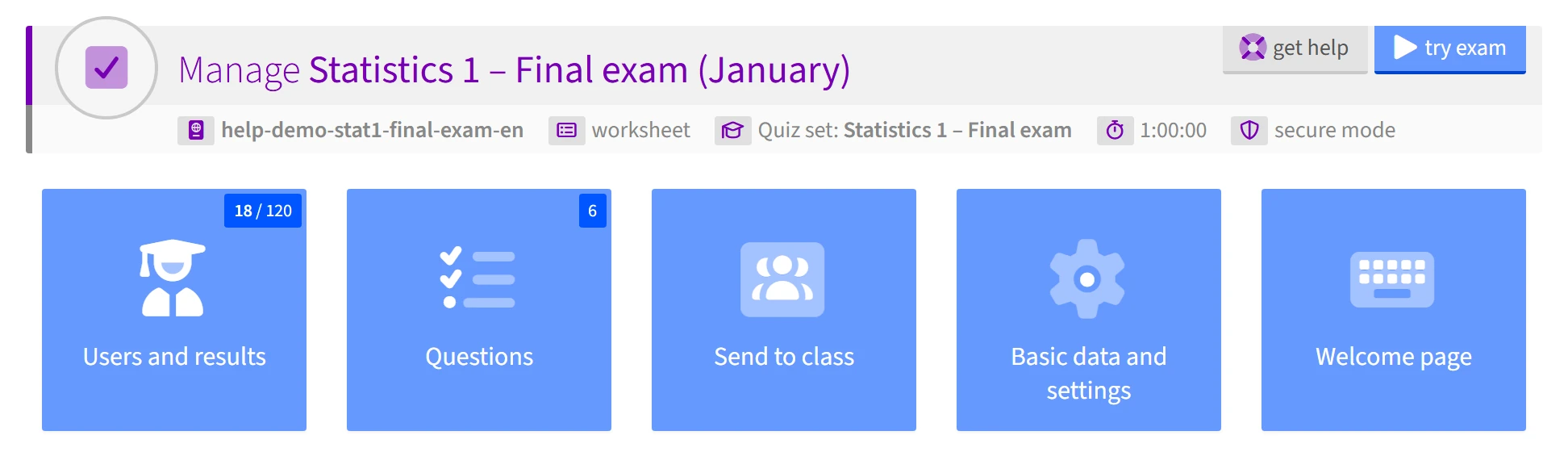
My Exams → the exam
What you built
You have a Quiz set with your questions and an exam that runs it for your participants between two dates. While the exam runs, Users and results shows who has started, who has finished and their results; afterwards you can publish results, export reports and issue certificates.