Take your first exam
This page walks you through your first exam in EduBase: where to find it, how to start, how to answer and finish, and where your result appears. The screenshots show a short hygiene quiz at the demo food manufacturer; your exam looks the same with its own questions.
If you received a link, a QR code or a PIN instead of an account, start with Join an exam with a link, QR code or PIN; from the start page on, everything below is the same.
1. Find the exam
Sign in. Your dashboard opens with To-Do: when an exam is waiting for you, it is at the top as Your next exam, with its deadline. Choose start.
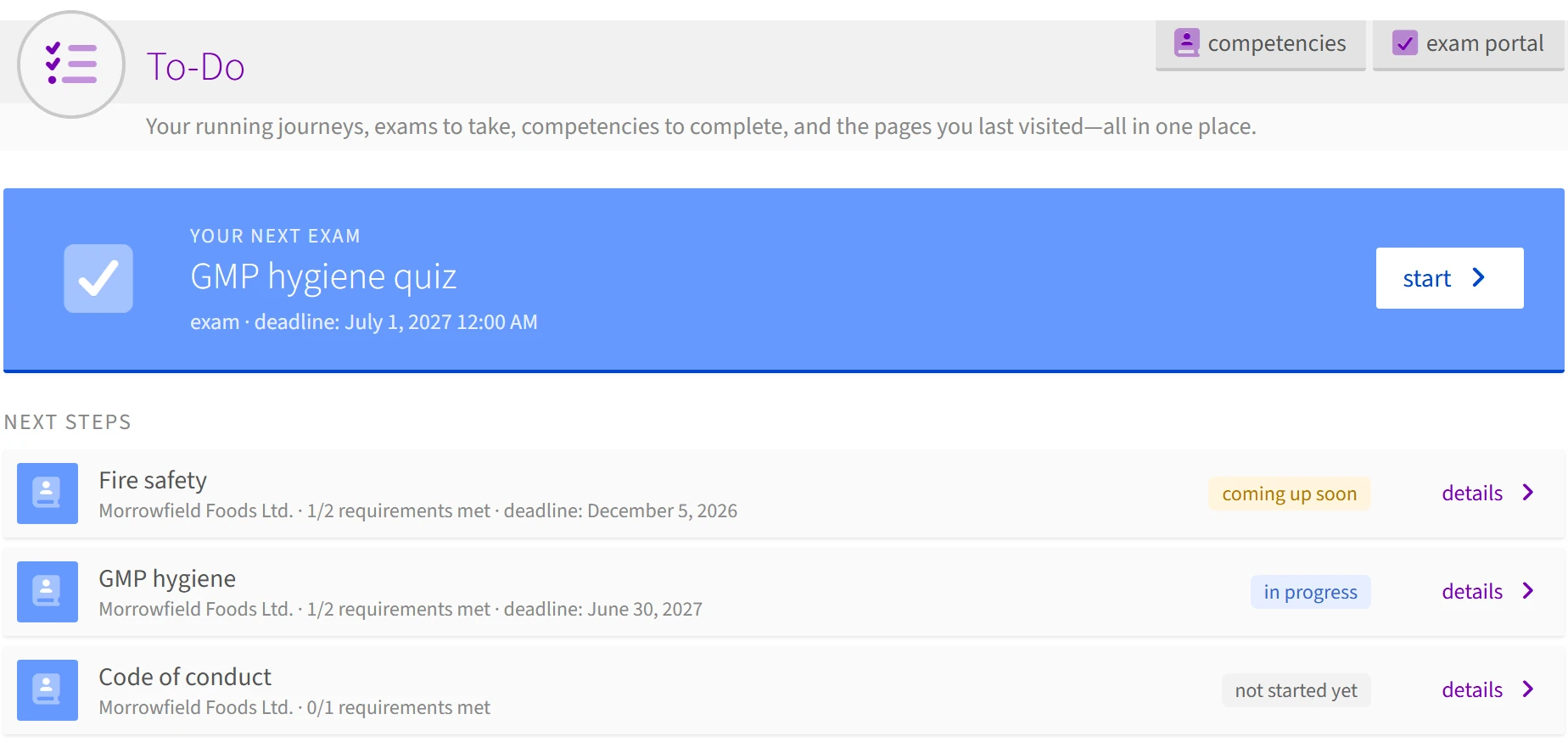
Dashboard → To-Do
exam portal in the same block lists every exam you can take.
2. Start the test
The start page shows the exam and your name. Check that the name is yours; if it is not, choose here to sign out and sign in with your own account.
Most exams can be taken once per account, as the start page says. Start when you are ready: choose Begin test.
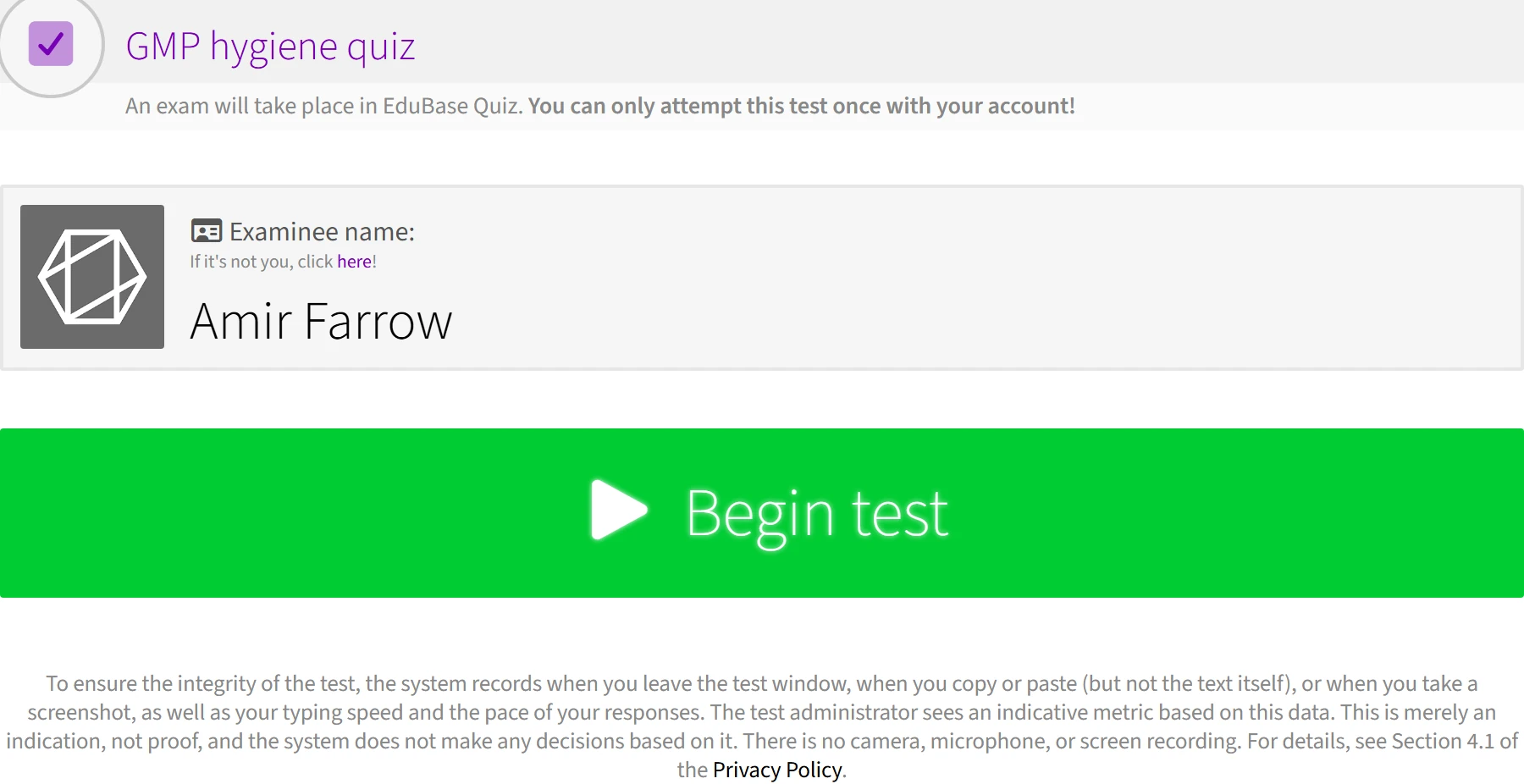
To-Do → start
The text under the button says what EduBase records while you take the test, such as leaving the test window. There is no camera, microphone or screen recording. See What EduBase records while you take an exam.
3. Answer the questions
The test shows one question at a time. Answer it, then choose Next question. The counter at the top (1 / 5) and the arrows next to it take you back and forth; the bar on the left shows where you are. Mark for review flags a question you want to come back to, and How to answer explains the current question type. If the exam has a time limit, the clock at the bottom right counts it.
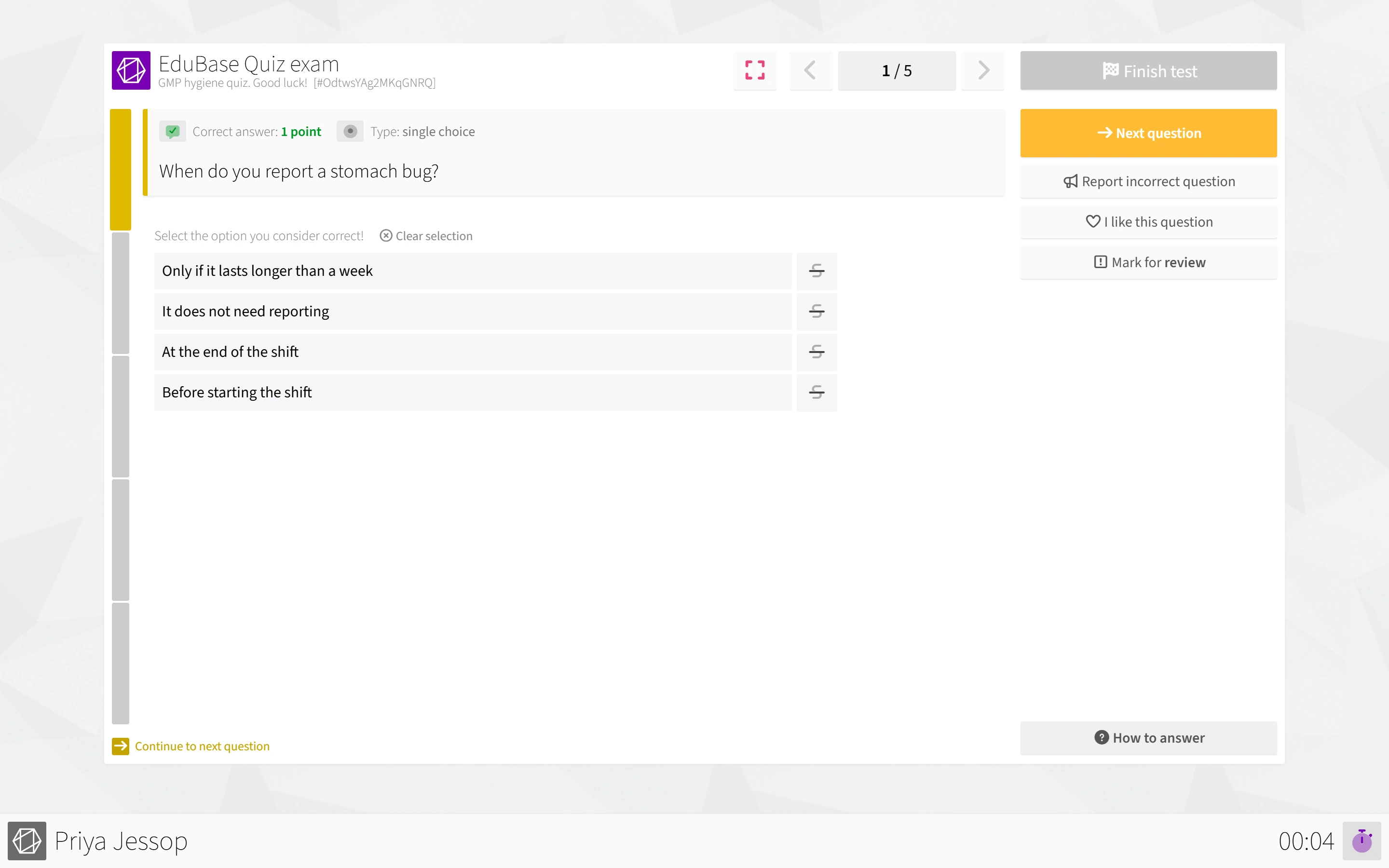
Begin test
More on question types and navigation: Answer, navigate and submit.
4. Finish the test
When you have answered everything, choose Finish test and confirm. After that you can no longer change your answers.
5. See your result
Your result appears once the exam's organizer makes it visible, which can be right after the test or later. Open the exam again from your dashboard and choose View my result. The summary shows your time, how many questions you answered and your points; below it, depending on the exam, your answers and the solutions.
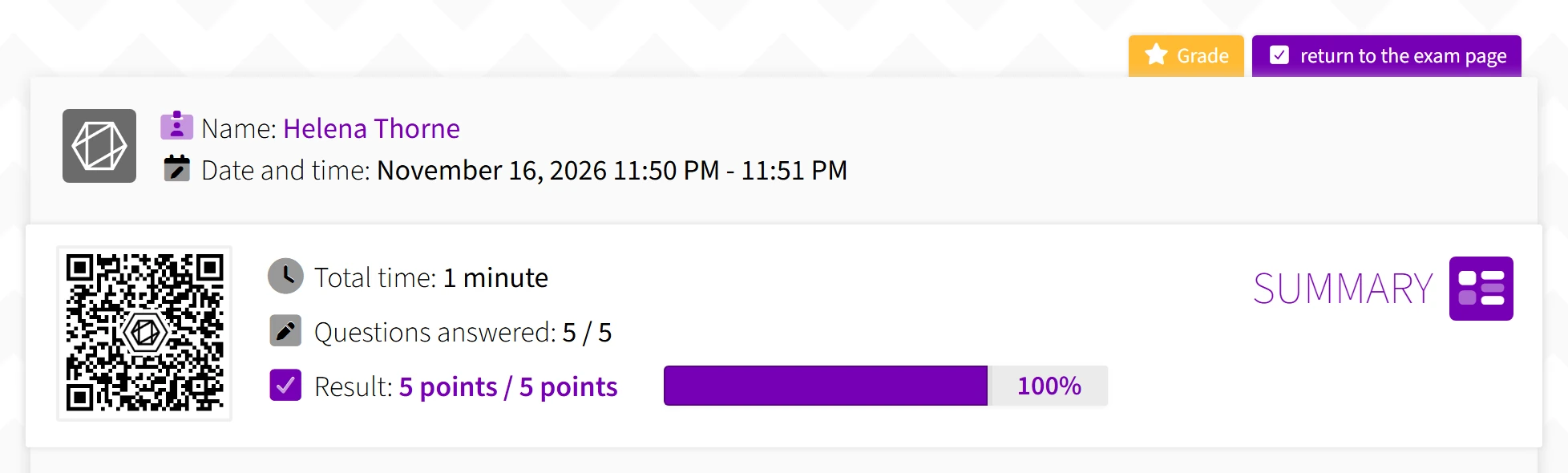
Exam → View my result
If the exam is part of a competency or issues a certificate, those update too. See See your results and Your certificates.