Follow an exam live
While an EduBase exam is open, its Users and results page shows who is waiting, who is taking the test and who has finished, and updates itself. From the same page you help participants who cannot sign in, give extra time, and close or reopen a test. Open it from the exam's management page.
Read the status bar
Above the list, a bar shows the share of participants in each state. Point at a segment to see its name and count:
| Segment | Meaning |
|---|---|
| Waiting | Has not started yet. |
| In progress | Taking the test now. |
| Paused | Paused a test that can be paused. |
| Completed | Finished, and the result is final. |
| Intervention needed | Finished, but something is waiting for you: answers to score by hand, a result to publish, or a review request. |
| Waiting for review | Asked for a review of the scoring. |
| Failed | Finished without passing. |
| Closed | The test was closed before it was submitted, for example when the time ran out. |
| Account blocked or disabled | Cannot sign in. |
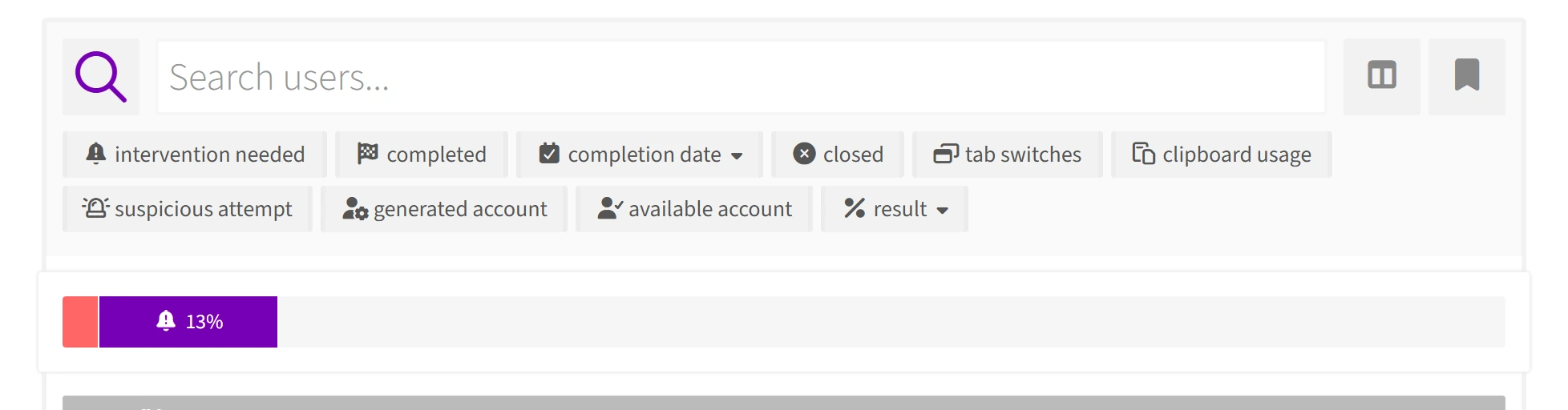
The exam → Users and results: filters and status bar
Narrow the list
Type a name into Search users..., or use the filters under it, such as intervention needed, completed, closed, tab switches, clipboard usage, suspicious attempt or available account. Which filters appear depends on the exam and on what has happened so far.
Each row shows the participant's state and tags, such as the total time, the completion time, clipboard usage or extra time. A high Suspicion Score tags the attempt as suspicious; see Review a flagged attempt.
How the list updates
While the exam is open, the list refreshes itself: every 30 seconds with up to 400 participants, every 60 seconds up to 800, and every 90 seconds up to 999. With 1,000 participants or more, use refresh above the list. When the browser tab is in the background, refreshing pauses, and the list updates as soon as you come back.
Step in
From a participant's menu (...):
- Set extra time while they wait or take the test, if the exam has a time limit. See Give extra time or reopen an attempt.
- Close a test in progress. The test stops for the participant and is not evaluated.
- Reopen a finished or closed test, so the participant continues with their answers.
- Enable login or Disable login, for example after repeated logins were blocked.
- Open results of a finished test, in a new tab.
Select several participants to Send alerts, Enable login, Disable or Print cards for them together.
Help participants who cannot get in
Login guide, the first-aid button above the list, collects what participants need to get in: the exam's link, QR code and PIN, the Safe Exam Browser configuration file when the exam requires it, and a checklist for sign-in and start problems, with this exam's login and test periods filled in.
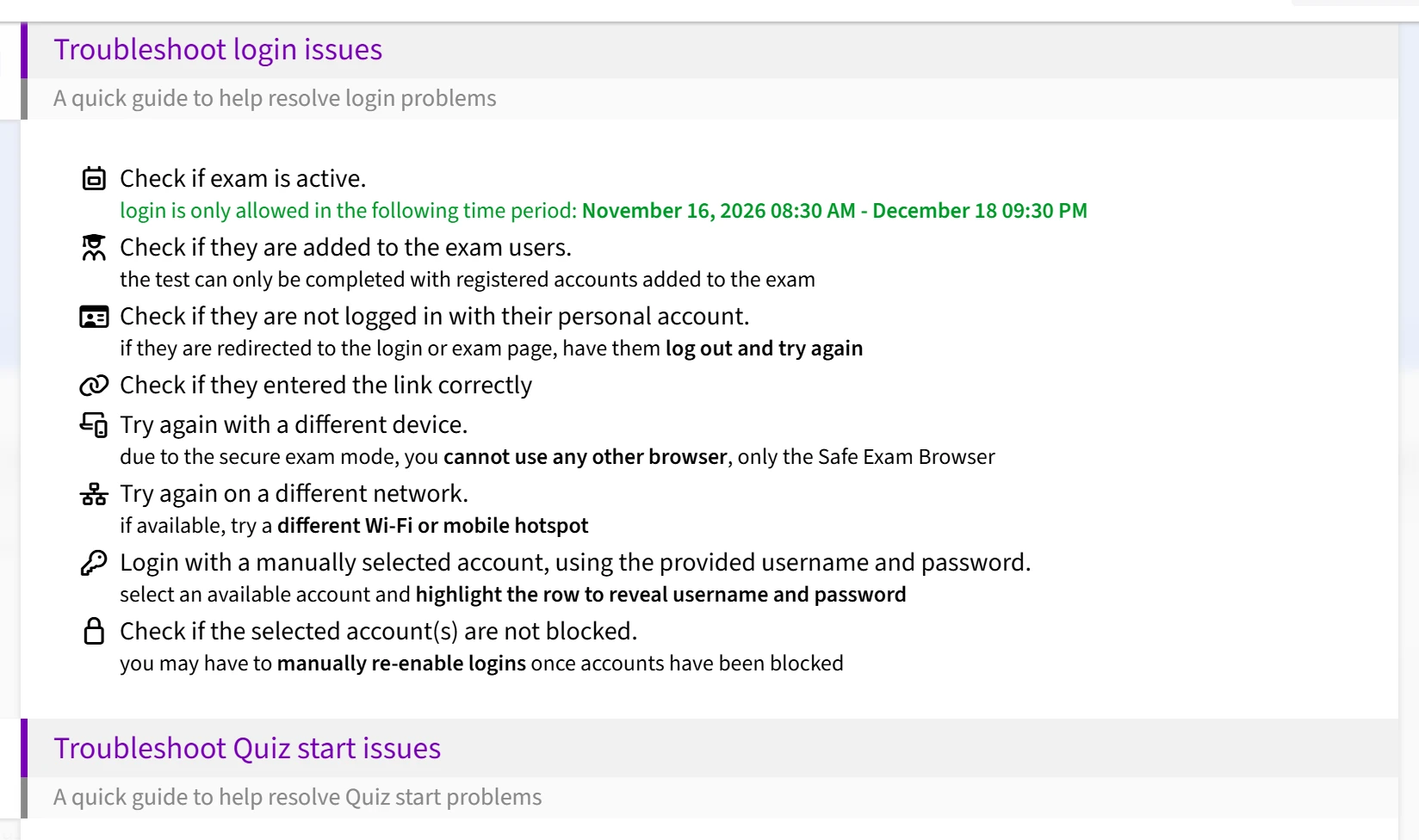
Users and results → Login guide
Limits
- Automatic refresh stops at 1,000 participants; above that, refresh by hand.
- EduBase does not show a participant's screen or camera. What it records during a test is described in What EduBase records during an exam.
- live presentation, a projected view with a QR code to join, exists only for quiz games in the Mini mode, not for exams.