Connect Claude, ChatGPT or another assistant
EduBase works with any AI assistant that can use remote MCP servers with OAuth sign-in, such as Claude, ChatGPT and Claude Code. You add EduBase's MCP address to the assistant, sign in to EduBase, and approve the connection. There are no keys to copy. This page covers the steps, what you approve, how to check the connection, and how to remove it.
Before you start
- Your EduBase address. On the shared cloud the MCP address is
https://www.edubase.net/mcp. A dedicated instance uses its own domain, for examplehttps://yourcompany.edubase.net/mcp. - An assistant that lets you add your own MCP connectors. In a company workspace of the assistant, an administrator may have to add or allow it.
- The integration feature in EduBase. If EduBase says OAuth integration is not available for you. when you approve, ask your EduBase administrator or EduBase support to switch it on for your account.
Add EduBase to your assistant
- In your assistant's settings, find where custom connectors (MCP servers) are added.
- Add a connector with the address
https://www.edubase.net/mcp(or your dedicated instance's address). Give it a name such as EduBase. Leave authentication on OAuth; there is no client ID or secret to fill in. - Choose Connect. The assistant opens EduBase in your browser.
- Sign in to EduBase if you aren't already, and approve the connection (see below).
Add the server once, then sign in from a session:
claude mcp add --transport http edubase https://www.edubase.net/mcp
In a Claude Code session, run /mcp, choose edubase and authenticate. Claude Code opens EduBase in your browser for the approval.
A desktop client such as Claude Desktop can also run the EduBase MCP server on your computer, signed in with the keys of an EduBase API integration instead of OAuth. Use this when your client cannot use remote connectors, or when you need to restrict the server's tools yourself. See Run the MCP server yourself.
What you approve
EduBase shows a consent screen with the assistant's name, the EduBase account it will act as, and what it can do.
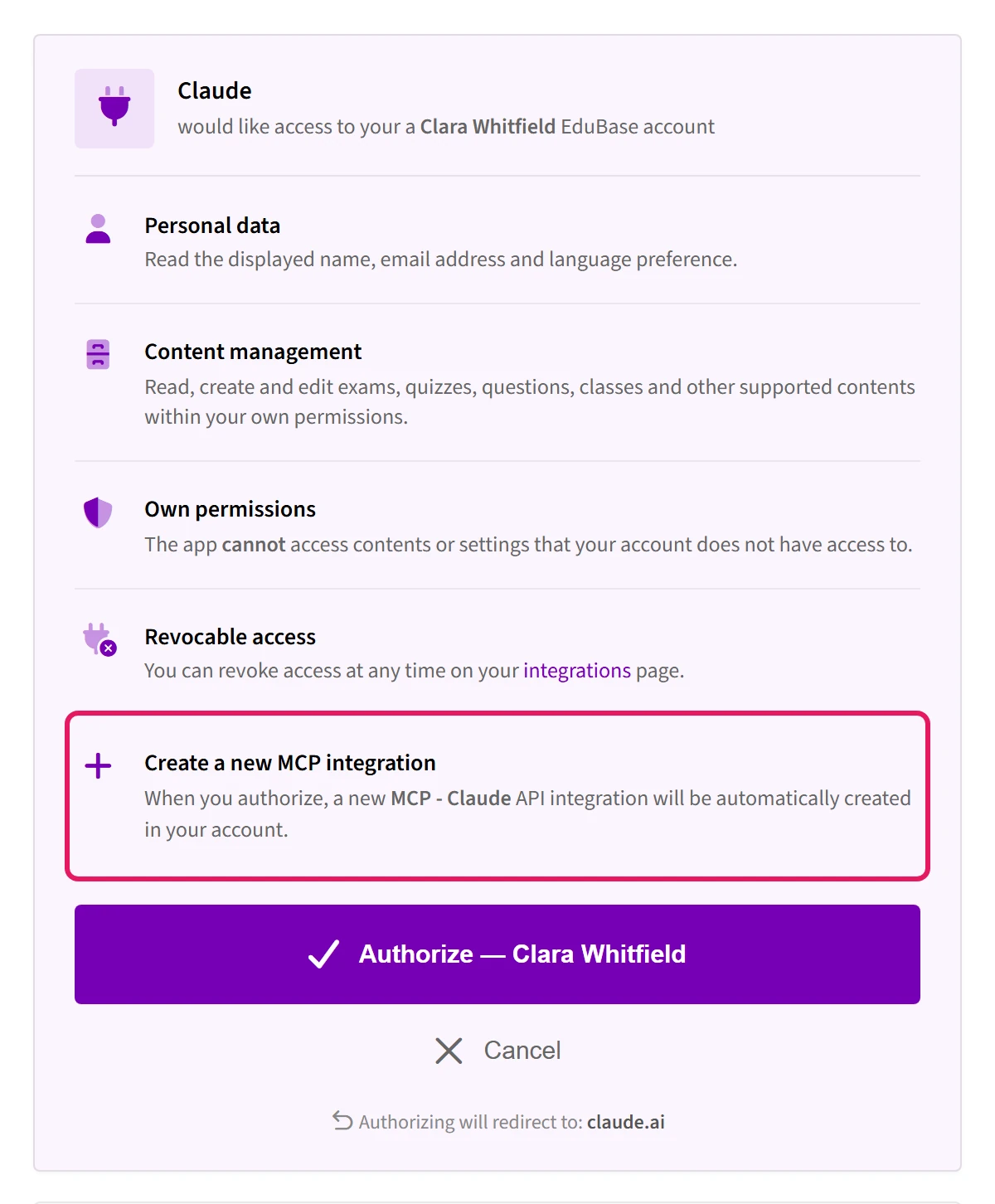
The consent screen
- Personal data: your displayed name, email address and language preference.
- Content management: reading, creating and editing exams, Quiz sets, questions, classes and other contents, within your own permissions.
- Own permissions: the assistant cannot reach anything your account can't.
- Revocable access: you can withdraw it at any time on your Integrations page.
- Create a new MCP integration: approving creates an integration called MCP - followed by the assistant's name, for example MCP - Claude.
The bottom line shows where you will be sent back to (for Claude, claude.ai). If it is not the assistant you started from, choose Cancel. Approve with Authorize, which carries your name.
Check the connection
Ask the assistant "Which EduBase account are you connected to?". It looks up the account it acts as (the edubase_get_user_me tool) and answers with its name, whether it is active, and whether it is a generated exam account.
If it answers with someone else's name, you approved the connection while signed in to another EduBase account. Revoke it (below) and connect again. Then try the worked examples.
Limit what the assistant can do
The address can carry options, so one connector can be read-only or limited to some areas:
| Address | Effect |
|---|---|
https://www.edubase.net/mcp?read_only=true |
Only tools that read data. |
https://www.edubase.net/mcp?toolsets=exams,results |
Only the tools for exams and results. |
https://www.edubase.net/mcp?toolsets=organizations&read_only=true |
Read-only access to organizations, for compliance reporting. |
The toolset names are listed in The EduBase MCP server. A connection can never do more than your account allows. See What an assistant can and cannot do in your account.
Revoke the connection
- In EduBase, open Integrations.
- Open the MCP - integration of the assistant. Its window says Integration managed by OAuth and shows the last MCP usage.
- Choose revoke consent.
EduBase withdraws the consent and every access the assistant was given, immediately. Removing the connector in the assistant alone does not revoke it in EduBase.
If something goes wrong
| Message | What to do |
|---|---|
| OAuth integration is not available for you. | The feature is not switched on for your account. Ask your EduBase administrator or EduBase support. |
| The authorization request is invalid. Restart the process from the application you want to connect to. | The assistant's registration is unknown to EduBase, or it was already approved by another EduBase account. Start the connection again from the assistant. |
| You land on your account page instead of the consent screen | The request expired (after 10 minutes) or was opened from an old link. Start the connection again from the assistant. |
| The assistant can't find an exam or Quiz set you can see in EduBase | Check that it is connected to the same EduBase account (ask it), and that the connector is not limited to other toolsets. |