Issue certificates from an exam
An EduBase exam can issue a certificate to every participant who passes it: a signed PDF with a serial number and a QR code that opens a public verification page. You switch certificates on in the exam's settings, then design them in the exam's Certificates window. The examples on this page come from the demo company's Food safety basics exam, which issues certificates numbered MFL-FSB/2026/0001 onwards.
Before you start
The exam needs a grading that decides who passed, such as Passed/Failed (custom threshold). See Grades, thresholds and grading text.
Switch certificates on
- Open the exam's Basic data and settings.
- Under Scoring, grading, select Issue certificate for successfully completed tests.
- Optionally:
- Users cannot issue and download their certificate: only supervisors can download them, from Users and results.
- Send certificates automatically in email: participants with an email address receive the certificate when they pass. Shown where your EduBase sends emails.
- Save. A Certificates tile appears on the exam's management page.

The exam → Basic data and settings → Scoring, grading
Design the certificate
Choose the Certificates tile. The top of the window shows the certificate's layout, with its sections marked A to L:
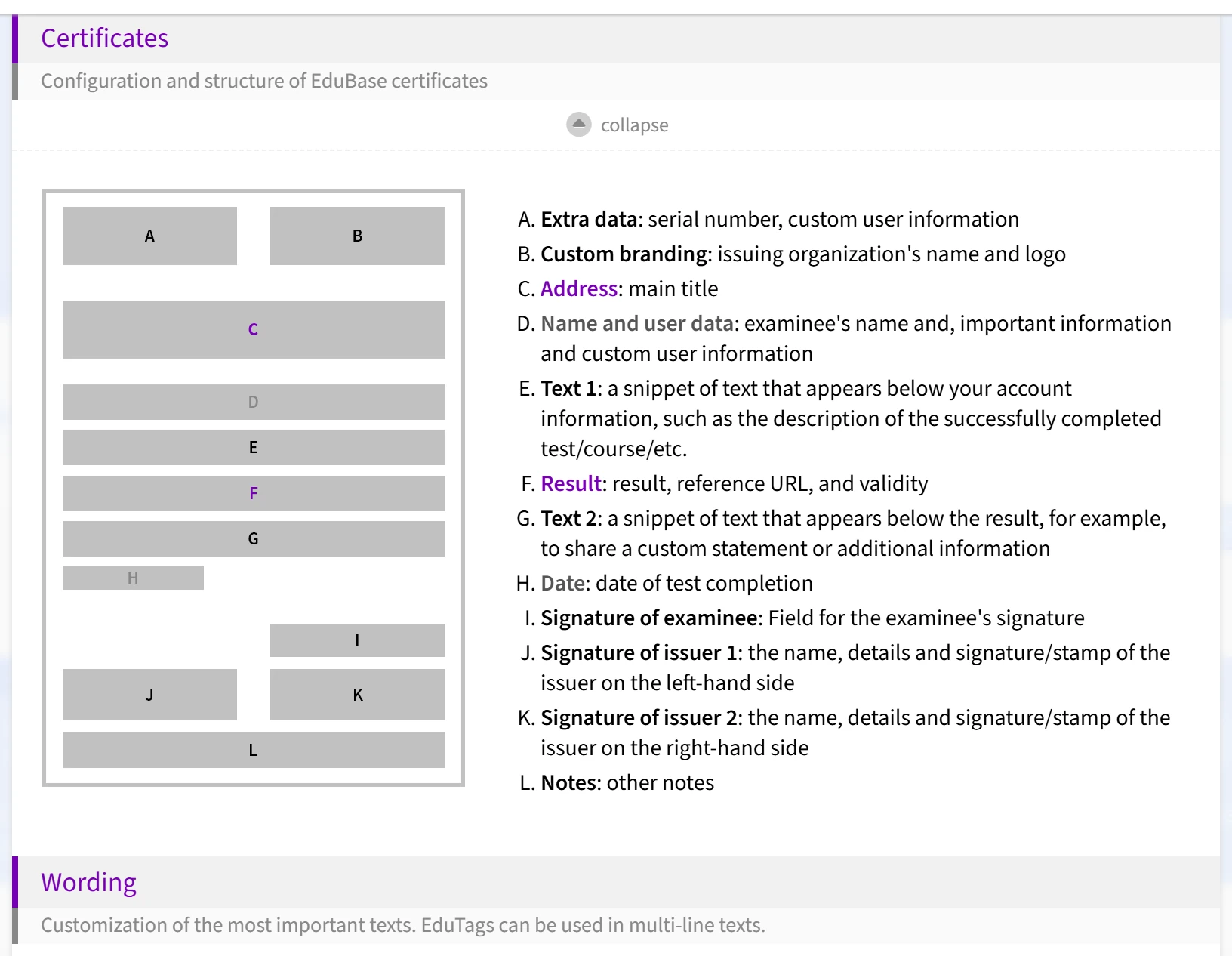
The exam → Certificates
Then fill in the sections below it:
- Configuration: Specify manually, Copying from another exam that already has certificates, or Use template to apply a certificate design preset of your organization. Design presets are available on the Business plan. The choice is shown once there is another exam or a preset to start from.
- Wording: the Language, the Title, Text 1, Text 2, the Date text and Notes. As the window notes, EduTags can be used in the multi-line texts.
- Settings: which parts appear, such as Date and place of birth, Serial number, Result, Validity, Signatures (with names and stamps) and Custom branding (logo and organization name). Automatic download downloads the certificate as soon as the participant opens their results page. Custom threshold sets a separate pass mark, in percent, for the certificate.
- Serial number: the Format, for example Prefix/year/index, the Prefix and the Index length.
- Result: whether the certificate shows the points, the percentage and the time.
- Exam and account data: show a value the participant entered before the test, or a value of their account, as extra data in section A or with their name in section D.
- Validity: how long a certificate is valid, from 1 day to 5 years, and whether and when it can be renewed. See Validity, expiry and renewal. Renewable certificates with a validity period are available on the Business plan.
- Signature: the examinee's signature field, and up to two issuers with name, four lines of details, and a signature or stamp image.
- Custom branding: the issuing organization's name and logo.
- Time zone: the exam's time zone, UTC, or one you choose, for the dates printed on the certificate.
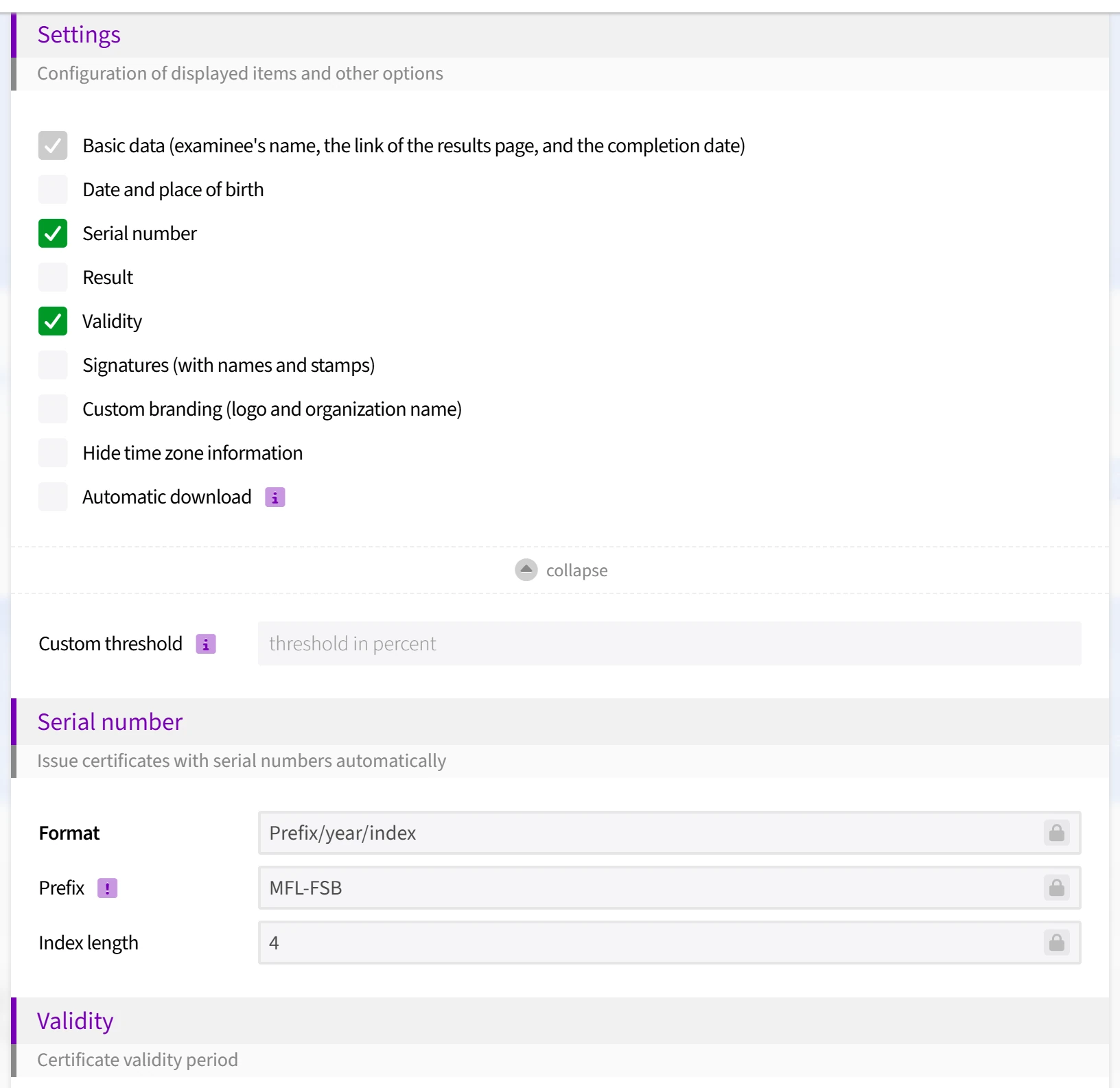
Certificates → Settings and Serial number
Choose Save. sample at the top of the window downloads a sample certificate with your settings.
When certificates are issued
A participant who passes can download their certificate from their results page and from their certificates page. EduBase issues it, with its serial number, the first time it is downloaded, by the participant, by a supervisor from Users and results, or when it is sent by email. Every issued certificate can be checked on its verification page.
Limits
- Serial numbers are unique only within the exam. Choose a prefix that makes them unique across your exams, such as an exam code.
- Once a certificate of the exam has a serial number, the serial number format and prefix can no longer be changed.
- all at the top of the window downloads every issued certificate of the exam, when there are between 1 and 100; with more, use the certificate reports.
- Signature, stamp and logo images can be JPEG, WebP or PNG; a PNG with a transparent background works best.