Require Safe Exam Browser
Safe Exam Browser is a free browser that locks the computer while a test runs: no other programs, websites or copying out. When an EduBase exam requires it, the exam opens only in Safe Exam Browser, with a configuration EduBase prepares for that exam. This page shows how to turn it on and what participants see.
Turn it on
- On the exam's page, open Basic data and settings.
- Under Additional settings, turn on Secure Exam Mode (using Safe Exam Browser).
- Optionally, under Safe Exam Browser settings:
- Quit password: without it, participants can quit Safe Exam Browser at any time. Share it with invigilators, not with participants.
- Allowed: outside websites the exam needs, for example a documentation site. Safe Exam Browser opens only EduBase pages otherwise. A domain is enough (
example.com); a path narrows it (example.com/exam/*). - BEK: one or more Browser Exam Keys, see below.
- Save.
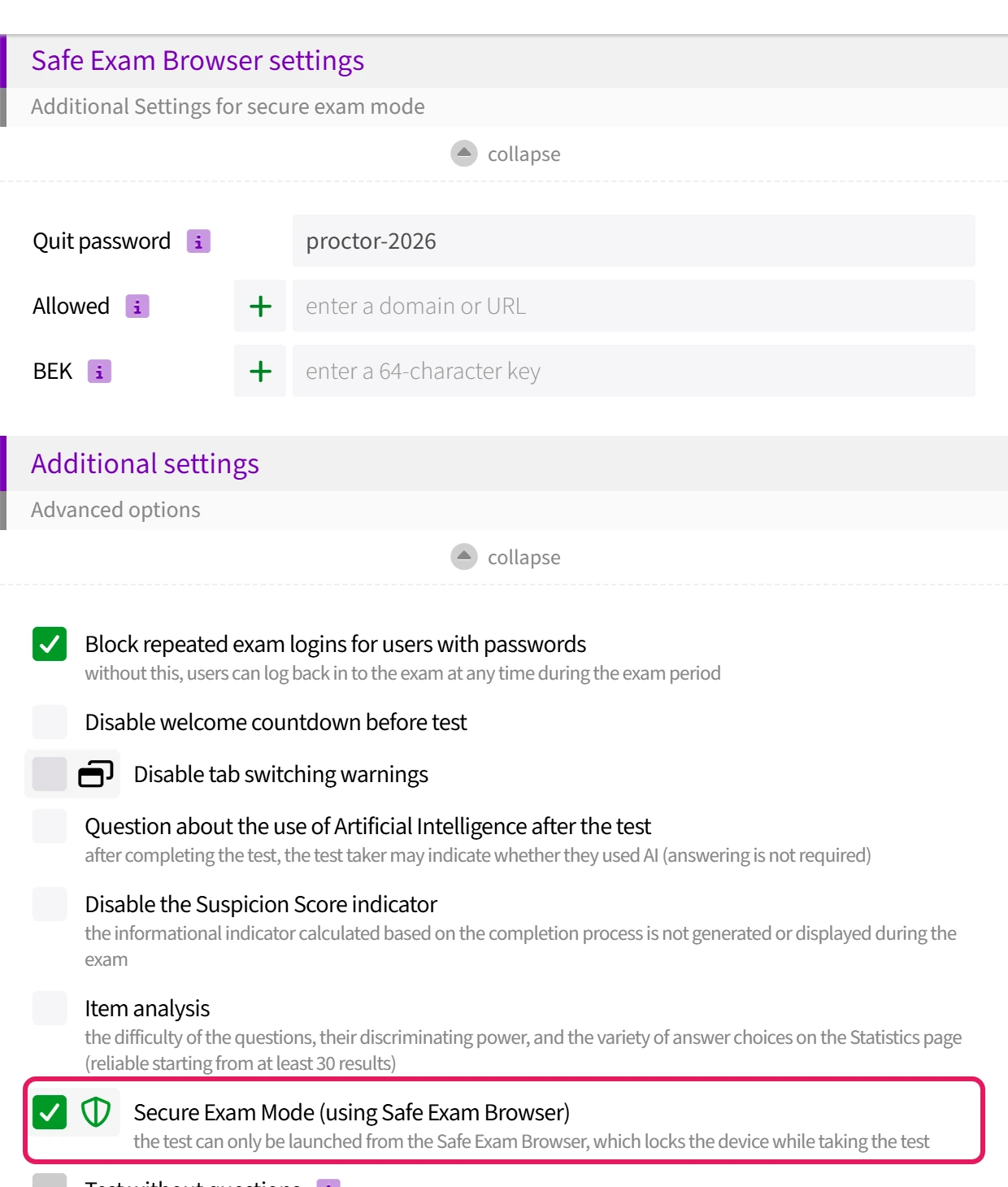
Exam → Basic data and settings → Additional settings
Check that it really is Safe Exam Browser
EduBase serves a configuration file for the exam and always checks that the participant's browser runs with it. That alone does not prove the browser is Safe Exam Browser. For that, add the Browser Exam Key (BEK): a 64-character key that Safe Exam Browser shows after opening the configuration file, in the Config Tool on Windows, or in the browser's settings on macOS when you start it holding the Alt key.
The key depends on the Safe Exam Browser version and the operating system, so add one key for every combination your participants use, and try each before the exam.
What participants see
The start page says the test can only be taken in Safe Exam Browser and offers Open in Safe Exam Browser. If the browser does not start, they can download the configuration file and open it themselves. Safe Exam Browser has to be installed beforehand.
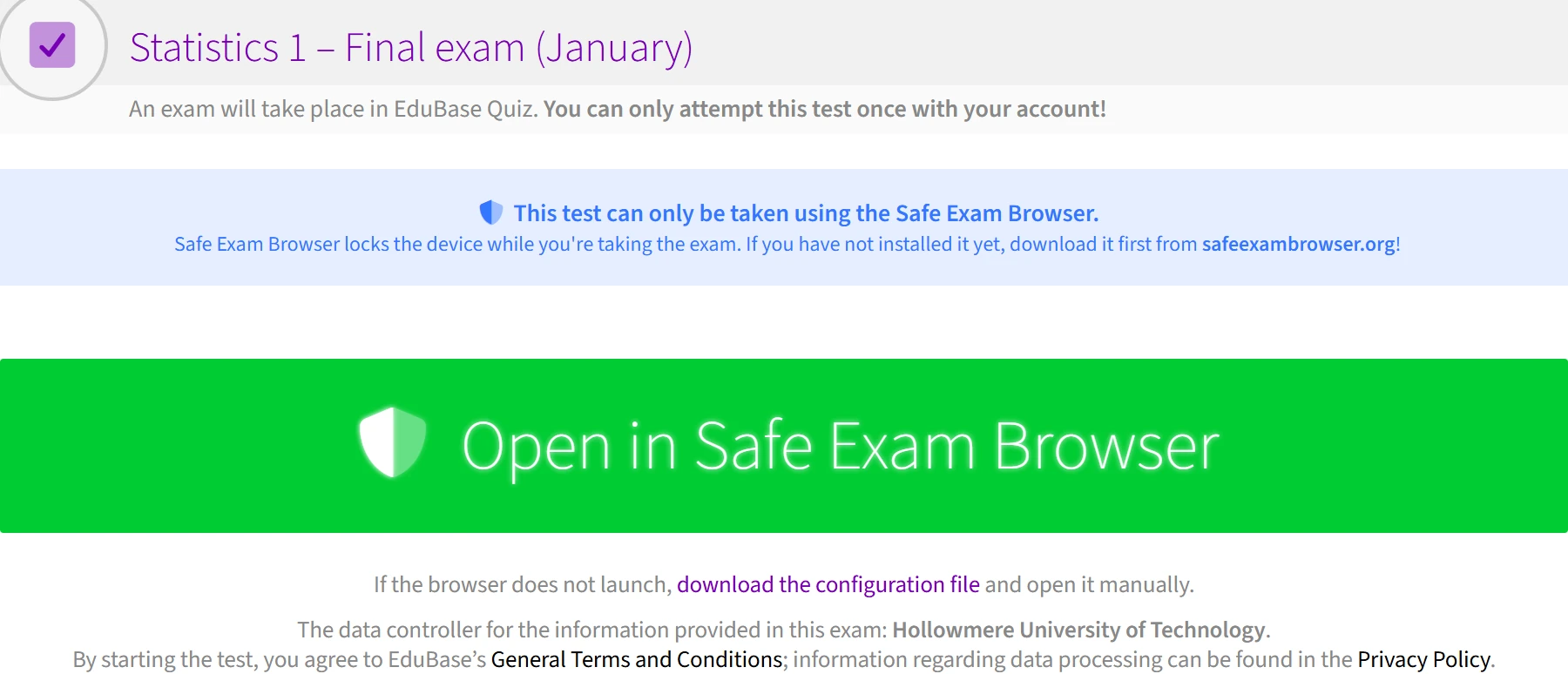
The participant's start page
With automatic login, the login link itself launches Safe Exam Browser, and the Automatic login window also offers the configuration file. Participants then sign in inside Safe Exam Browser.
For participants' instructions, see Take an exam in Safe Exam Browser.
Good to know
- Changing the settings ends running sessions. After a change, Safe Exam Browser sessions already running are invalid and participants have to restart the browser. Browser Exam Keys also have to be read and entered again.
- Practice before the exam. Let participants open a short test exam with the same settings, so installation problems surface before the real one.
- Without Safe Exam Browser, EduBase still records when participants leave the test window and shows it in the Suspicion Score.
- API: the API reports whether an exam requires Safe Exam Browser, with its launch and configuration addresses; the settings themselves are set in the exam's window.