Read the compliance overview
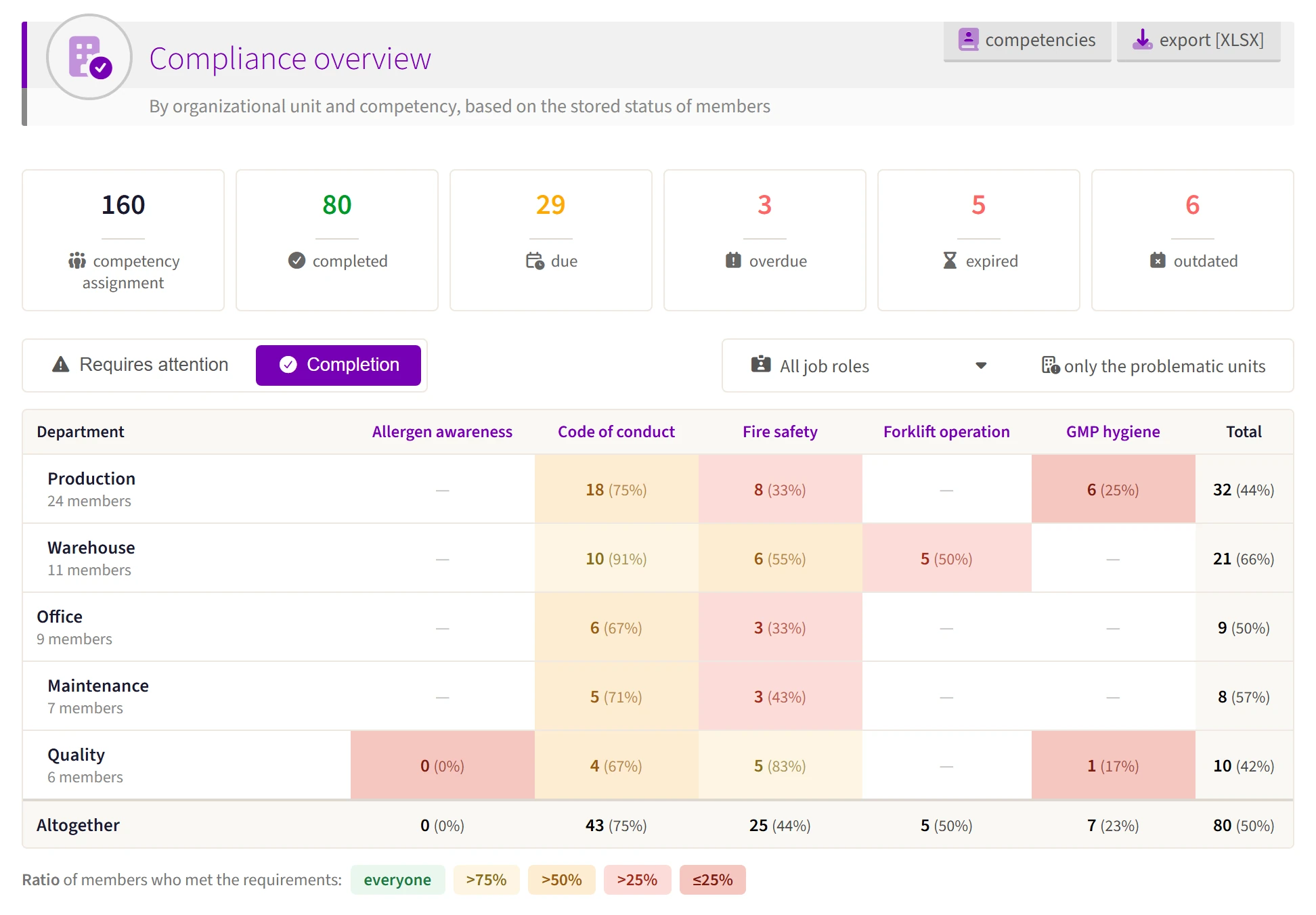
The compliance overview answers "where are we not compliant?" in one table: departments down the side, competencies across the top, and in each cell how that department is doing on that competency. It is built from the same stored statuses as every other list and export, so the numbers match everywhere.
Available on the Business plan. Plans and limits depend on your contract.
Open it
On the organization's management page, open Compliance. Department leaders see the same overview for the departments they lead, without a management role.
Organization → Manage → Compliance
The totals
The boxes at the top count every member and competency pair: all competency assignments, then how many are completed, due, overdue, expired and outdated. What each status means: Competency statuses explained.
Two ways to read the table
- Completion (above): each cell is the number and share of members who have completed the competency. The less complete, the darker. A dash means the competency does not apply to that department.
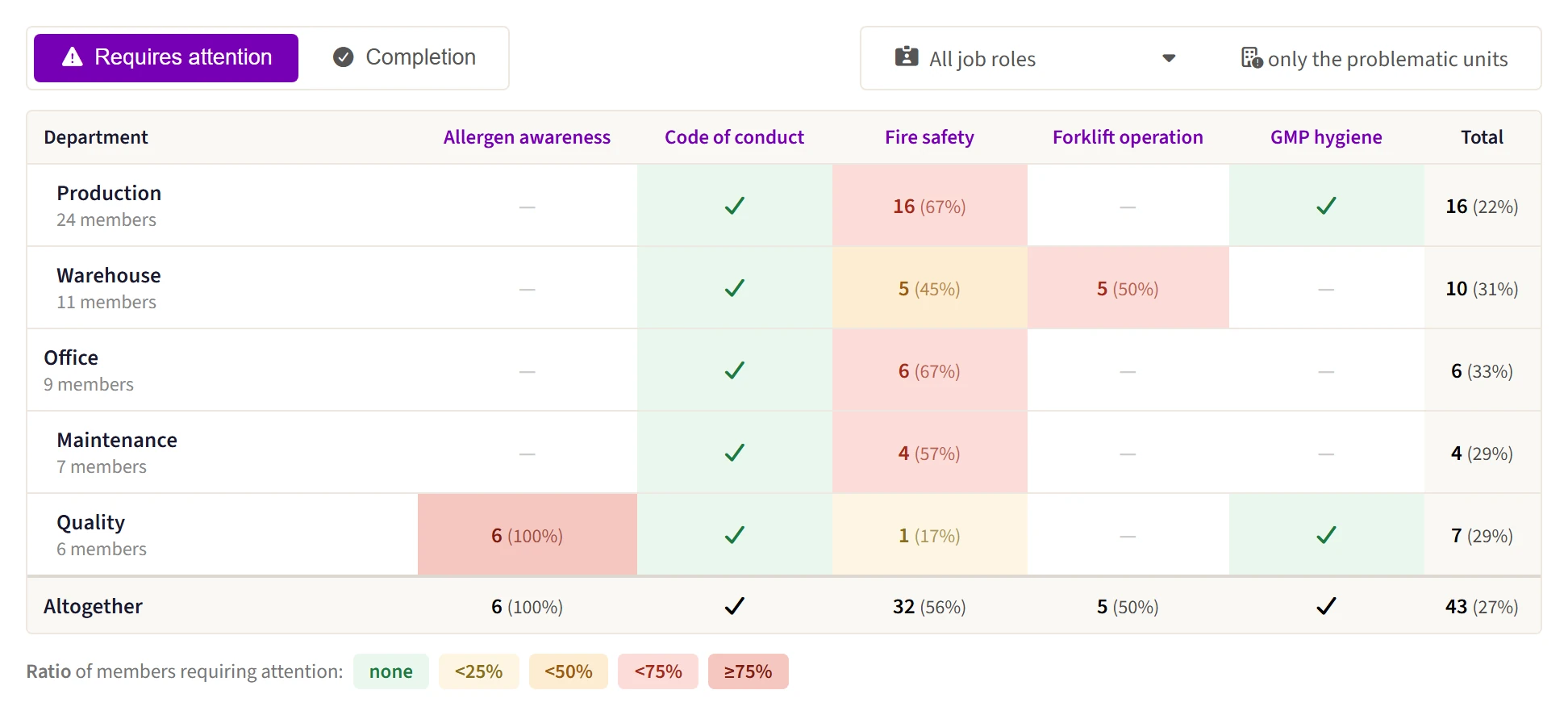
- Requires attention: each cell is the number and share of members who are due, overdue, expired or outdated. A tick means nobody needs attention.
Compliance → Requires attention
The Altogether row adds the departments up, and the Total column adds the competencies up.
Narrow it down
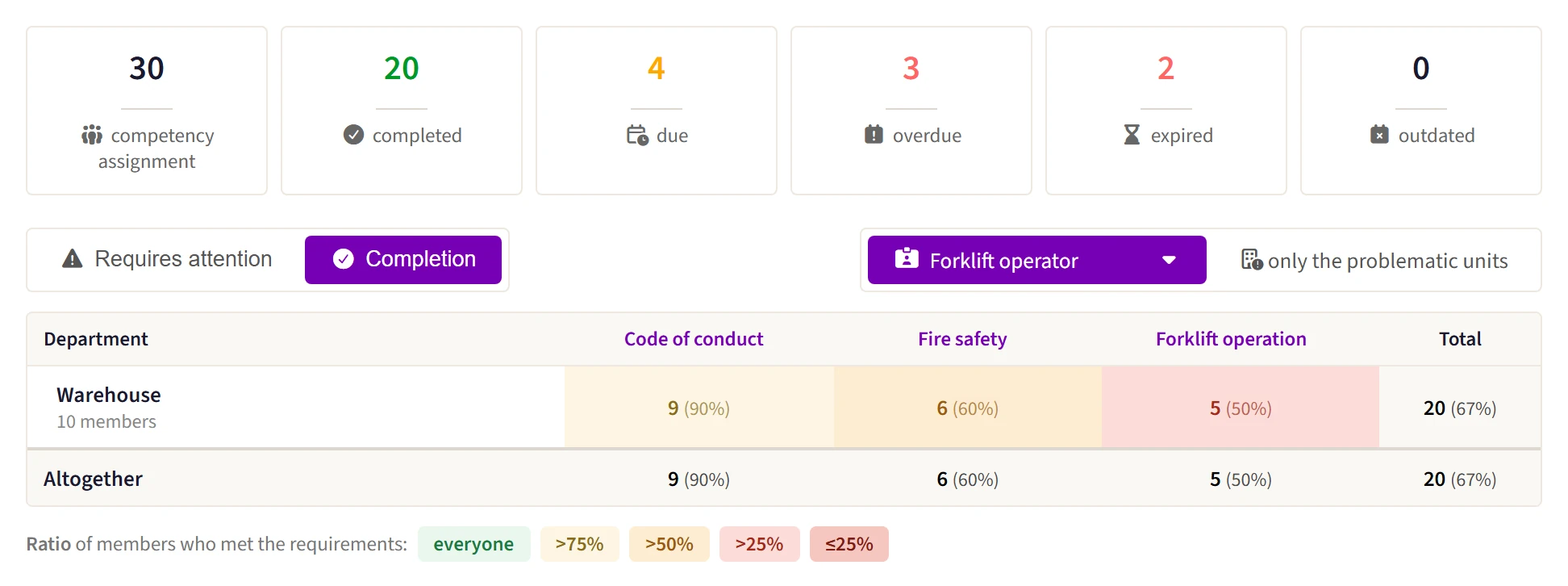
- Job role: choose a job role instead of All job roles to see only the members with that role, for example everyone who drives a forklift.
- only the problematic units hides the departments with nothing to do.
Compliance → job role
Export it
export [XLSX] downloads the overview as shown, including the job role filter. For regular delivery, set it up as a scheduled report; see Exports and scheduled reports.
From the overview to the people
The overview shows where; the details show who. competencies at the top opens the competency list, where each competency has filters for due, overdue, expired and outdated members. Department leaders follow up from My team.