Give extra time or reopen an attempt
In an EduBase exam with a time limit, you can give one participant extra minutes without changing the exam for anyone else, for example as a reasonable adjustment for a student with dyslexia. If a test ended early, say after a lost connection or a submit by mistake, you can reopen it, and the participant continues with the answers they had.
Both are in the participant's menu (...) on the exam's Users and results page.
Before you start
- Set extra time appears only when the exam has a time limit. See Schedule an exam and set time limits.
- Both actions work only during the exam period, before the exam closes.
Give extra time
- Open the exam's Users and results page and find the participant. With many participants, type the name into Search users....
-
Open the participant's menu (...) and choose Set extra time.
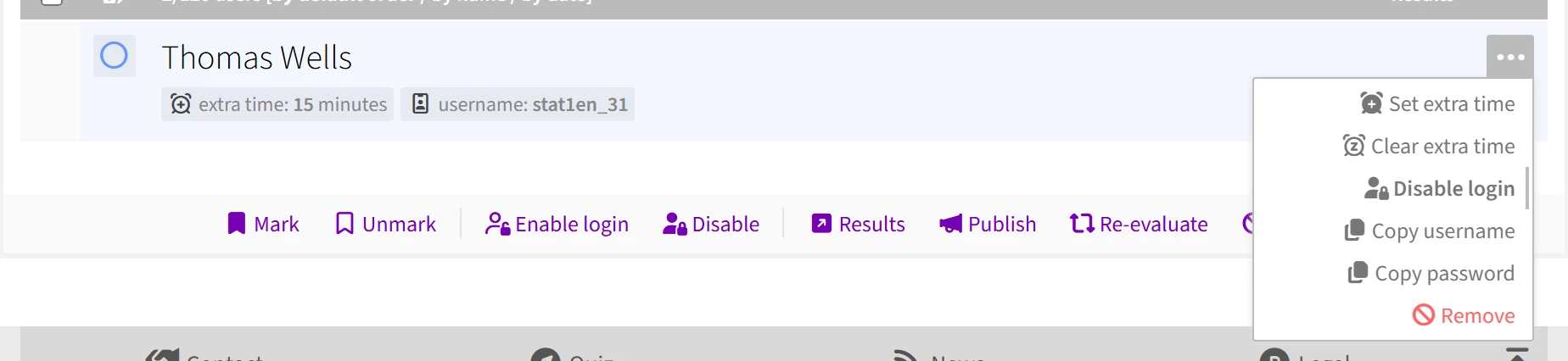
Users and results → the participant's menu
-
Enter the extra time in minutes and choose Save.
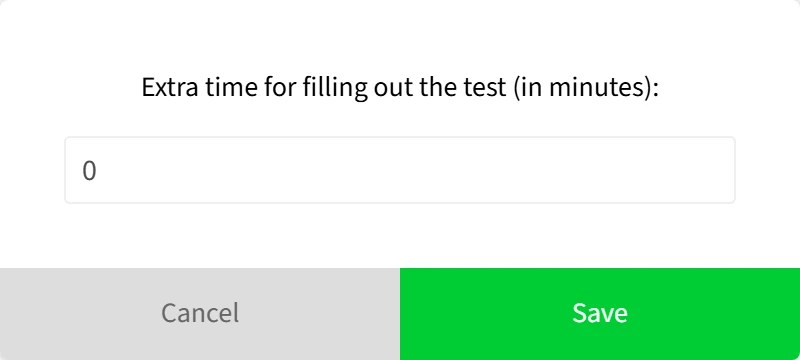
Set extra time
The row now shows extra time: with the minutes. The extra time is added to the participant's time limit:
- If they have not started, it applies when they start.
- If they are taking the test, it applies to the running attempt at once.
- It stays set for the participant's later attempts at the same exam, until you change or clear it.
A number replaces the extra time set before. Start it with + or - to add to it or take from it: +10 adds 10 minutes. To remove it, choose Clear extra time, or enter 0.
Reopen an attempt
- On Users and results, open the menu (...) of a participant who has finished, or whose test was closed.
- Choose Reopen, and confirm that the participant may continue the test.
-
If the exam has a time limit and the participant has no extra time set, EduBase asks for extra time in minutes first. Enter 0 if they only need the time they had left.
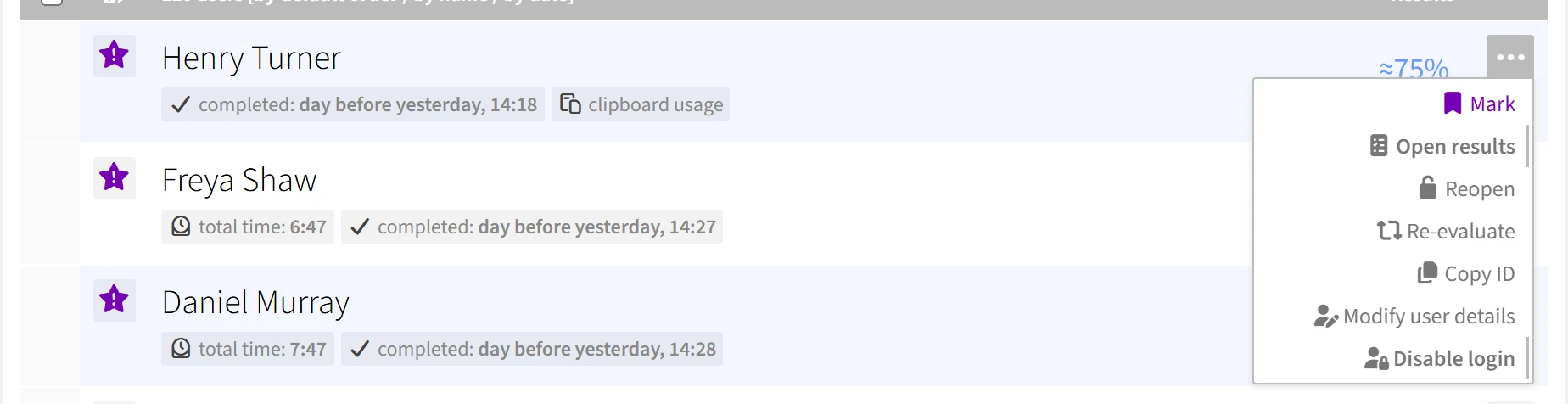
Users and results → a finished participant's menu
EduBase confirms with "The Quiz was restarted so the examinee can continue the test." The participant signs in to the exam again and carries on where they were, with their answers kept. The time between the end of the test and the reopening does not count against their time limit.
When you reopen, EduBase also allows the participant to sign in again if they are offline or were active in the last 3 minutes. If Block repeated exam logins for users with passwords is on in the exam's settings, they can sign in once to continue; after that, repeated sign-ins are blocked again. For generated exam accounts, EduBase may say that you need to enable their login first.
When Reopen is not offered
- The exam period has ended.
- The participant answered or skipped no question.
- In the Rounds and Mini modes, which go one question at a time, the participant had already reached the last question.
- The result has been published to the participant, or a certificate was issued from it.
Limits
- Extra time is given in whole minutes, up to 24 hours at a time.
- Extra time exists only in exams with a time limit.
- Extra time and reopening are set per participant on the page; there is no bulk action, and no REST API or MCP tool for either.
- Every change of extra time and every reopening is recorded in the exam's history.