QR code, link and PIN access
Participants without an EduBase account can take an exam through accounts that EduBase generates for it. Either you hand out each account's login details, or you turn on automatic login: then everyone uses the same link, QR code or PIN, and EduBase signs each arrival in to the next unused account. The screenshots show the demo food manufacturer's contractor site induction, taken by contractors at the gate.
For the whole approach, including identifying people and showing results without a password, see Run an exam without registering participants.
1. Generate exam accounts
- On the exam's page, open Users and results, choose new users and then Generate accounts.
- Under Generation type, choose:
- By name: a keyword and a Number of accounts. A keyword of test gives the usernames test_1, test_2 and so on, with generated passwords; Stronger passwords makes them longer.
- Using patterns: templates for the Username template, Password template and Full name template, with
{index}for a running number,{number:N}for N random digits and{random:N}for N random letters and digits. You can also give a list of names, one account each.
- Add.
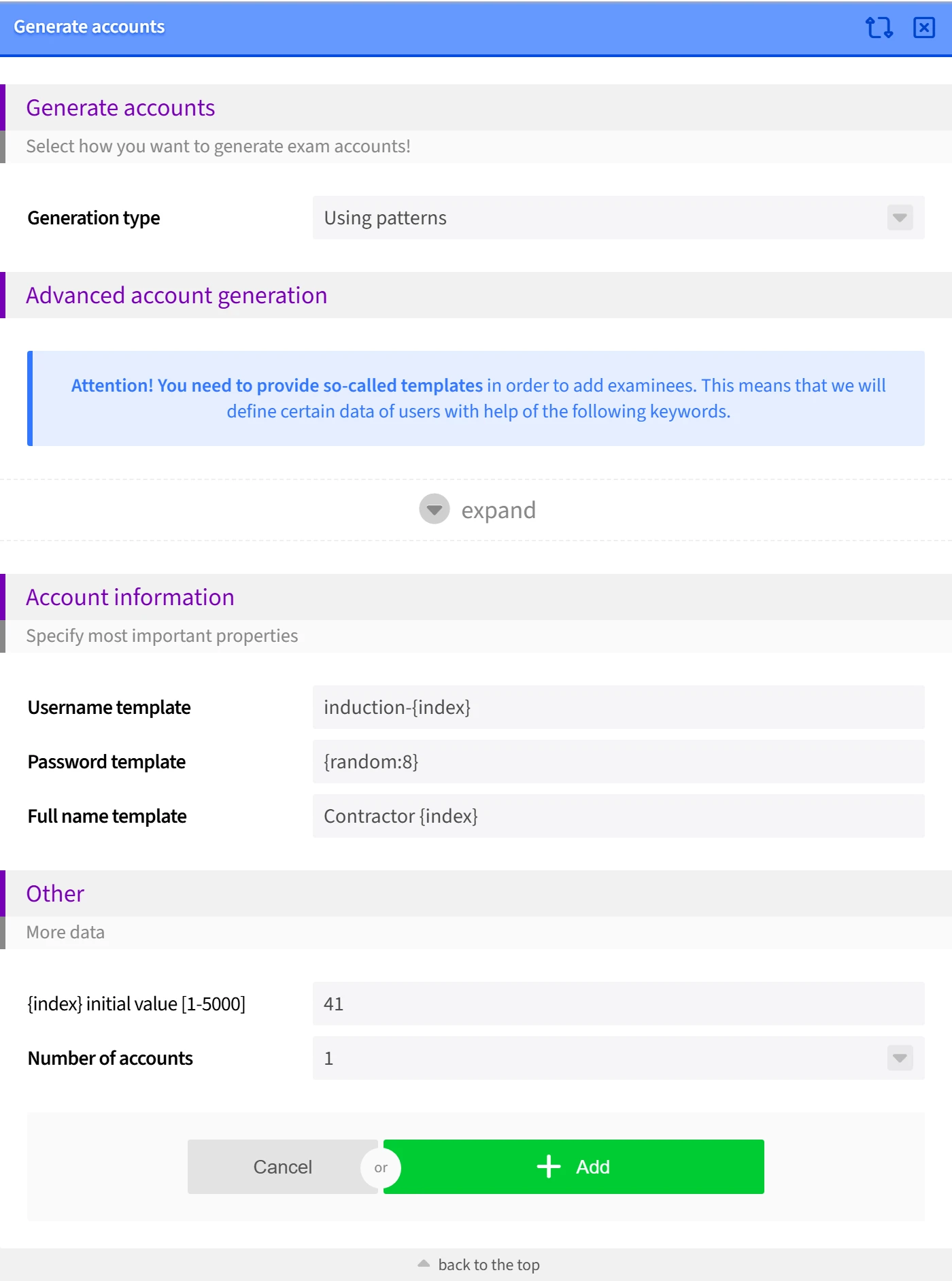
Users and results → new users → Generate accounts
One batch is up to 500 accounts; your plan may set a lower limit for an exam. Generated exam accounts can only be used for this exam and only while it is open, and hold no more personal data than the names you give them and what participants enter.
To hand out login details instead of a shared link, use Login guide and Print cards on Users and results: one card per account, with its username and password.
2. Turn on automatic login
- On the exam's page, open Automatic login under Advanced features and turn it on. It needs generated accounts first.
- The window shows:
- the Autologin link to share, and its QR code to print or project;
- the 8-digit EduBase PIN code, which people type on the exam login page.
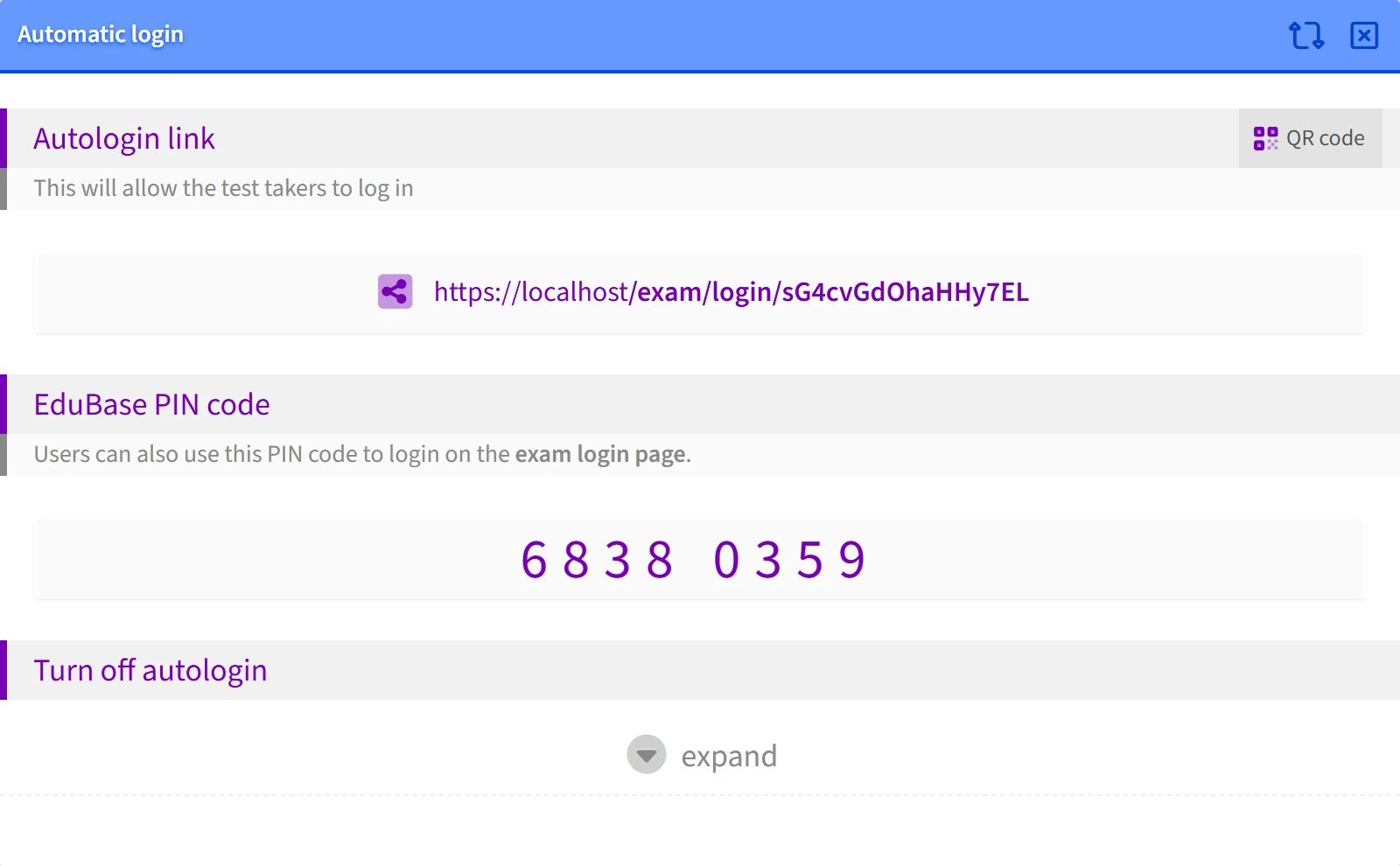
Exam → Advanced features → Automatic login
The link and the PIN only work while the exam is open. Each arrival takes one generated account, so generate more accounts than the people you expect. Turning automatic login off deletes the link and the PIN; turning it on again may give new ones.
When results can be looked up by an identifier the participants entered, the window also shows a Results viewing link. See Decide what participants see afterwards.
3. What participants do
With the PIN, they open the exam login page, type the 8 digits and choose Login:
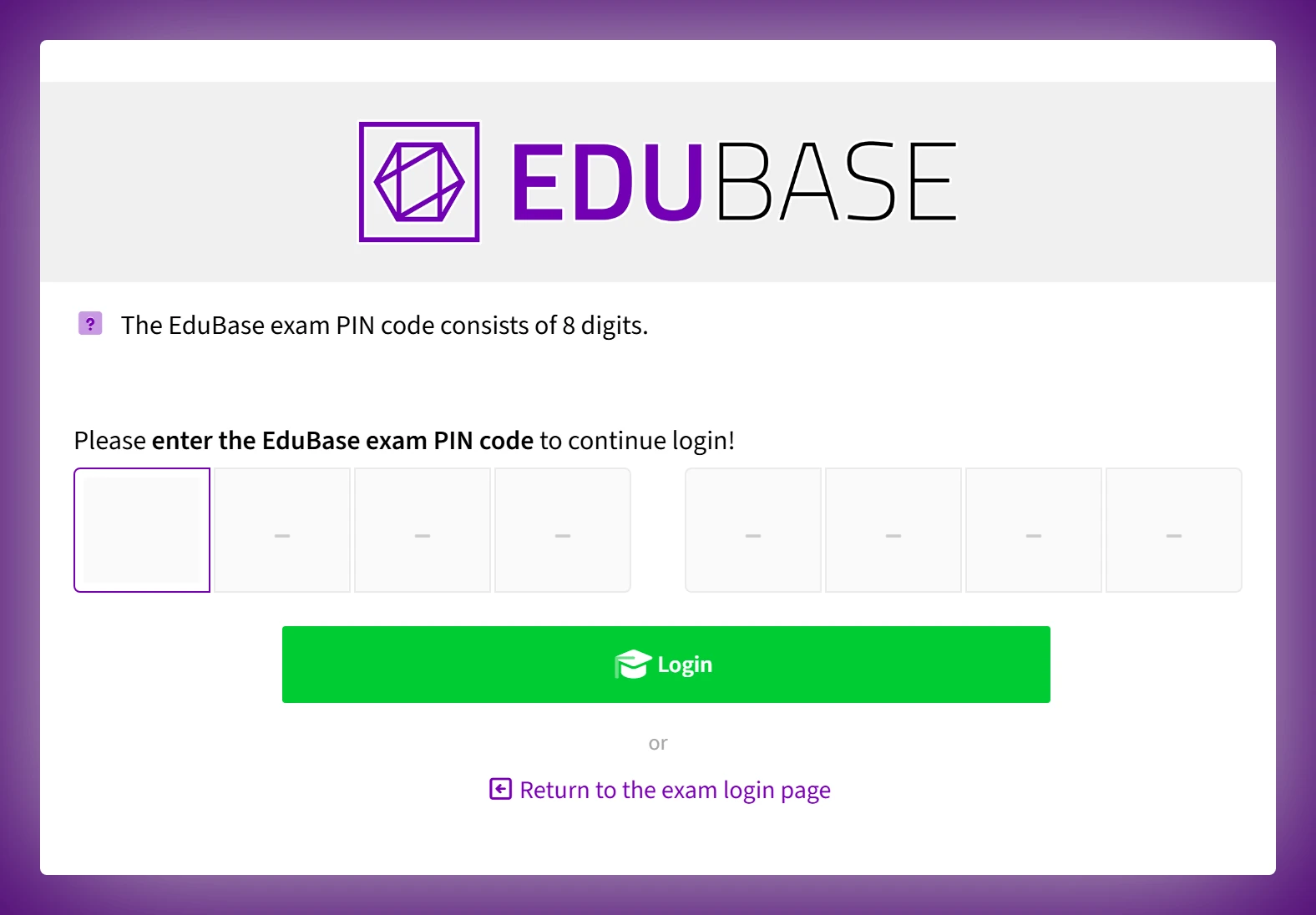
Exam login page → PIN
With the link or the QR code, they are signed in at once and land on the exam's start page:
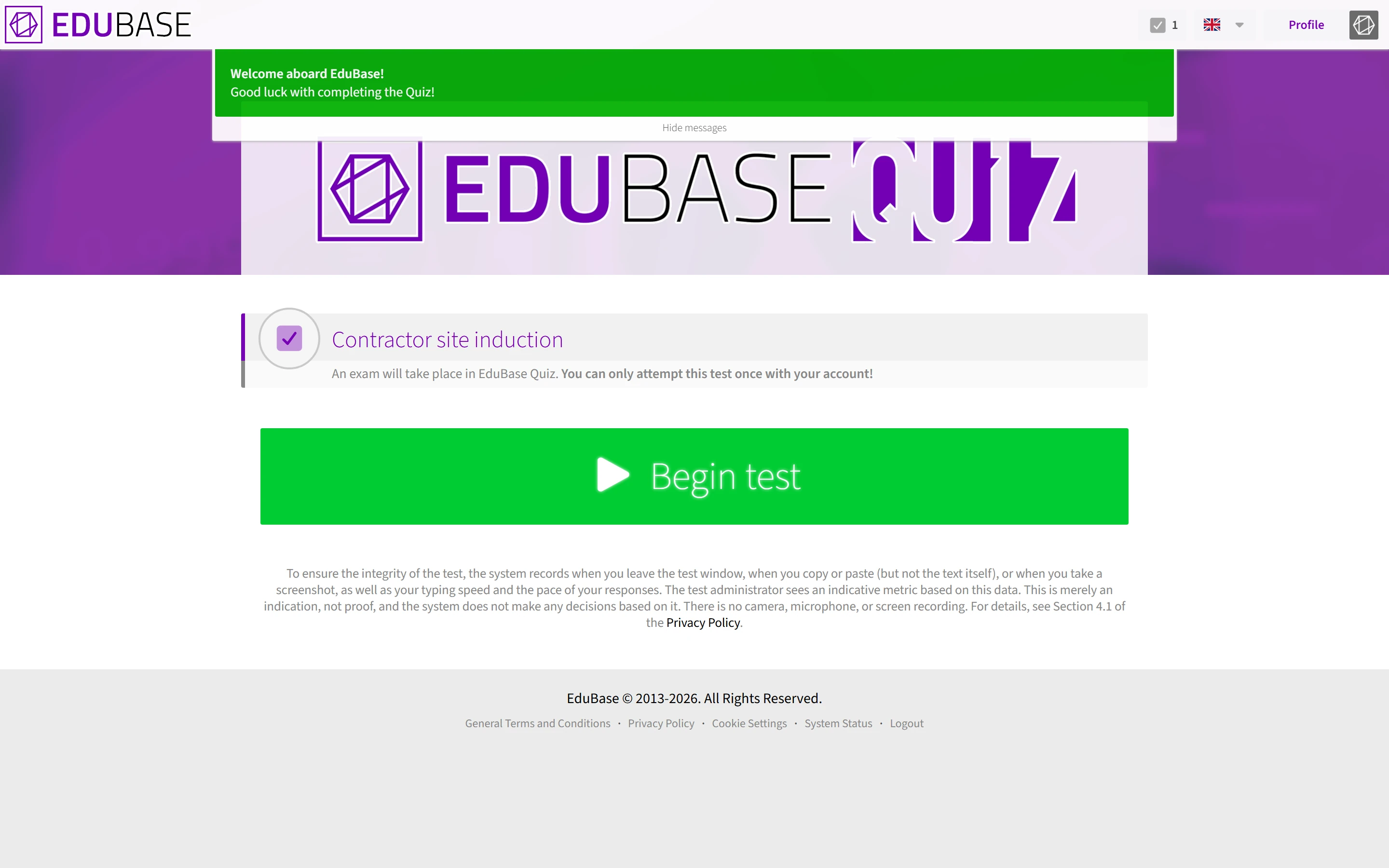
Autologin link or QR code → start page
If the exam asks for details at the start, such as a name and a company, they fill them in before Begin test. See Collect participant data at the start.
Protection against bots
EduBase can protect the exam login and start pages with a captcha. It is switched on for the EduBase installation, not per exam; ask your EduBase contact if a link will be shared openly.
Limits
- Up to 500 accounts per generation, and the participant limits of your plan.
- The PIN has 8 digits.
- Anyone with the link, QR code or PIN can take an account while the exam is open. Keep the exam window short and collect identifying details at the start.
Related
- Run an exam without registering participants
- Join an exam with a link, QR code or PIN
- Add participants
- Collect participant data at the start