Review a flagged attempt
When EduBase tags an exam attempt as suspicious, or shows clipboard use or tab switches, the attempt's results page tells you why, and its Flow shows what happened, second by second: which task the participant was on, when they copied text, left the test window, and answered. Review both, and talk to the participant, before you decide anything. The Suspicion Score is a pointer, not proof.
Find the attempts to review
On the exam's Users and results page, filter for suspicious attempt, clipboard usage or tab switches. Open a participant's menu (...) and choose Open results.
Read the reasons
On the results page, open details. The Suspicion Score row shows the score out of 100 and each rule that raised it, with its points. The same table shows whether the test ran in a Secure browser, and the participant's device and browser.
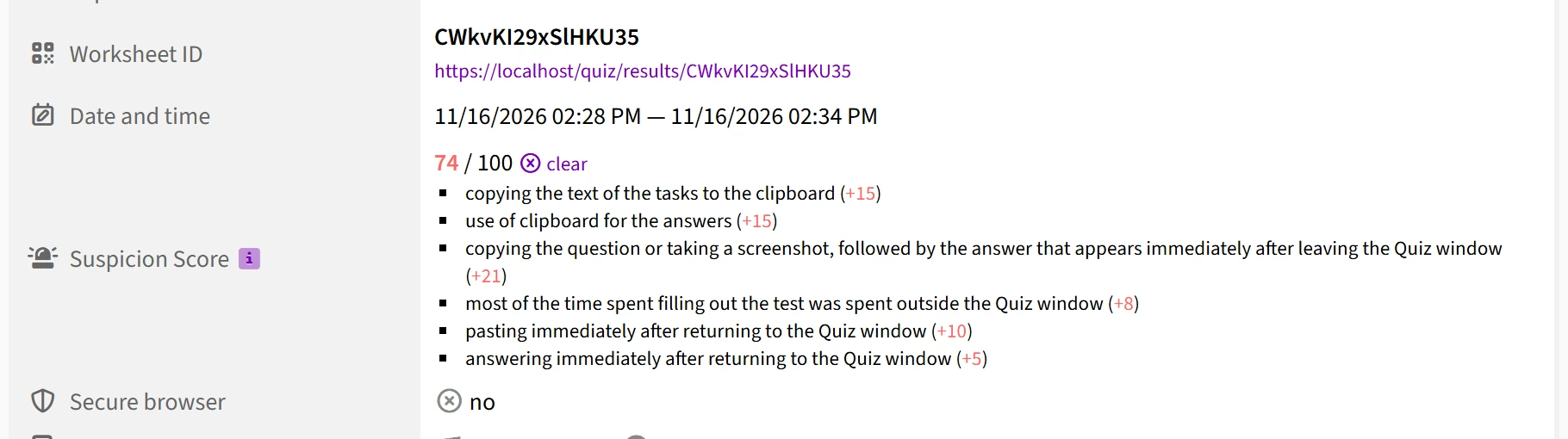
The attempt's results page → details
Read the Flow
Choose Flow in the manage bar of the results page. The Quiz Flow window lists the attempt as a timeline, with the time since the test started on the right. It records, among others:
- the start, the moves between tasks, and the finish or the reason the test was closed, such as Time is up or Closed by moderator;
- each answer as it was given: Edited field, Checked option, an order changed or a marker placed;
- Copied the text of the task to the clipboard, and answers marked clipboard usage detected;
- Tab switching, with when the participant left the test window and when they came back;
- Print Screen used, attachments downloaded and files uploaded;
- Text appeared in one piece, without clipboard, for example from dictation or another program;
- going offline and back online, and AI Assistant chats where the exam allows them.
Point at the small icons for details, such as how many characters were copied or pasted.
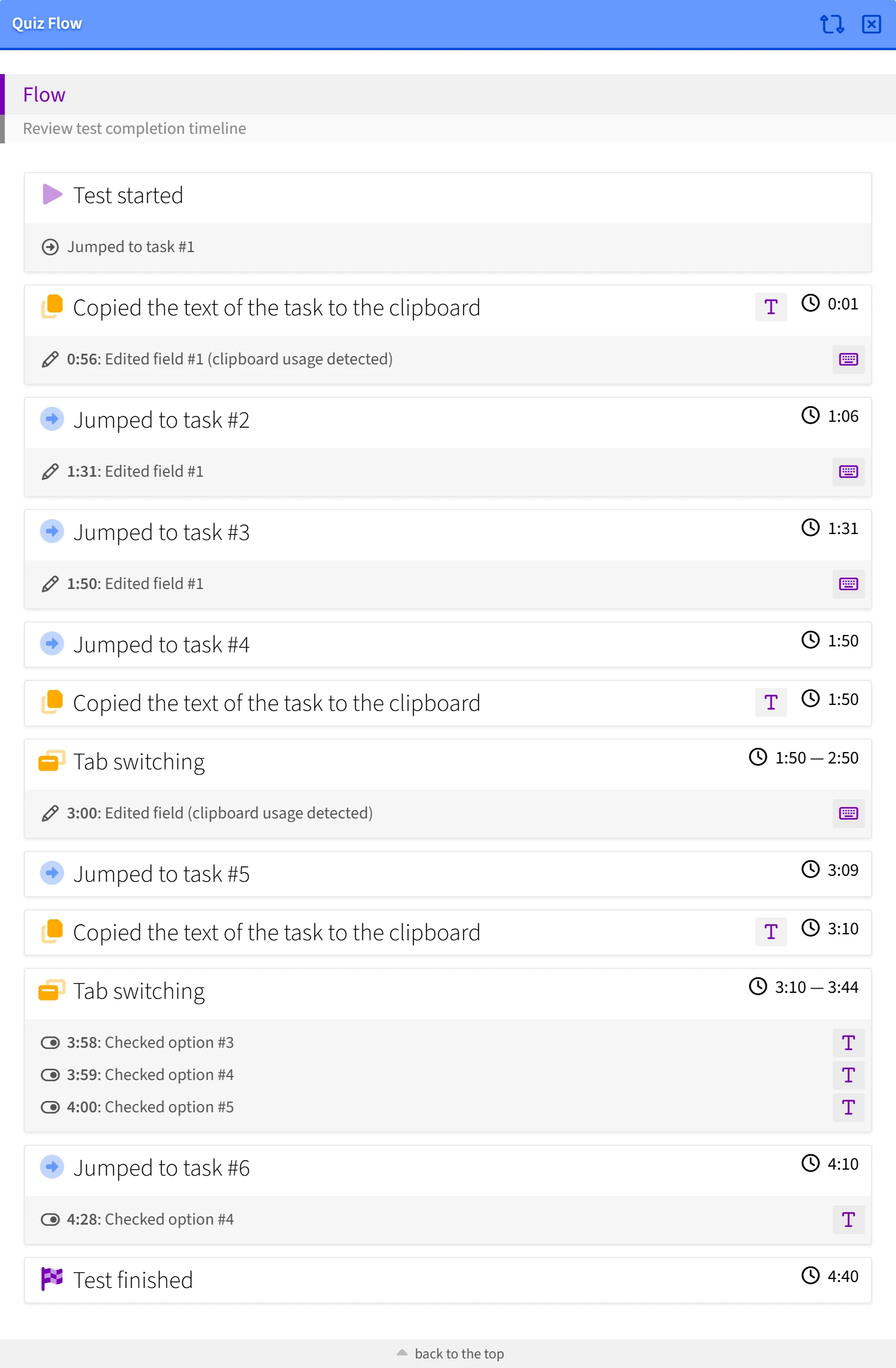
The attempt's results page → Flow
In the demo exam, the attempt with a score of 74 copies the text of task 1 in its first second and pastes an answer 55 seconds later. On task 4 it copies the task, leaves the test window for a minute, and pastes the answer 10 seconds after coming back. Participants who read, thought and typed show steady edits and no clipboard entries.
A pattern like this has innocent explanations too: a participant who drafts answers in another program, uses dictation, or has an unstable connection. Ask before you decide. For participants with their own account, Private message in the manage bar of the results page writes to them.
Decide
What happens next is up to you; EduBase does not fail or block anyone by itself. On the results page:
- Valid: switch it to make the result Invalid. The Flow then ends with Invalidated by moderator, the result no longer counts, and the change is sent on to a connected LMS and to webhooks. Switch it back to make the result valid again.
- Re-open: let the participant continue the test, for example after a lost connection. See Give extra time or reopen an attempt.
- clear next to the Suspicion Score: delete the score after you have cleared the participant. It is not calculated again for that attempt.
- Extra points adjust the score of single tasks.
Every one of these changes is recorded in the result's history.
Limits
- Only the participant's latest result of the exam can be invalidated, and not after a certificate was issued from it. Like other changes to results, it is possible until one day after the exam closes.
- The Flow covers what happened in the test's browser tab. It cannot see a second device, and EduBase does not record the camera, microphone or screen.
- Flow is shown only for attempts with an activity record, and only if the feature is part of your plan.