Create a Quiz set
A Quiz set holds the questions and the settings of a test; an exam runs a Quiz set at a set time. Create the Quiz set first, then add its questions. For a first walkthrough from an empty set to a running exam, see Create your first quiz and exam.
Create a new set
- Open My Quiz sets from your dashboard and choose new set.
- Under Quiz set data, set:
- Language and Name.
- Type: what the set is for.
- Practice: learners can take it as often as they like.
- Course exam: the final test at the end of a video course.
- Exam, Survey, Homework or Championship: the set will run as an exam. See Exams, homework, surveys, championships and questionless tests.
- Private (only for own testing purposes): only you use it.
- Short description, and the Organization the set belongs to, if any.
-
Under Quiz settings, choose the Mode:
- Worksheet: participants move freely between the questions and submit them all at once.
- Rounds: questions come one at a time and are submitted in order.
- Mini: single and multiple choice questions only, one at a time with large answer buttons.
See Navigation and test modes. 4. Choose Add.
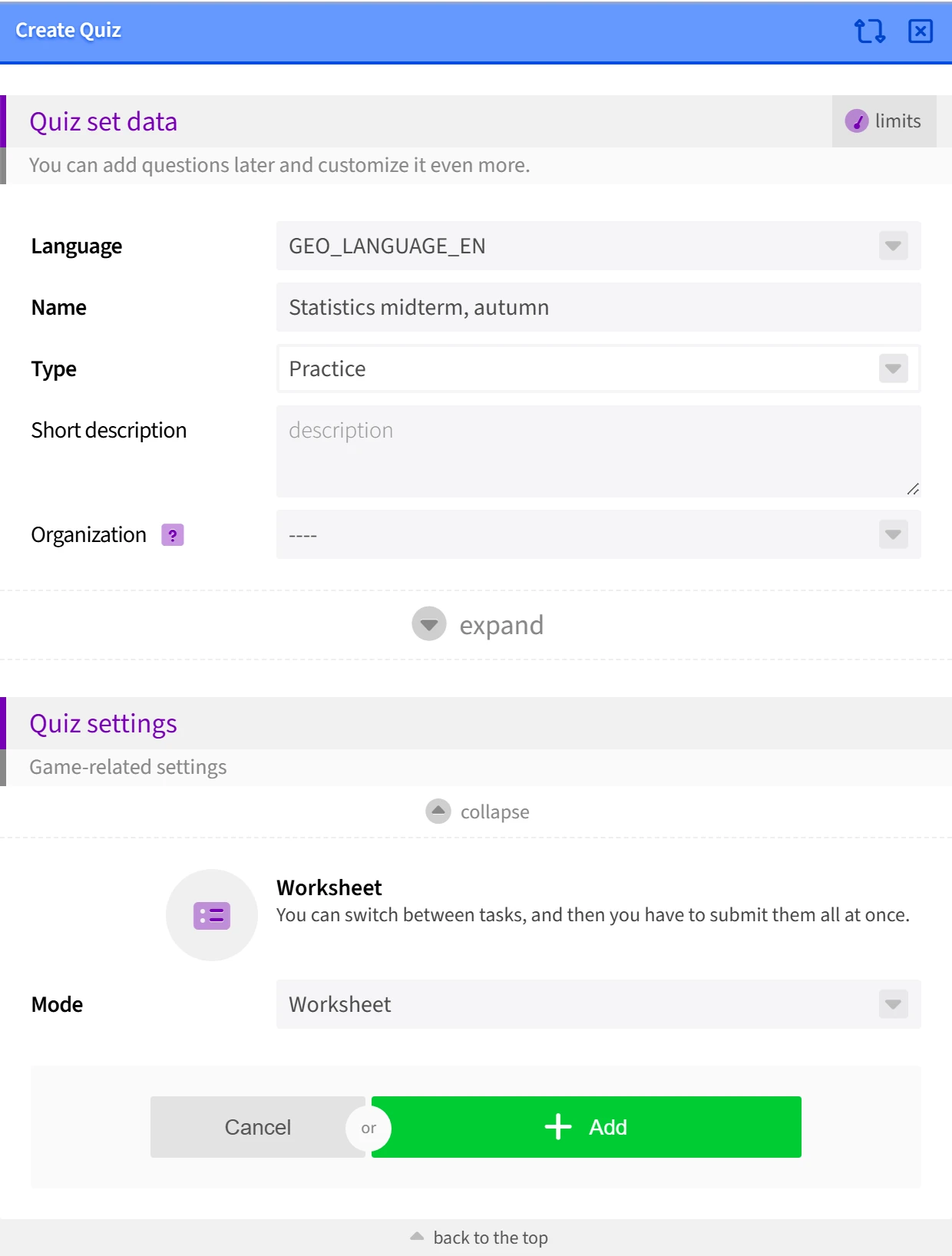
My Quiz sets → new set
EduBase opens the new set's page. To add questions, open Tasks and choose add questions. See Create a question and Import questions in bulk.
Start from another set
expand under Quiz set data shows more options:
- Tags for the new set.
- Settings: start with the default settings, or Copy settings from another Quiz set.
- Tasks: Create blank Quiz set, or Copy questions from another Quiz set. Despite the label, the new set uses the same questions rather than duplicates of them: editing one also changes it in the original set. Copy a question first where you need a separate version.
To add questions from another set later, use add questions → Advanced options → Import questions from other Quiz set on the set's Tasks page.
Import a shared set
If another educator gave you a sharing key, choose import in My Quiz sets, enter the 16-digit Key, and choose Import.