Score answers by hand and re-evaluate
EduBase scores most answers automatically. Free-text and file upload answers, and questions set to Manual scoring, wait for a person: until every such answer is scored, the participant's result is not final. This page covers scoring them, adjusting a score with extra points, answering review requests, and re-evaluating results after you fix a question.
Find the answers to score
- Open the exam's Users and results page and filter for intervention needed.
- Open a participant's menu (...) and choose Open results. The results page opens in a new tab.
- Answers waiting for you are marked [not scored] and have a score manually link.
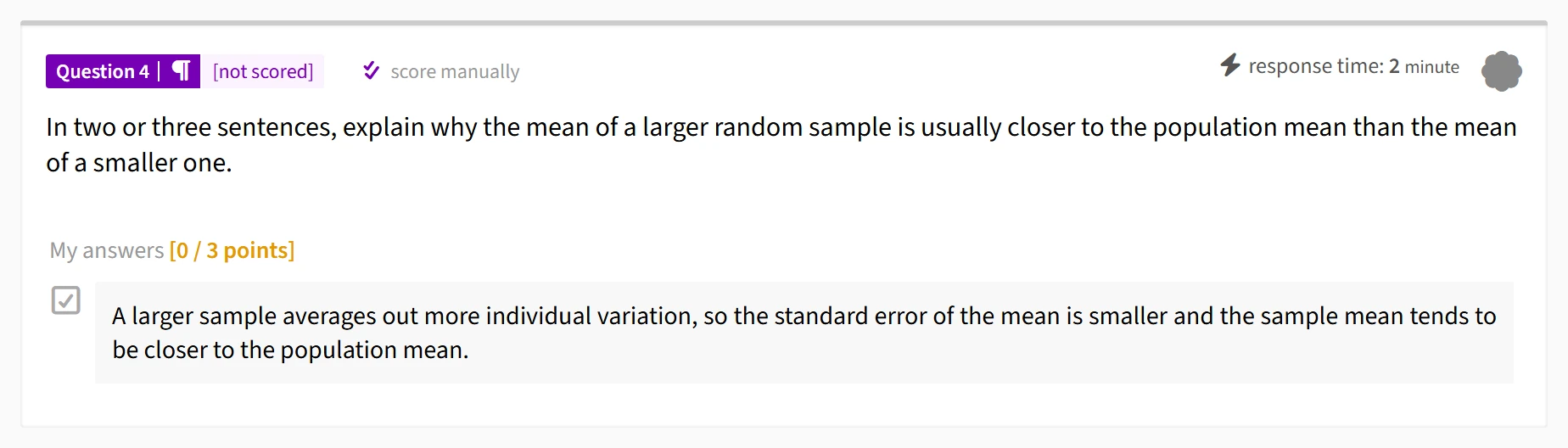
The participant's results page: an answer waiting to be scored
Which questions are scored by hand is set on the question: see Manual scoring and Rubrics.
Score an answer
- Choose score manually. The Score question window opens.
- Choose one:
- 0 points: the answer is worth nothing.
- Custom score: set the points with the slider, from 0 to the question's points.
- Maximum points: the answer is correct.
- Rubric, when the question has rubric criteria: give points per criterion.
- Optionally, under Add notes, write the reason. The note is shown to the participant on the results page.
- Choose Save score.
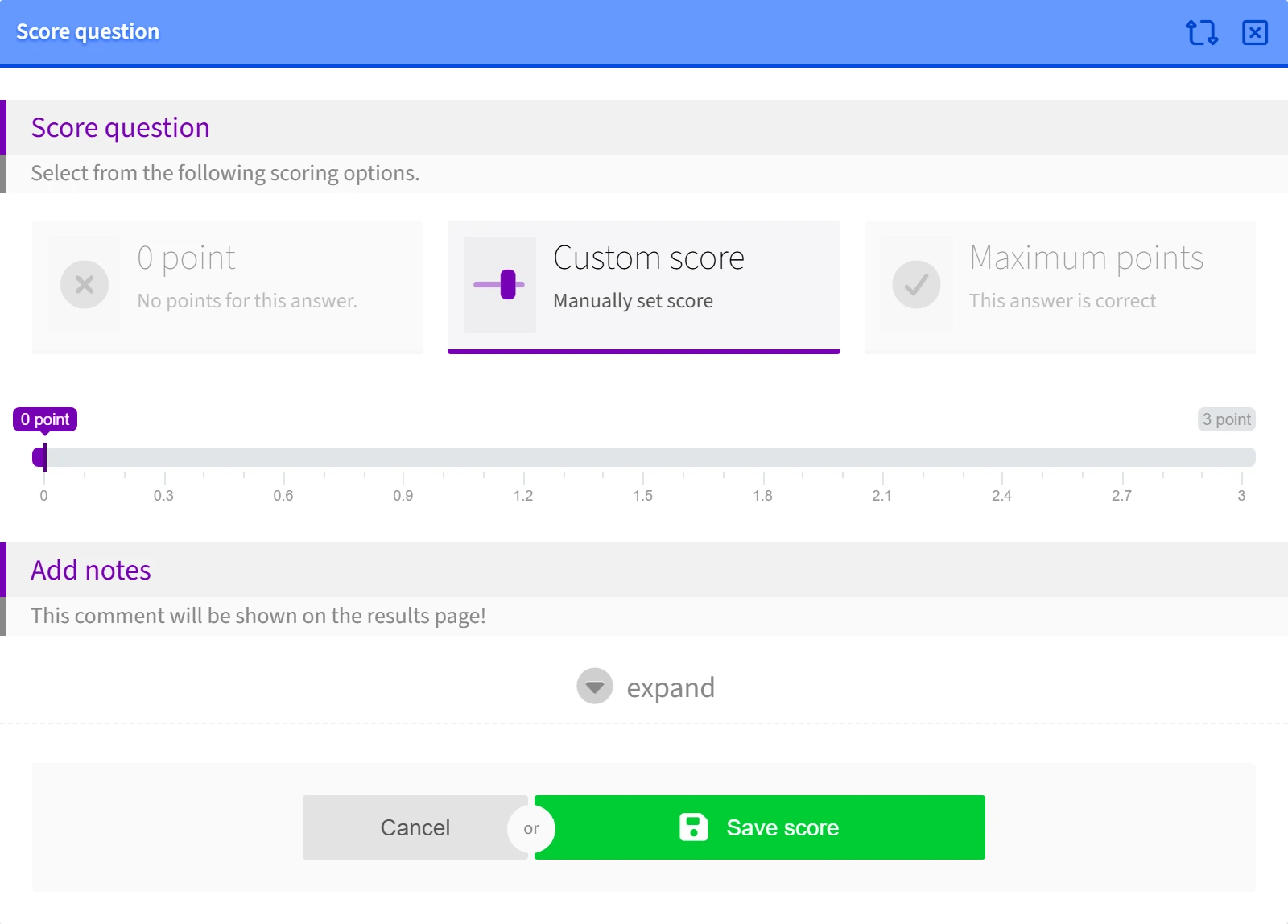
score manually → Score question
If another participant gave a very similar answer that you already scored, the window says so and shows the points it received, to help you score consistently.
When the last waiting answer of a result is scored, EduBase applies any point deductions for hints or solutions, recalculates the result, and, if the exam is still open, notifies the participant that their result is ready. With After manual approval per test, you still publish the result afterwards. Every score you give is recorded in the result's history.
Adjust a score with extra points
On a scored result, extra points next to a question, or Extra points in the page's menu, opens a window where you add points to each part of a question, or take them away with a negative number:
- Extra points are added to the original score, but together they cannot exceed the part's maximum.
- Positive extra points on a part with penalty points cancel the penalty.
- Other points, not tied to a question, give bonus points for the whole test.
Extra points cannot be given to an answer that is not scored yet.
Answer a review request
If the exam allows Reviews (see Decide what participants see afterwards), participants can mark tasks on their results page and ask for a review. Their row appears under the reviewing filter, and their results page shows Revision in progress.
- Check the marked tasks, and give extra points where the participant is right.
- Choose Close in the Revision in progress bar and confirm.
The participant is notified. If they have an email address, and the exam is open or finished less than 30 days ago, they also get an email. Discuss opens a message to the participant, for participants with their own account.
Re-evaluate results
Re-evaluating scores the answers again with the current questions and settings of the Quiz set, for example after you fixed a wrong answer key or changed the grading. Scores you gave by hand are kept.
- One result: Re-evaluate in the participant's menu on Users and results, or on the results page.
- Several: select them on Users and results and choose Re-evaluate above the list.
Limits
- Re-evaluate is available until one day after the exam closes.
- Published or certified results, surveys, questionless tests and archived results cannot be re-evaluated, and extra points cannot be given to published or certified results.
- There is no REST API or MCP tool for scoring by hand, extra points or re-evaluation; they are done on the results page.