Register and set up your account
This page covers getting an EduBase account, signing in, and the settings worth checking once you are in. If you only need to take an exam and received a link, QR code or PIN, you do not need an account of your own: see Join an exam with a link, QR code or PIN.
Get an account
How you get an account depends on where you use EduBase:
- On edubase.net, register yourself, as described below.
- In an organization's EduBase, your administrator usually creates your account or sends you an invitation, or you sign in with your organization's single sign-on. Follow the email you received, or ask your administrator. See SSO, LDAP, social sign-in and two-factor authentication.
To register on edubase.net, open the sign-in page and choose register. You can sign up:
- With Google account or With Facebook account: no activation is needed. If Facebook does not pass on your email address, EduBase asks you for one.
- with email address: fill in your name, a Username, a Password that meets the rules shown next to the field, and your Email address. Optional details, such as your phone number or educational institution, can be added now or later. Then open the activation link EduBase emails you.
Either way, you confirm that you are over 16 or act with the consent of your legal representative, and you accept the General Terms and Conditions and the Privacy Policy. The newsletter is optional.
You can connect your Google or Facebook account to an email registration later, and sign in with either afterwards.
Sign in
Enter your Username and Password and choose Sign in to EduBase, or use one of the sign-in buttons your EduBase offers (Google, Facebook or SSO).
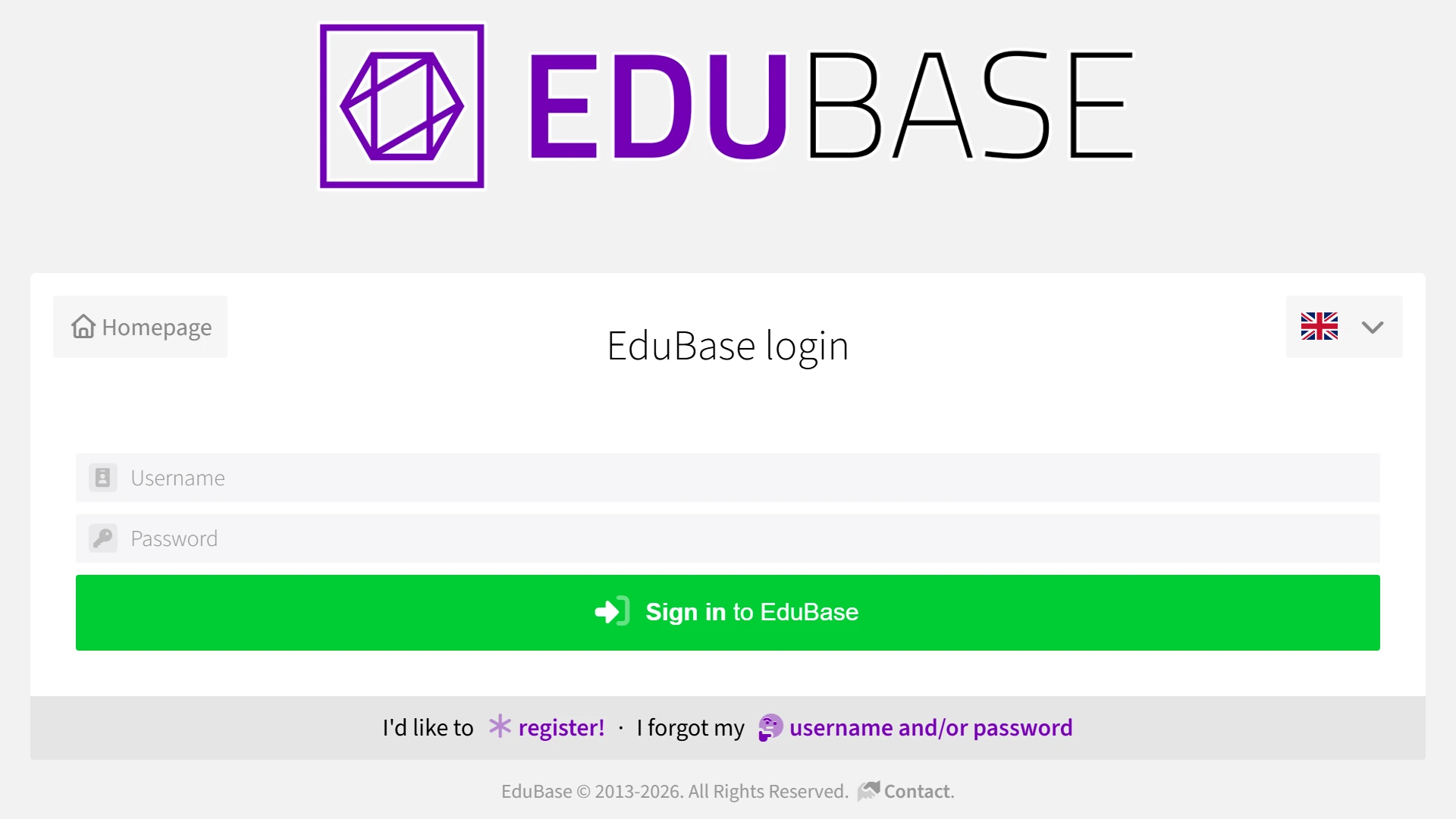
Sign-in page
If you forgot your username or password, choose username and/or password and enter your username, email address or phone number. EduBase first sends a confirmation link, valid for 7 days. After you open it, EduBase sends a temporary password; sign in with it, and EduBase asks you to set a new one right away. If the activation email never arrived, sign in and request it again, or correct your email address.
Accounts that sign in through SSO or LDAP cannot request a new password here: they use the organization's sign-in. After too many failed attempts, EduBase locks the account for a while; how long, and the password rules, depend on your EduBase's password policy.
Set up your account
After signing in, the dashboard opens. On a new account it may ask whether you want to use EduBase to learn, to teach, or both, and then suggests a few first steps. Then check these, all reachable from the dashboard:
- Personal settings and data: your name as others see it (Display name), time zone, and the other details in purple, which you edit by clicking them. Account details shows your username and email address; a green mark means the address is verified.
- Change password: your current password and a new one that follows the rules shown.
- Profile picture and cover photo: what others see next to your name.
- notification settings (on the settings page): which notifications you get, and where.
- Enable authenticator (under Additional elements on the dashboard): two-factor authentication with an authenticator app such as Google Authenticator or 1Password.
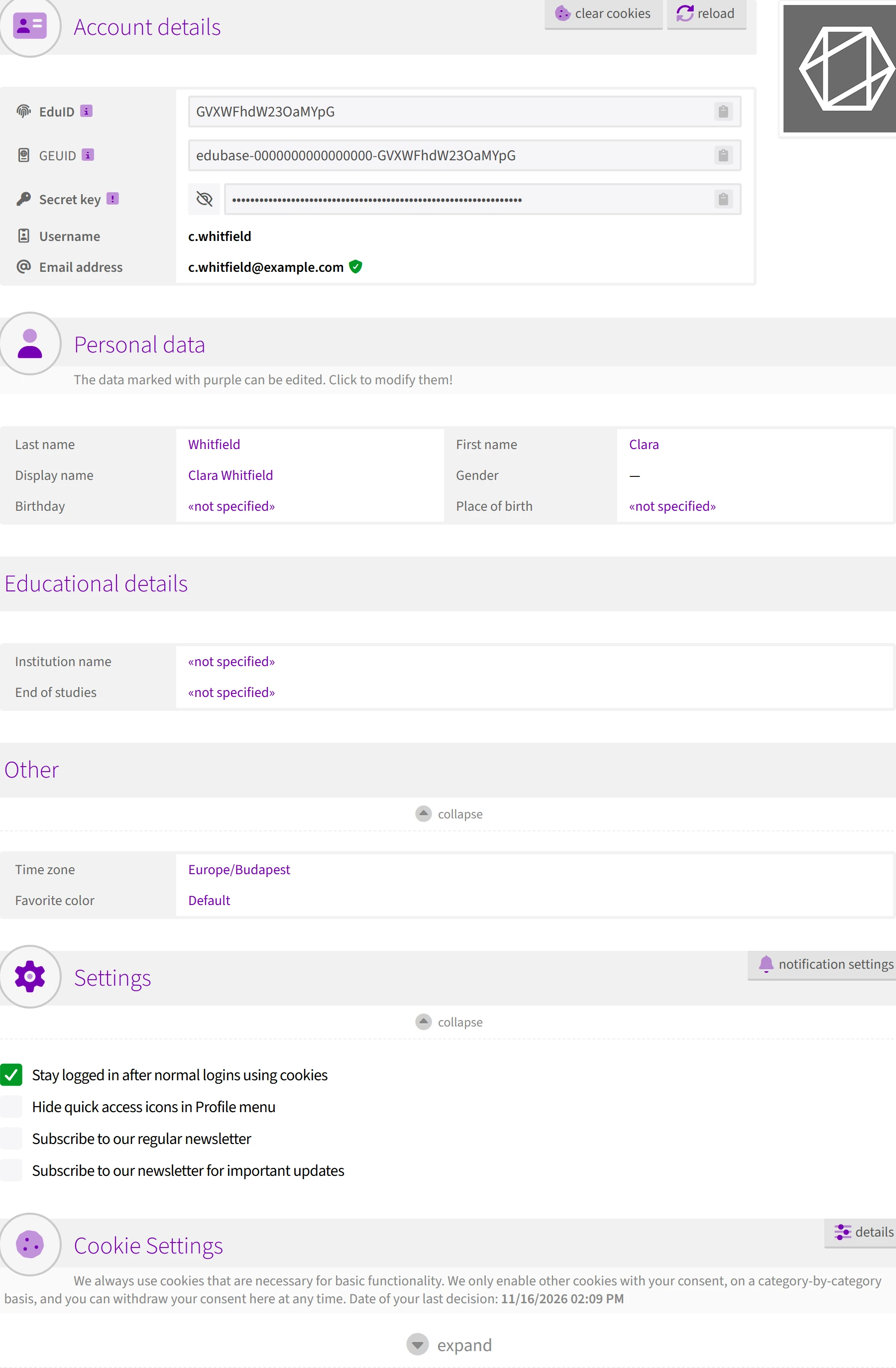
Dashboard → Personal settings and data
The settings page also holds Stay logged in after normal logins using cookies, the newsletter options and your Cookie Settings.