Invite members and manage membership
Members see a class's content only after they join. Open the class's Members page and choose add members.
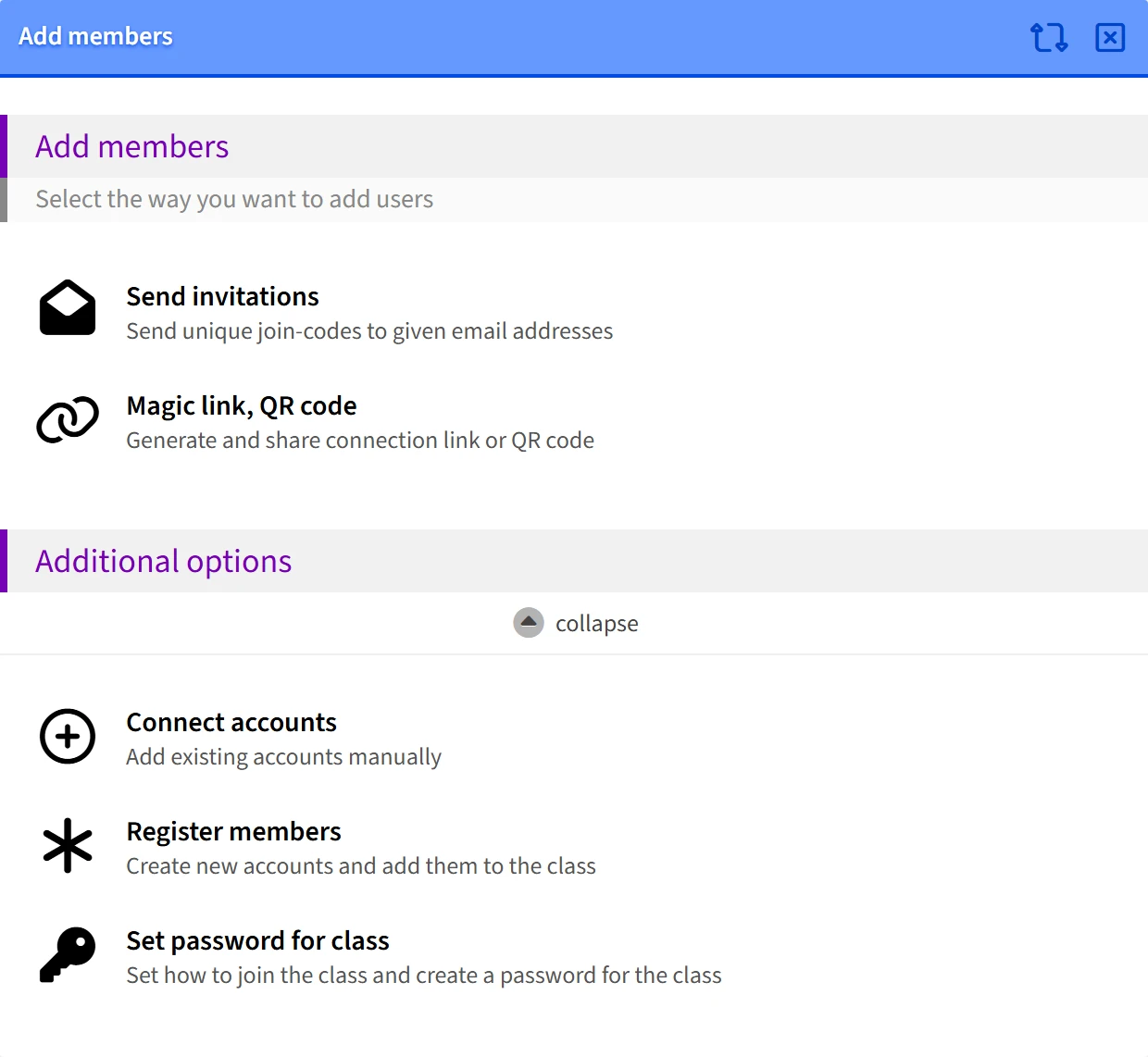
Members → add members
Ways to add members
- Send invitations: enter email addresses, separated by commas, and an optional Custom message. Each address gets its own join code by email, valid for 90 days. Sending again to the same address extends it.
- Magic link, QR code: one link and QR code for everyone you share them with. You can email the link, download the QR code, or generate new code to make the old one stop working.
- From other classes: pick a class of yours, then all or selected members of it.
Under Additional options:
- Connect accounts: add people who already have an account by email address, username or EduID (on their settings page), separated by commas. Choose whether EduBase notifies them, and whether their access ends after a number of days or on a date.
- Register members: create accounts from a file and add them to the class.
- Set password for class: opens the class settings to choose how people join.
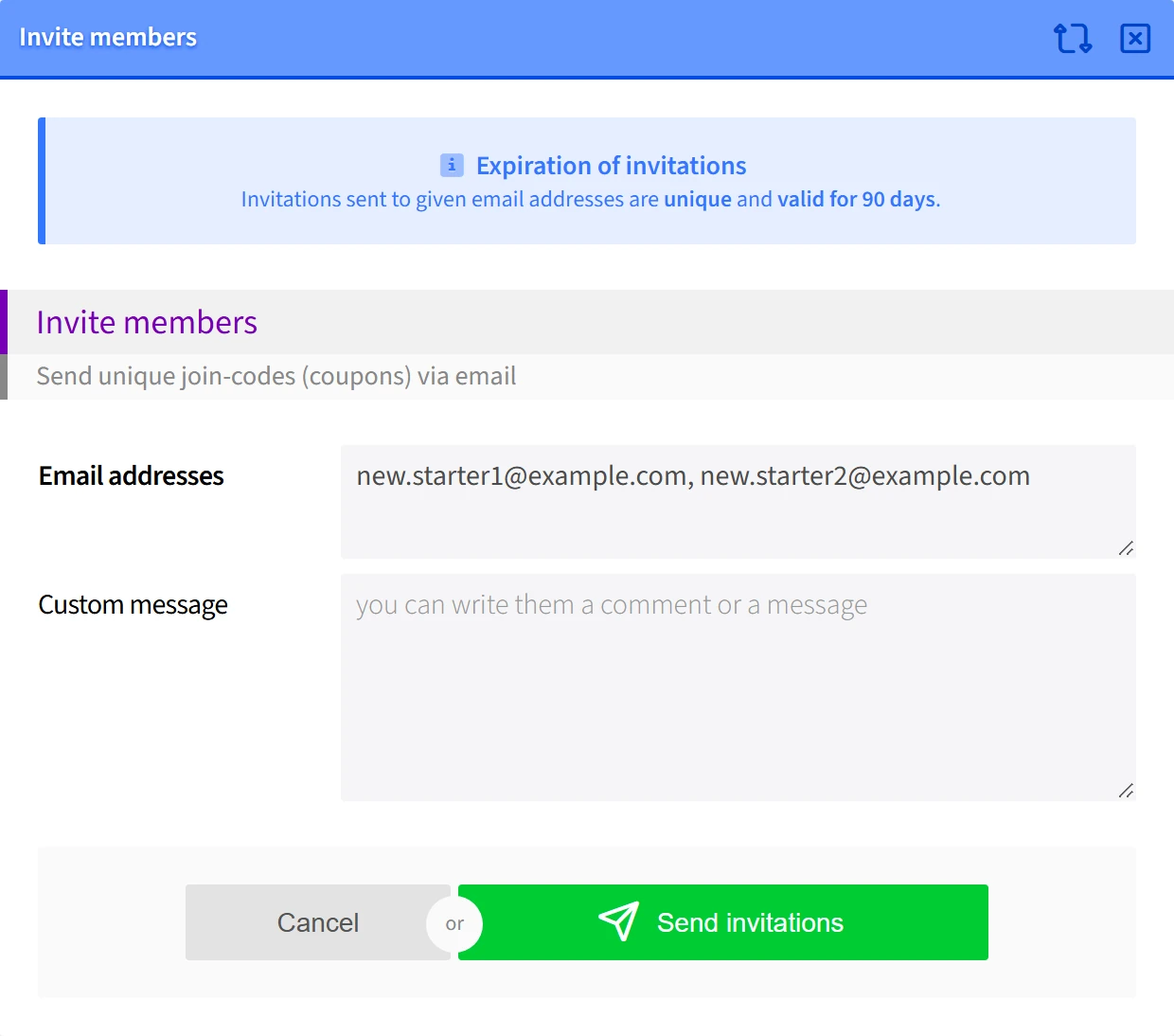
add members → Send invitations
pending invites on the Members page lists the invitations not used yet, with failed deliveries and expired ones. From there you can re-send an invitation, copy its join code, or revoke it.
The member list
The Members page lists everyone in the class with when and how they joined. Search for a member, select several to act on them together, or open a member's menu for more.
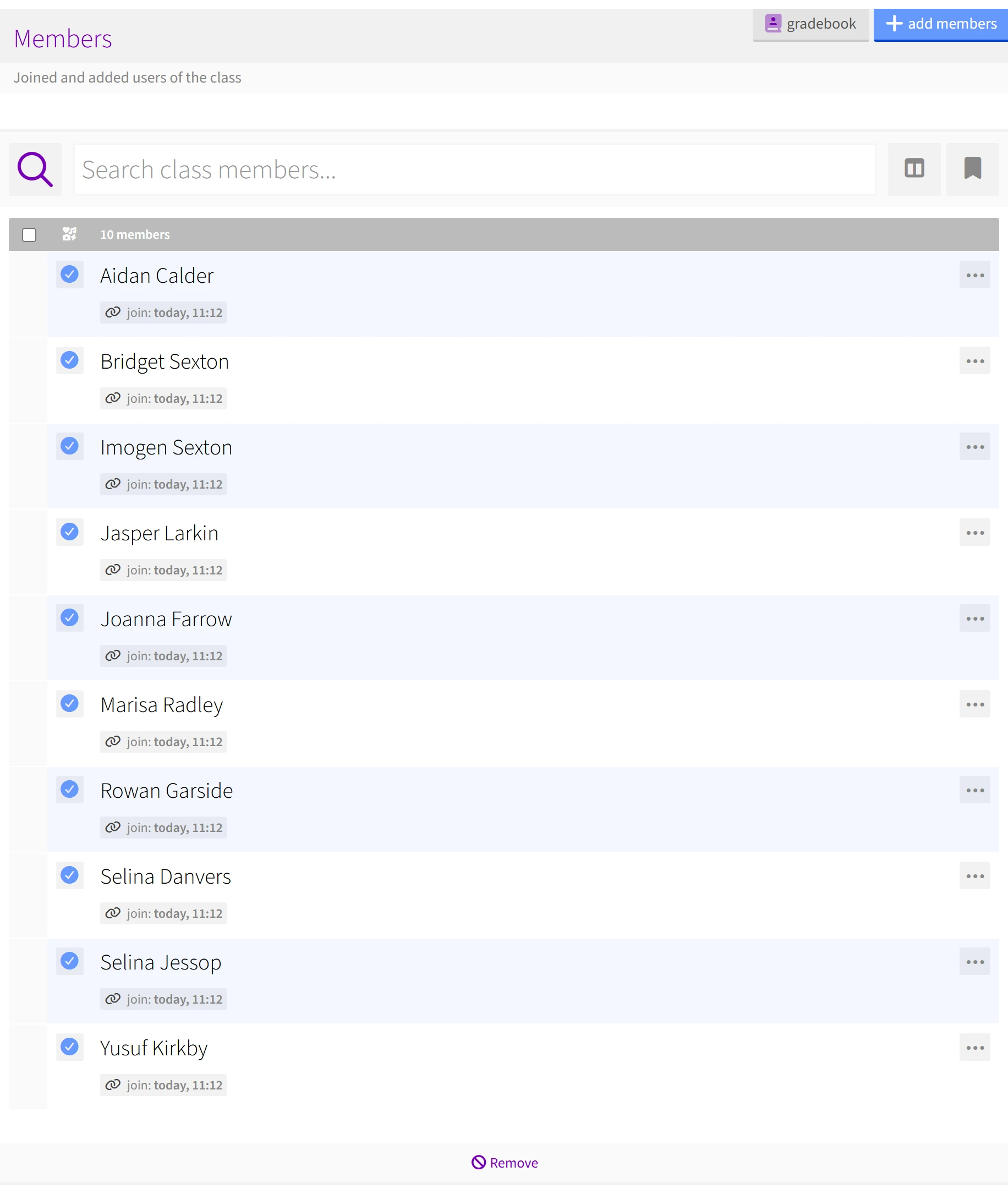
The class → Members
When joining needs approval, people who asked to join wait in the list until you choose Approve. Remove takes members out of the class.
Decide how people join
How people join is set under Membership in the class's Basic data and settings; click a purple value to change it:
- Joined: anyone can join, joining with given password, approve joining manually, or only with invitation or coupon.
- Max. members: a cap on the number of members.
- Prerequisite: classes a person must have joined, or whose tasks they must have completed, first.
- Minimum age.
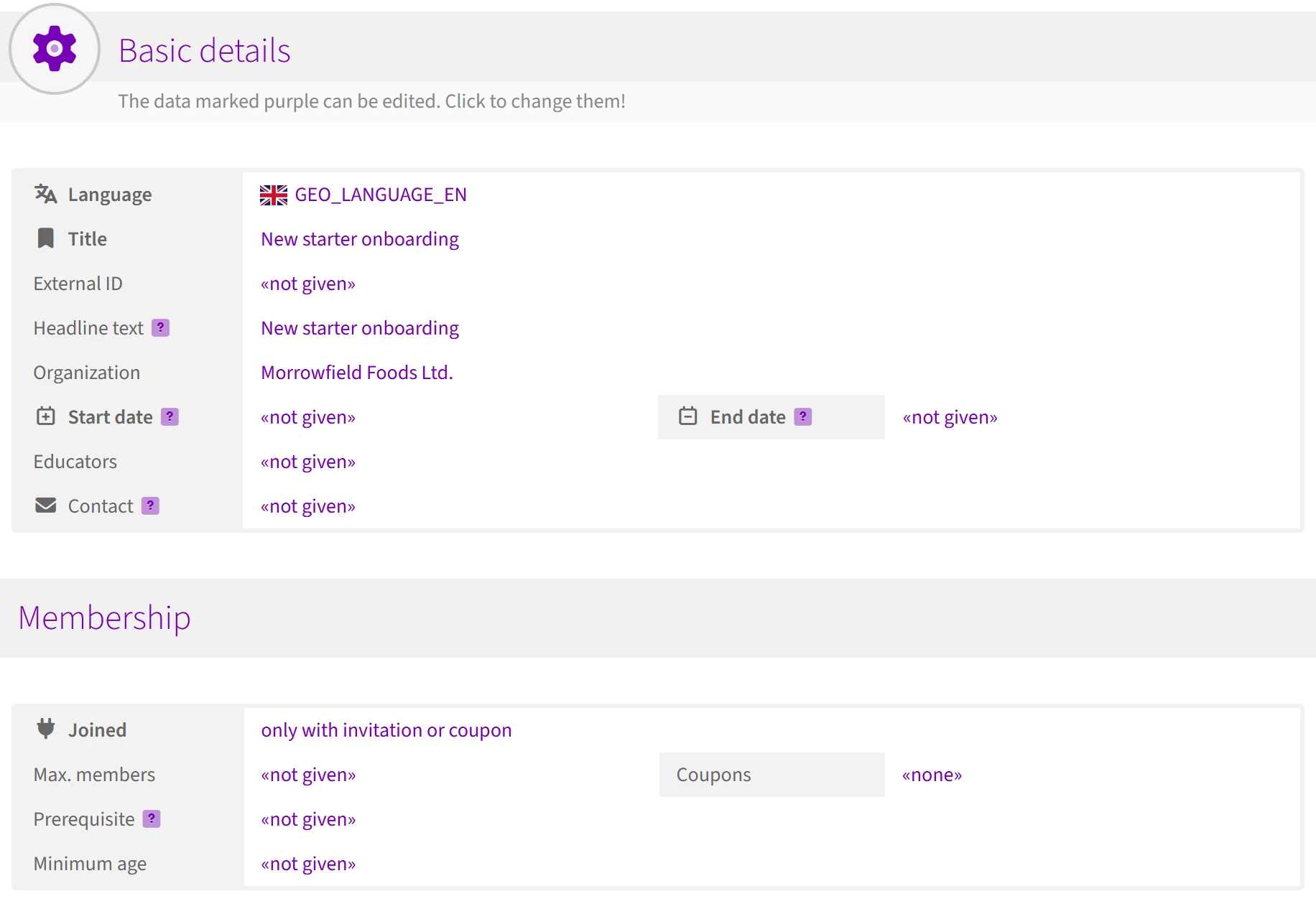
Manage → Basic data and settings → Membership
Under Settings on the same page, Members cannot leave the class and no more users will be able to join closes the class as it is. After the class's End date, nobody can join either.
Related
- Create a class
- Prerequisite classes and archiving
- Add participants to an exam