Build your first journey
A learning journey in EduBase starts with an exam: whoever starts that exam enters the journey, and the rules you draw in the journey editor decide what they do next. This page builds a short remediation route as an example: people who pass a hygiene check finish as certified, the others practice and take a retest, and a shift leader reviews anyone who fails the retest too. For the idea behind journeys, see Learning journeys.
Before you start
- Journeys must be switched on for your account. Without them, the option in step 1 does not appear.
- The starting exam exists and its participants are added. Any exam type except a championship can start a journey; an exam starts at most one journey.
- Every content a step uses exists and you can manage it: the exams (open for as long as people may arrive at them), the practice Quiz sets and the classes. A class step needs a learning path, that is, a class with rule-based (progressive) progress.
- For decisions on pass or fail, the exam needs a grading with a pass mark. Without one there is no pass or fail, and such rules always take the else branch.
- Use a computer. "Editing the journey on a mobile device is not supported."
Build the journey
-
Open the starting exam's settings and, under Additional settings, check Start the learning journey with the test. Save. A Journey tile appears on the exam's management page.
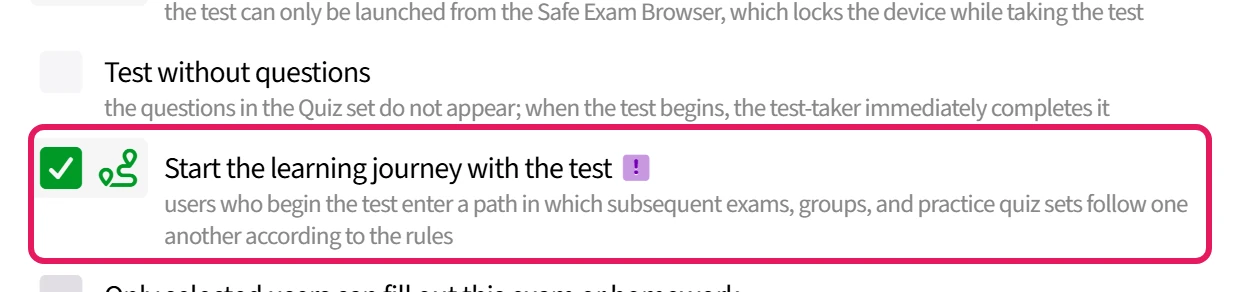
The exam → Settings → Additional settings
If the exam already had a next exam set in its settings, that link moves into the journey as its first route.
-
Click Journey. Until the journey is first published, this opens the editor; after that it opens the overview, with an editor button. A new journey has two nodes: the Starting exam and a Finish, connected.
-
Click + (new step) at the bottom left. The palette lists Steps (Exam, Class, Practice Quiz, Bundle), Decisions (Condition, Random split, Waiting, Approve) and Actions (Notification, Tag, Counter, Mark). Click a node to place it in the middle of the canvas, or drag it to where you want it.
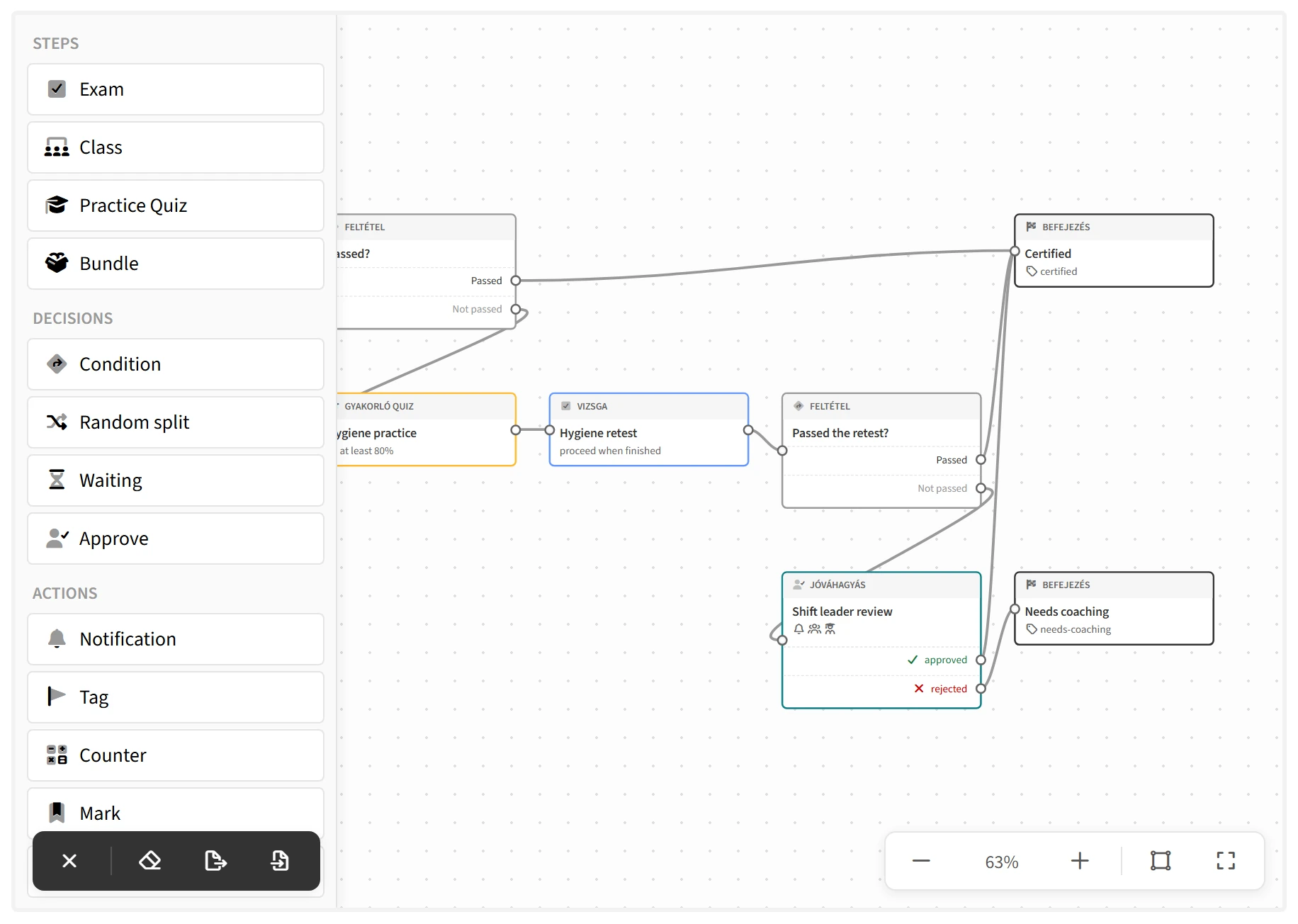
Journey → editor → + (new step)
-
Double-click a node to open its settings on the right. For a step, choose its content and how it completes; for the practice step of the example, the Quiz set, a Minimum score (%) of 80 and one practice. Every step except the starting exam can also have a Deadline. Display name is what participants see as their next step, so give steps names that make sense on their own.
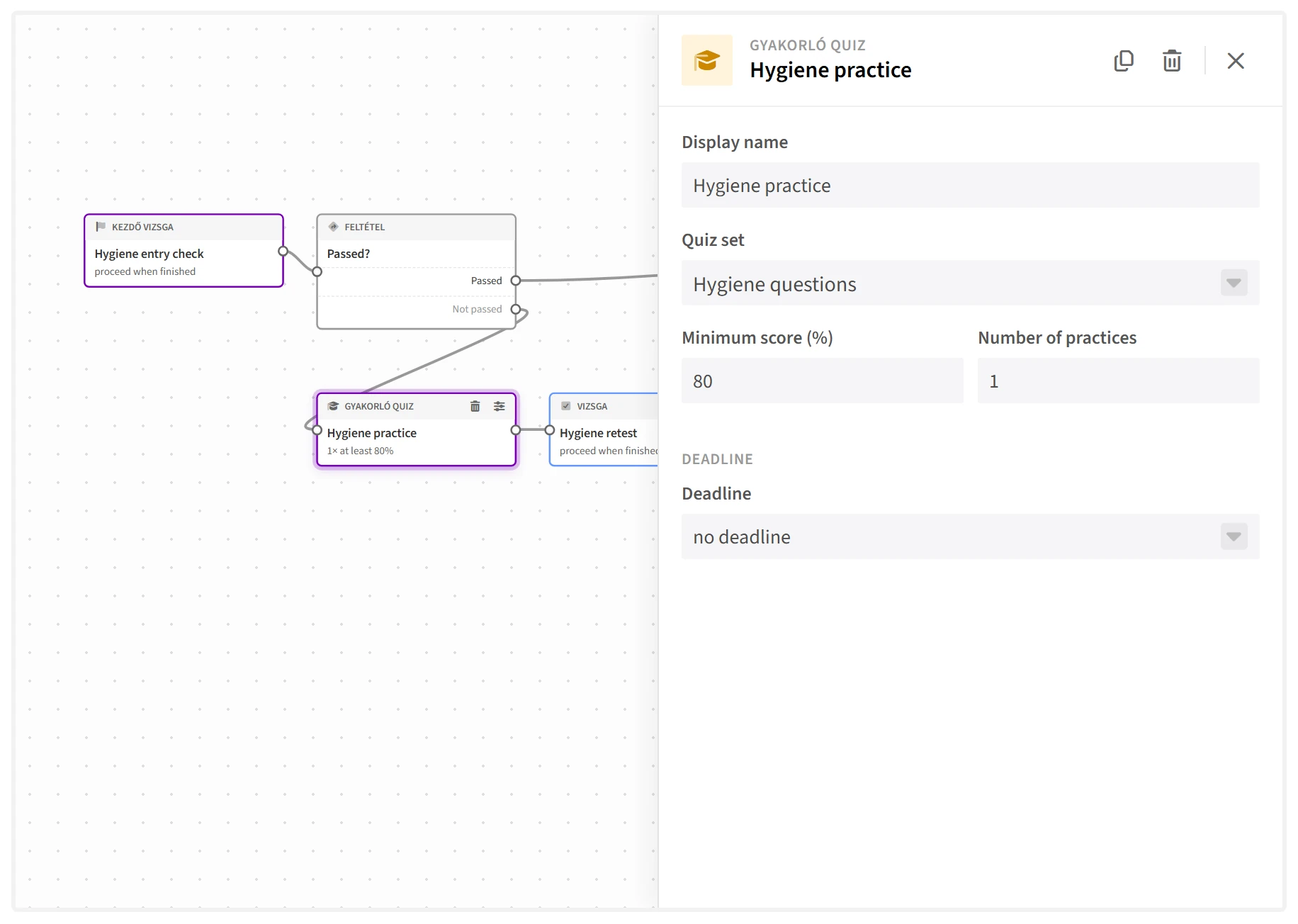
Journey editor → double-click a node
-
Connect the nodes: drag from an output on the right side of a node to the input on the left side of the next one, or click the output and then the next node. A step has one output (done); a Condition has one per branch plus else; an Approve node has approved and rejected.
- Add the decisions. In the example, the Condition after the starting exam has one branch, "Passed", with the rule Successful completion is yes; everyone else leaves on its second output, here named "Not passed". Branches are checked in order and the first one that matches wins. See Decision rules for every field you can route on.
- End each route with a Finish node and an outcome, for example a custom outcome "certified" for those who pass and "needs-coaching" for those the shift leader rejects. Outcomes show in exports and can be accepted by competency requirements and by other journeys.
- Open settings to name the journey (by default it takes the starting exam's title) and decide whether Users will be notified of the new steps. Under expand are the Description participants see, the Repetition limit and the Educators to be notified. "The settings take effect immediately when you save them, you do not need to publish them."
- Click publish and confirm. Participants follow the published version; your later edits stay in the draft until you publish again.
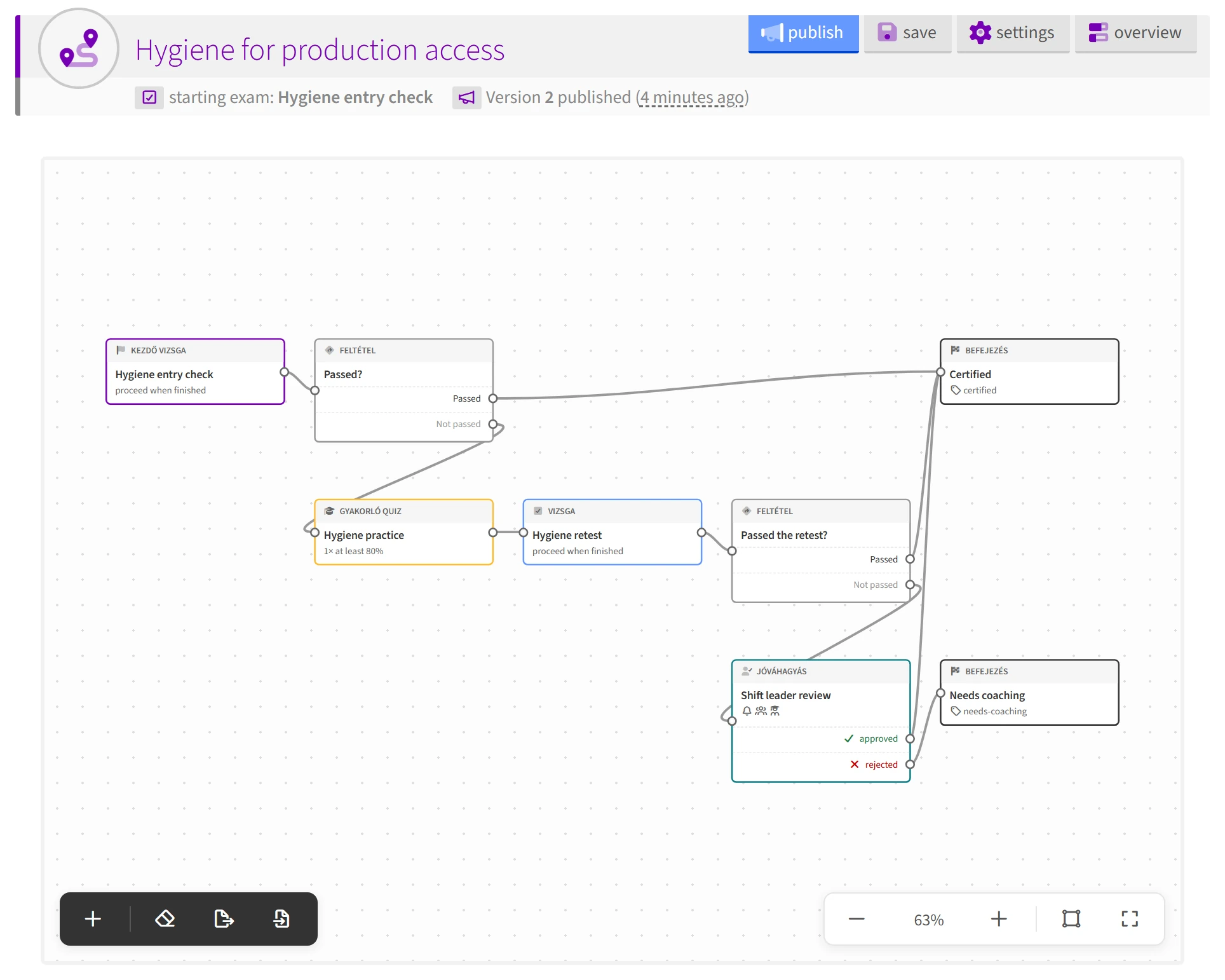
The exam → Journey → editor, after publishing
Drafts, checks and versions
- The editor saves the draft by itself shortly after every change, and checks it at the same time. save saves at once. If you try to leave with unsaved changes, the browser asks first.
- Problems are listed under the canvas and marked on their nodes. Errors, such as a step without content or a loop with no way out, block publishing ("Due to 1 error, the journey cannot be published"). Warnings, such as an unconnected decision output or a node nobody can reach, do not: "The journey can be published, but it is recommended to review the warnings".
- The heading shows the published version and whether the draft has unpublished changes. The clock button restores the published version into the draft.
- The toolbar at the bottom left can export to file and import from file (the journey as JSON) and clear the path. Exported journeys can be imported into another exam's journey; contents the importer cannot find or manage are dropped with a warning.
Check the result
- The heading reads Version 1 published, and once people are on their way, the exam's Journey tile shows how many are still on the journey.
- Participants enter when they start the starting exam. Anyone who started it before the journey was published and switched on is not on it, so publish before the exam opens.
- Follow the participants on the journey's overview. See Monitor a journey and intervene.
Variations
- Build it from an AI assistant or the API. The journey can be written as JSON and saved as the draft over the API (
PUT /exam:journey:graph), then published (POST /exam:journey:publish); the demo journey on this page was built that way. See The EduBase MCP server and the developer documentation. - Start from a recipe. Journey recipes has ready-made remediation, placement, refresher and A/B patterns.
- Switch a journey off. Clear Start the learning journey with the test in the exam's settings. Participants stay where they are and move on again when you switch it back on.
Limits
- One exam starts at most one journey, and a championship cannot start one.
- Up to 200 nodes, 16 branches per condition and 16 rules per branch; see Journey steps and nodes.
- Each node can be visited at most 5 times per participant by default (Repetition limit, up to 50); beyond that the journey stops and the educators are notified.
- Editing works on a computer only; the overview also works on phones and tablets.
Related
- Route people by their results
- Onboard new hires
- Journey steps and nodes
- Decision rules
- Deadlines, content bundles, counters and approvals
- Follow a learning journey, for participants