Take an exam in Safe Exam Browser
Some exams can only be taken in Safe Exam Browser, a free browser that locks your computer for the duration of the test: no other programs, no other websites. EduBase checks that you use it with the exam's settings.
Before the exam
- Install Safe Exam Browser from safeexambrowser.org, on Windows, macOS or iPad. Your employer or school may name a version.
- If you can, try it on a practice exam with the same settings, so installation problems show up before the real one.
Start the exam
- Open the exam as usual: sign in, or use your link, QR code or PIN.
- The start page says that the test can only be taken in Safe Exam Browser. Choose Open in Safe Exam Browser.
- Safe Exam Browser starts and opens the exam. Sign in again there if asked, and start the test.
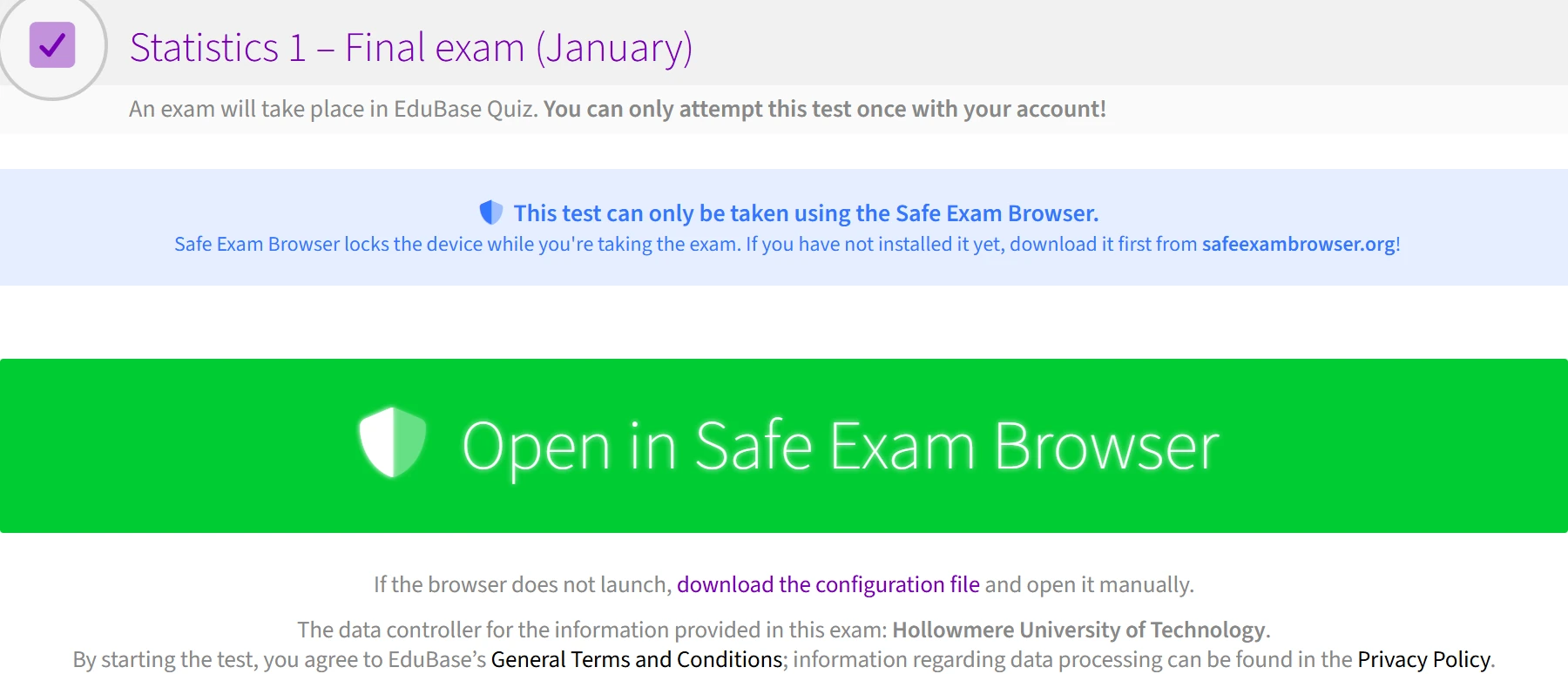
The exam's start page
If Safe Exam Browser does not start, download the configuration file with the link under the button and open it yourself.
During and after the test
Answer and finish the test as usual; see Answer, navigate and submit. To leave Safe Exam Browser after finishing, use its quit button. Some exams need a quit password, which the supervisor gives you.
If the browser closes or the computer restarts during the test, start Safe Exam Browser again from the start page: your saved answers are kept. If the exam's settings change while you are in it, you may have to restart Safe Exam Browser.