Create a class
A class is a group of members with a content wall: posts, files, videos, courses, SCORM packages, Quiz sets, exams, assignments and more. Members see what you share in the class; you see what each of them opened, finished or submitted.
Create the class
- Open Manage my classes from your dashboard and choose new class.
- Set the Language and the Name. The name is the title of the class page.
- Optionally, add a Public description: only people who have not joined yet see it, before they join.
- Choose the Organization the class belongs to, if any.
- expand under the fields for more:
- Grouping: class groups to organize your classes by topic or term. A group that belongs to an organization assigns the class to it.
- Tags.
- Headline text: a short title for the colored bar, when the name is long.
- Contact: an email address members can use to reach the class administrators.
- Clone: copy the contents, settings and permissions of an existing class. Members are not copied.
- Under Date, choose expand to set a Start date and an End date, by date or by date and time. The start is only a visual aid for members. After the end, nobody can join and no more content can be shared with the members.
- Choose Add.
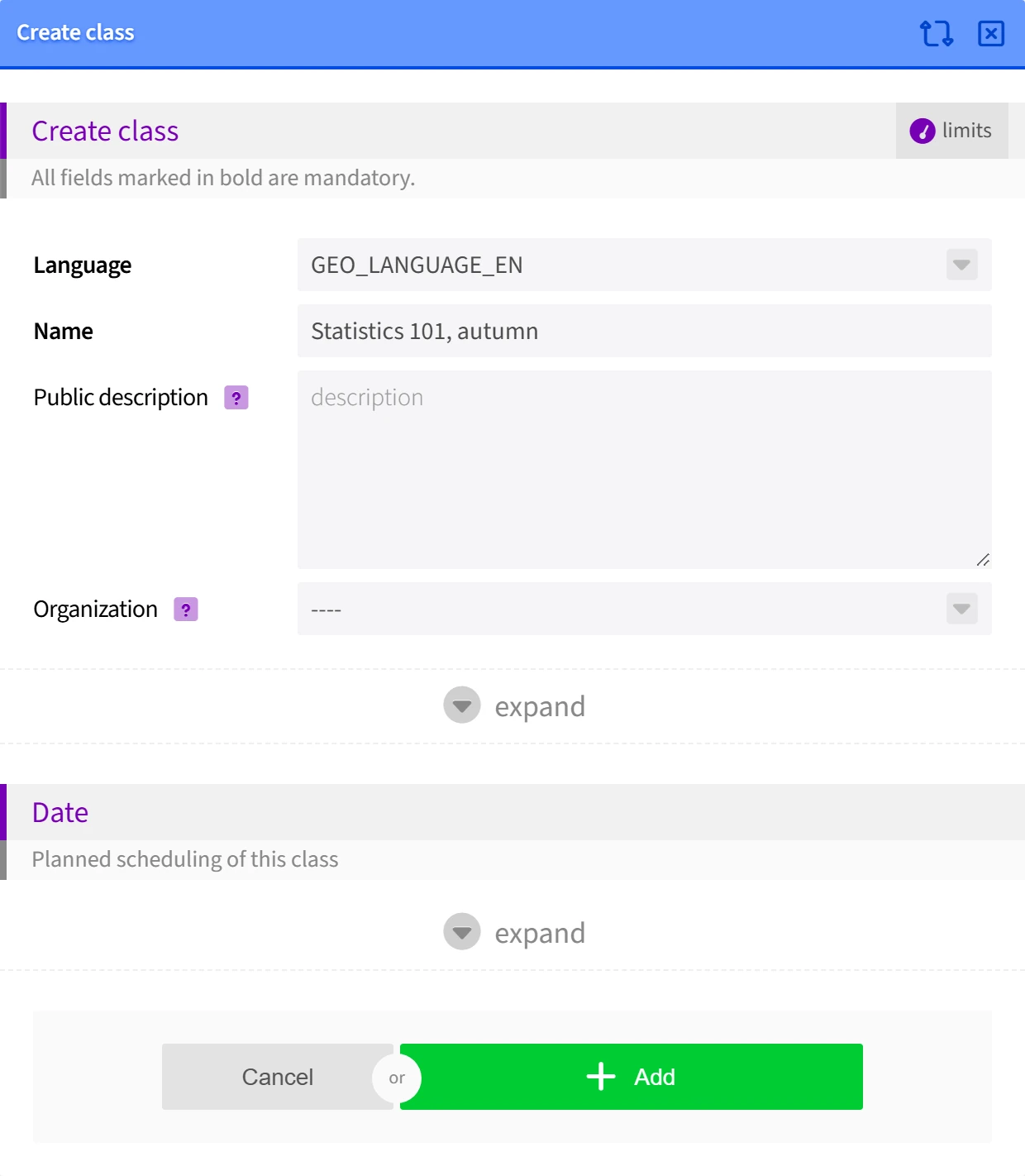
Manage my classes → new class
EduBase opens the new class page.
Manage the class
The class page shows the wall that members see. Its management page holds everything else:
- Contents: what is on the wall, and in which order. See Share content on the class wall.
- Members: who is in the class, and how others can join. See Invite members and manage membership.
- Basic data and settings: the title, dates, organization, how people join, and how the wall is ordered.
- Description and welcome text, and Send bulk message to the members.
- Under Advanced features: the cover photo, special permissions, attendance, events, calendar, gradebook, cloning, and Remove class.
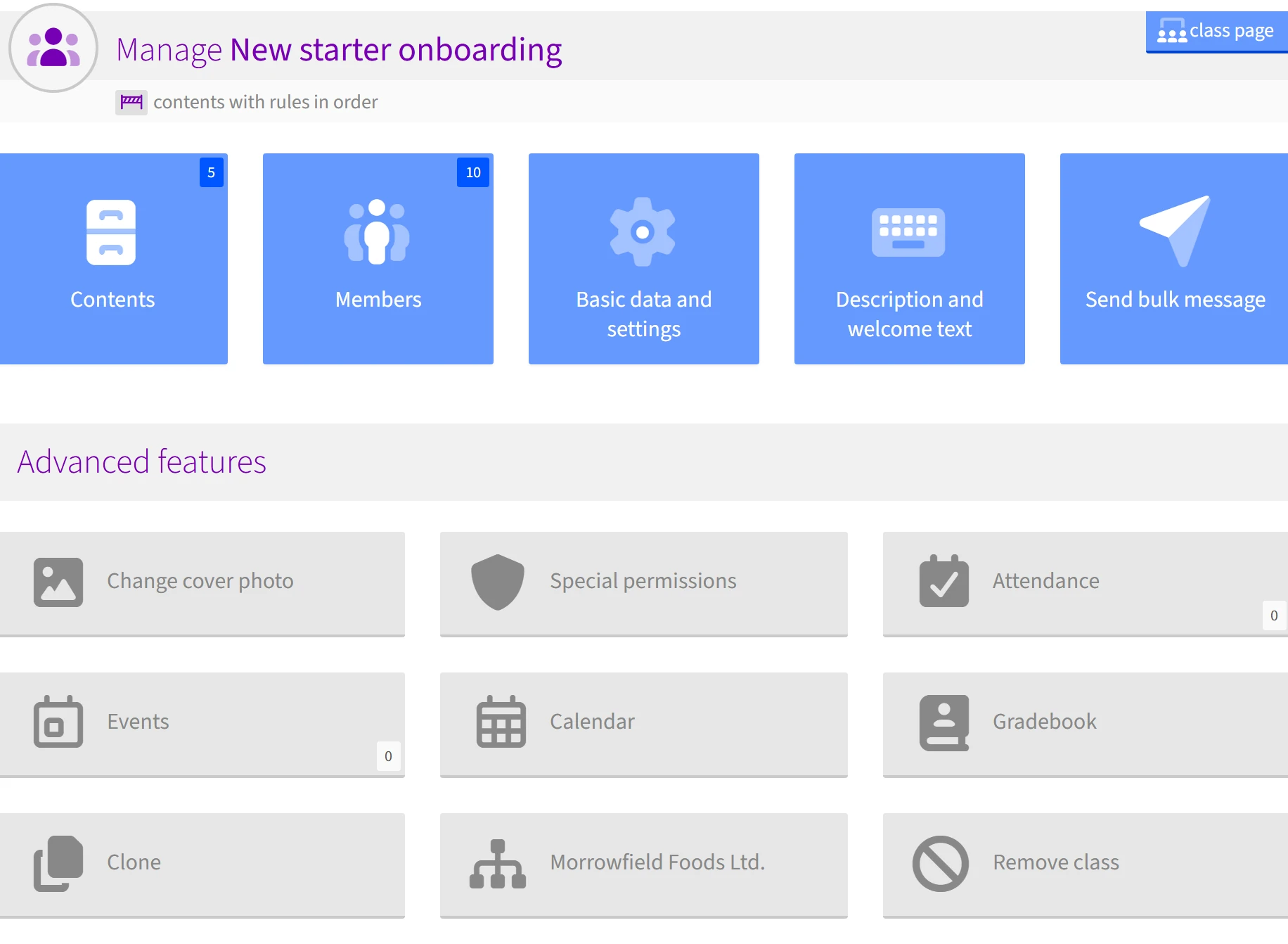
The class → manage
To turn the class into a learning path where items unlock one by one, set Contents under Basic data and settings to In custom order with optional progression rules. See Build a learning path.
Removing a class is permanent. EduBase asks you to type a confirmation word, and an authenticator code if your account uses two-factor authentication.
Related
- Invite members and manage membership
- Share content on the class wall
- Class gradebooks