Results, reports and exports
EduBase keeps every attempt of an exam and gives you three ways to look at the results: the Statistics page with charts, the export of the Users and results list, and downloadable reports from Generate report. Each attempt can also be opened on its own results page, from the participant's menu on Users and results.
See the results in charts
On the exam's management page, Statistics shows:
- the distribution of results, in percent;
- Total time - Result distribution: how long each participant took against their result;
- the distribution of grades, and of certificates when the exam issues them;
- Item analysis: how easy each question was and how well it separates stronger from weaker participants. See Item analysis, error patterns and skill results.
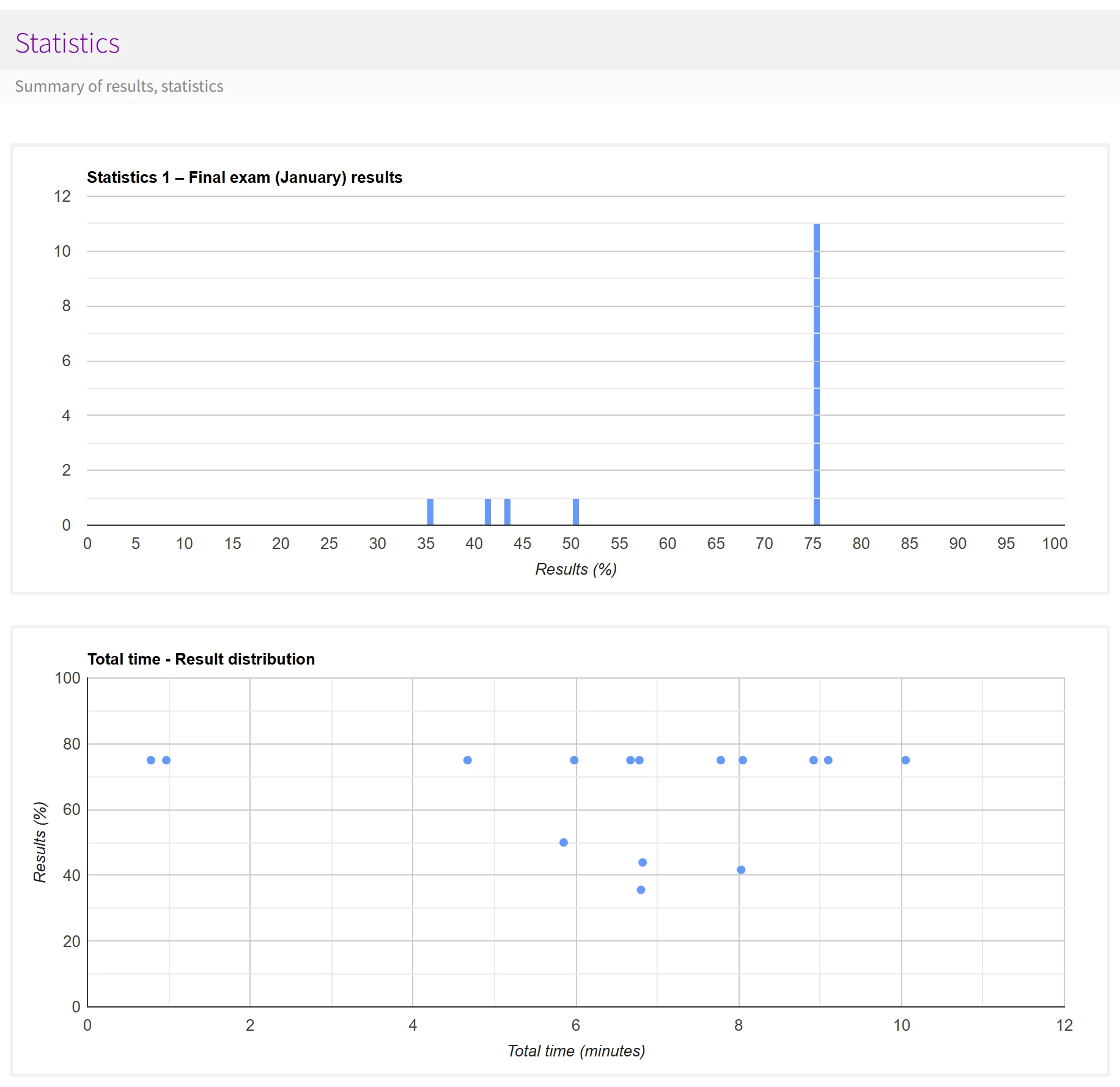
The exam → Statistics
Statistics appears once the exam has results that were not closed before submitting. Surveys and questionless tests do not have it.
Export the participant list
export [XLSX] on Users and results downloads the list with each participant's result. What it contains is set in the exam's Basic data and settings, under Export:
- Format: Excel 2007+, or CSV separated by semicolons.
- Settings: extra columns, such as Question statistics, Answers, Points per question, Suspicion Score indicator, Requested user details, Skills, Attendance or Journey. Export only users who finished the test leaves out the others.
- Sort: Default or By name.
With many participants, the export can take a while; the browser downloads the file when it is ready.
Download a report
Generate report on the exam's management page opens Generate exam report. Choose a Report and a Format, then Download.
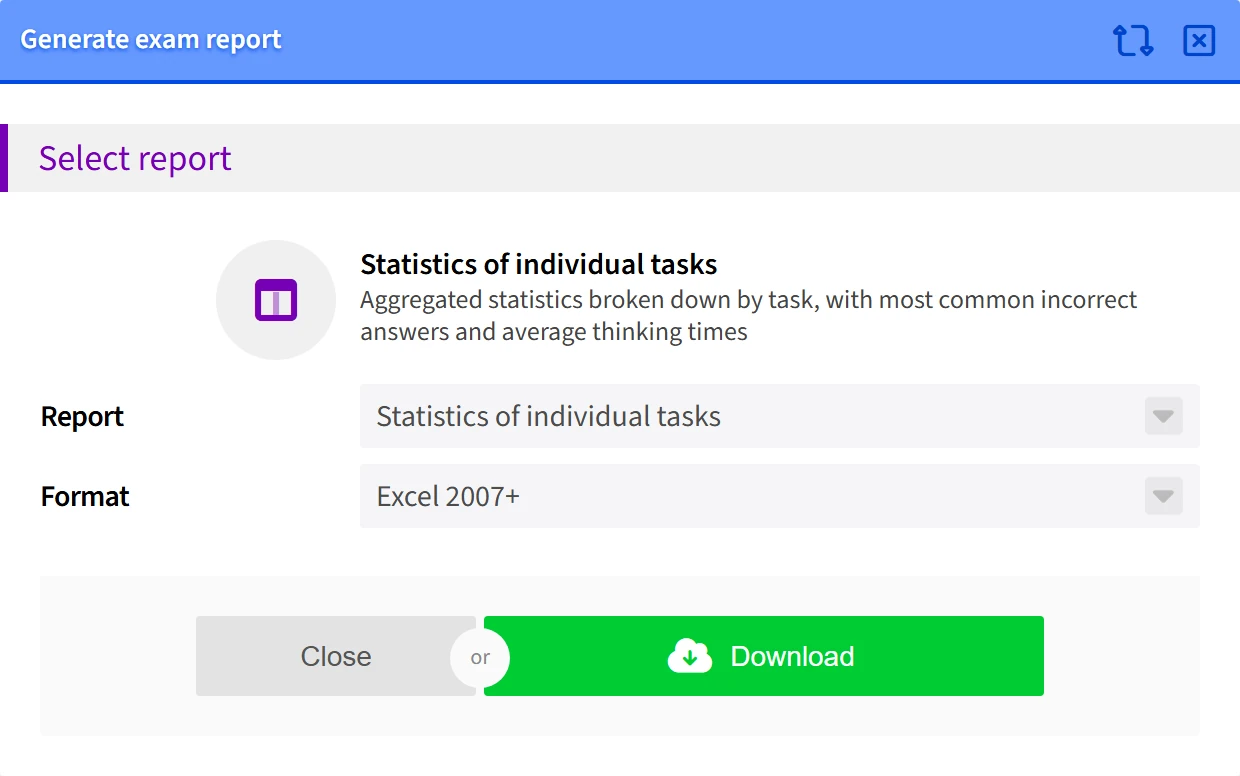
The exam → Generate report
| Report | What it contains |
|---|---|
| Statistics of individual tasks | Per task: totals, the most common wrong answers and average thinking times. |
| Questions and answers by users | Each participant's answers and points per task, ready to work on in a spreadsheet. |
| Answers | The answers given, without who gave them. |
| Current results | The results of the current round, like the Users and results export. |
| Raw results | Results, answers and attempt details in JSON. |
| Results of previous rounds | The results of a round you choose, like the Users and results export. Generated accounts are not included. |
| Round results of individual examinees | Every round's result per participant, with an overall result. |
| Summary | The exam's main data and summary statistics, ready to print. |
Depending on the report, you can also:
- Filter the participants by a value they entered before the test, such as their department, if that data field is set up for filtering. See Collect participant data at the start.
- Add Question data, such as each participant's parameter values in parameterized questions.
- Limit the Users to those with results, or to the best or worst results, with a Limit on how many.
Where the EduBase AI Assistant is enabled, the window also offers Open AI summary. See AI exam summaries.
Get reports over the API
The REST API and the MCP server list an exam's reports and create a download link for any of them, export the Users and results list with the exam's export settings, and return raw results. The download links need no sign-in, work once and expire after an hour, and include only the participants you are allowed to see. See The REST API and The EduBase MCP server.
Limits
- Generate report appears once the exam has participants and results; not for questionless tests.
- In Round results of individual examinees, a generated account's results in different rounds may come from different people.
- Reports and exports include only the participants you are allowed to see.