Add participants
Only the participants of an exam can take it. Add them on the exam's Users and results page with new users.
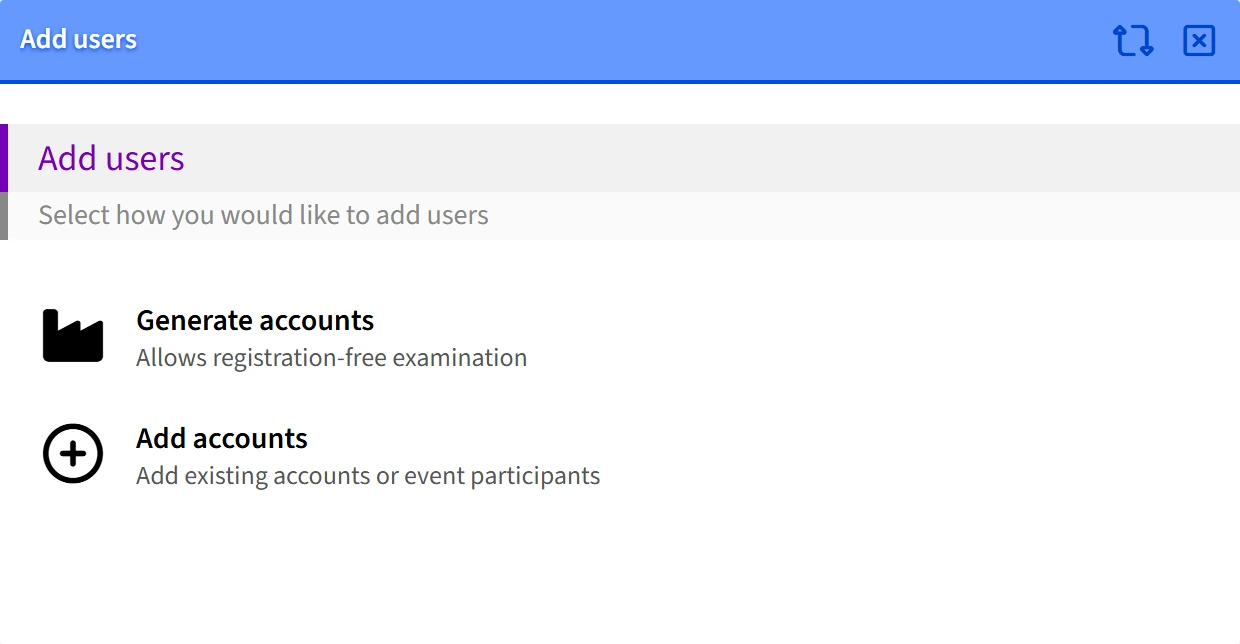
Users and results → new users
Ways to add participants
- From classes: pick one of your classes, then all its members or selected ones. Shown when you have classes.
- Add accounts: enter the email addresses, usernames or EduIDs of people who already have an account, separated by commas. You can also connect the participants of events, all of them or selected events, so that later registrations are added automatically.
- Generate accounts: EduBase creates accounts for the exam, for participants without an account, with a link, QR code or PIN to start. See QR code, link and PIN access.
When adding from classes or accounts, choose whether EduBase notifies the participants that a new exam is waiting for them. If the exam is not active yet, they are notified when it becomes active.
How many participants an exam can have, and how many people can be in active exams at once, depends on your plan; restrictions in the window shows your limits.
Follow the participants
Users and results lists everyone with their state: waiting, in progress, paused, completed, closed, or needing intervention. The filters above the list narrow it down, for example to intervention needed, completed, suspicious attempt or generated account. export [XLSX] downloads the list with the results.
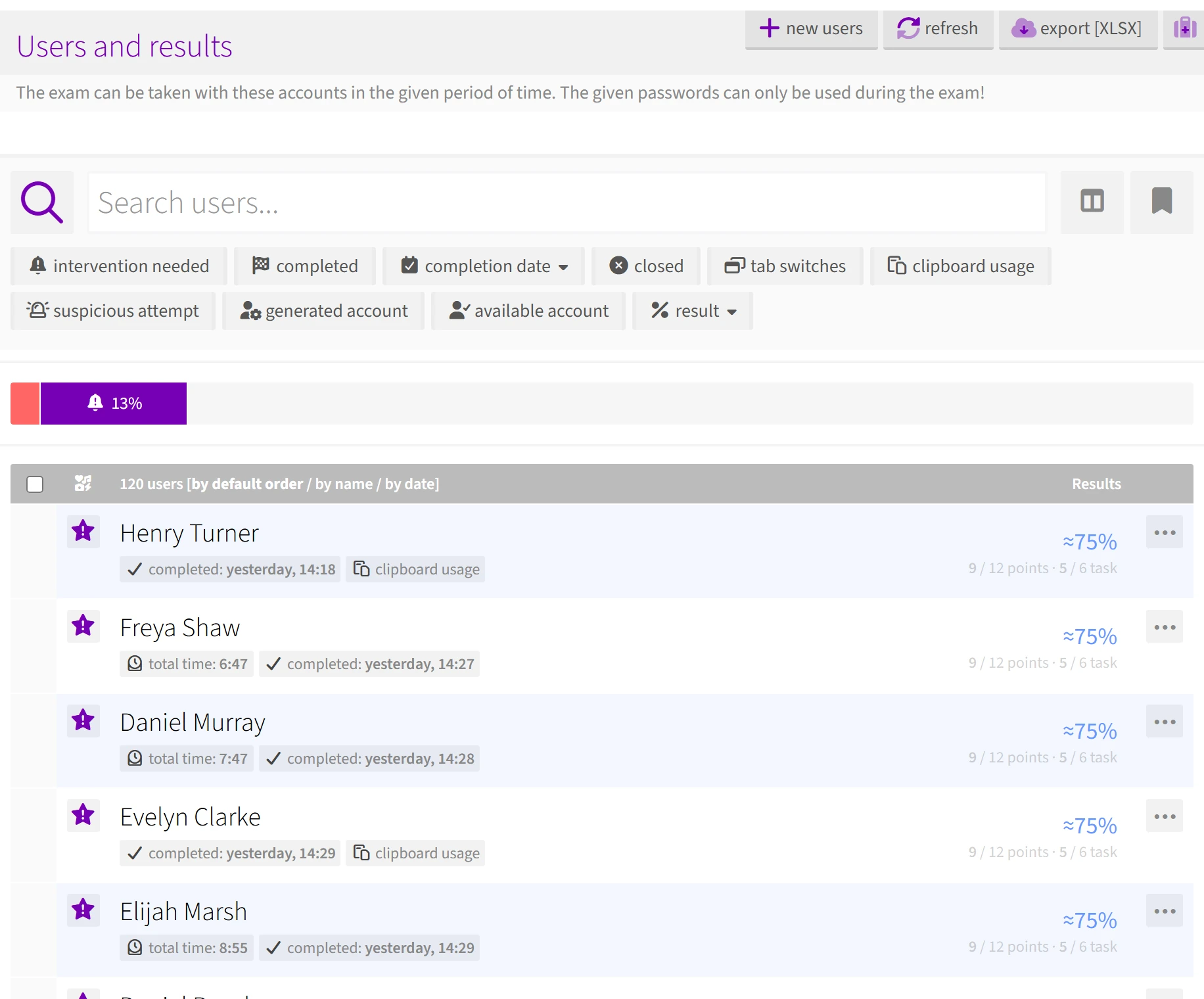
The exam → Users and results
Select participants to act on them together:
- Send alerts: remind them, for example those who have not finished.
- Enable login or Disable: allow or block their sign-in to the exam.
- Print cards: login slips with name, username and password, to hand out in the room.
- Present or Absent: record attendance.
- Publish, Re-evaluate, Archive and Remove, for their results and their place in the exam.
Each participant's menu has more, such as extra time or reopening an attempt.