Find your way around the dashboard
The dashboard is the page EduBase opens after you sign in. It has two parts: To-Do, with what you have to do next, and the Dashboard tiles, which lead to the rest of your account. To come back to it from anywhere, choose Profile in the header.
EduBase runs in the browser on computers, tablets and phones; the dashboard works the same on each, with no app to install.
To-Do
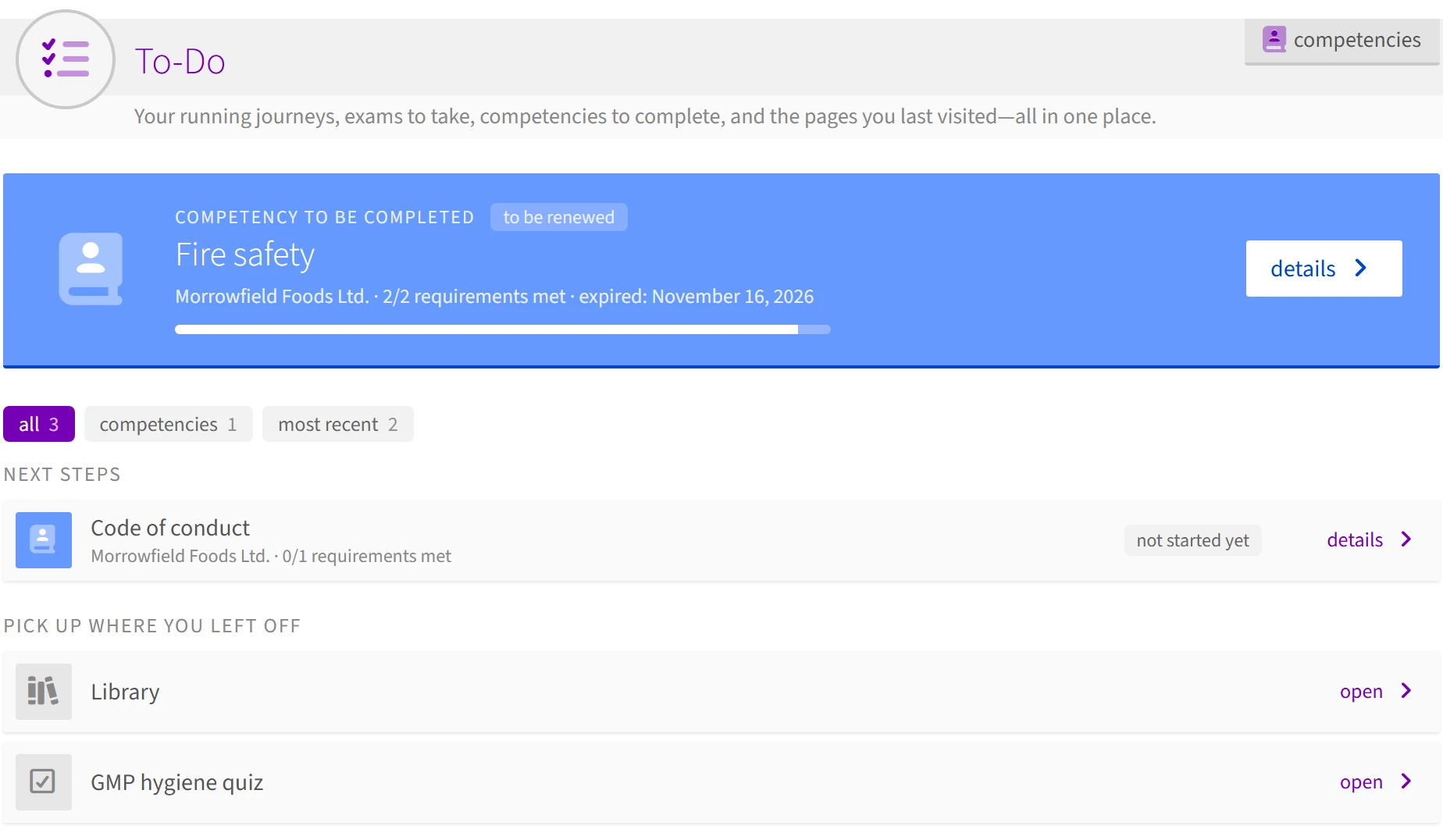
To-Do appears when something is waiting for you. It brings together your running journeys, the exams you can take, the competencies you have to complete or renew, documents waiting for your review, and the pages you visited last.
Dashboard → To-Do
- The first item is the one to do now: the next step of a journey you are on, otherwise the next exam that is open, otherwise the most urgent competency or review. Its label says which (Your next exam, Competency to be completed, and so on), with the deadline and, where it applies, a progress bar.
- Due today lists items whose deadline is today or already passed.
- Next steps lists the rest, the nearest deadline first. Both lists show up to six items.
- Pick up where you left off links the last five pages you opened, such as a library or an exam.
When To-Do holds more than one kind of item, the filters above the lists (all, exams, competencies, journeys, reviews, most recent) narrow them down. The buttons in the top corner open the full lists, when you have such items: exam portal for every exam you can take, competencies, and my journeys.
When nothing is waiting, To-Do does not appear and the dashboard starts with the tiles.
Dashboard tiles
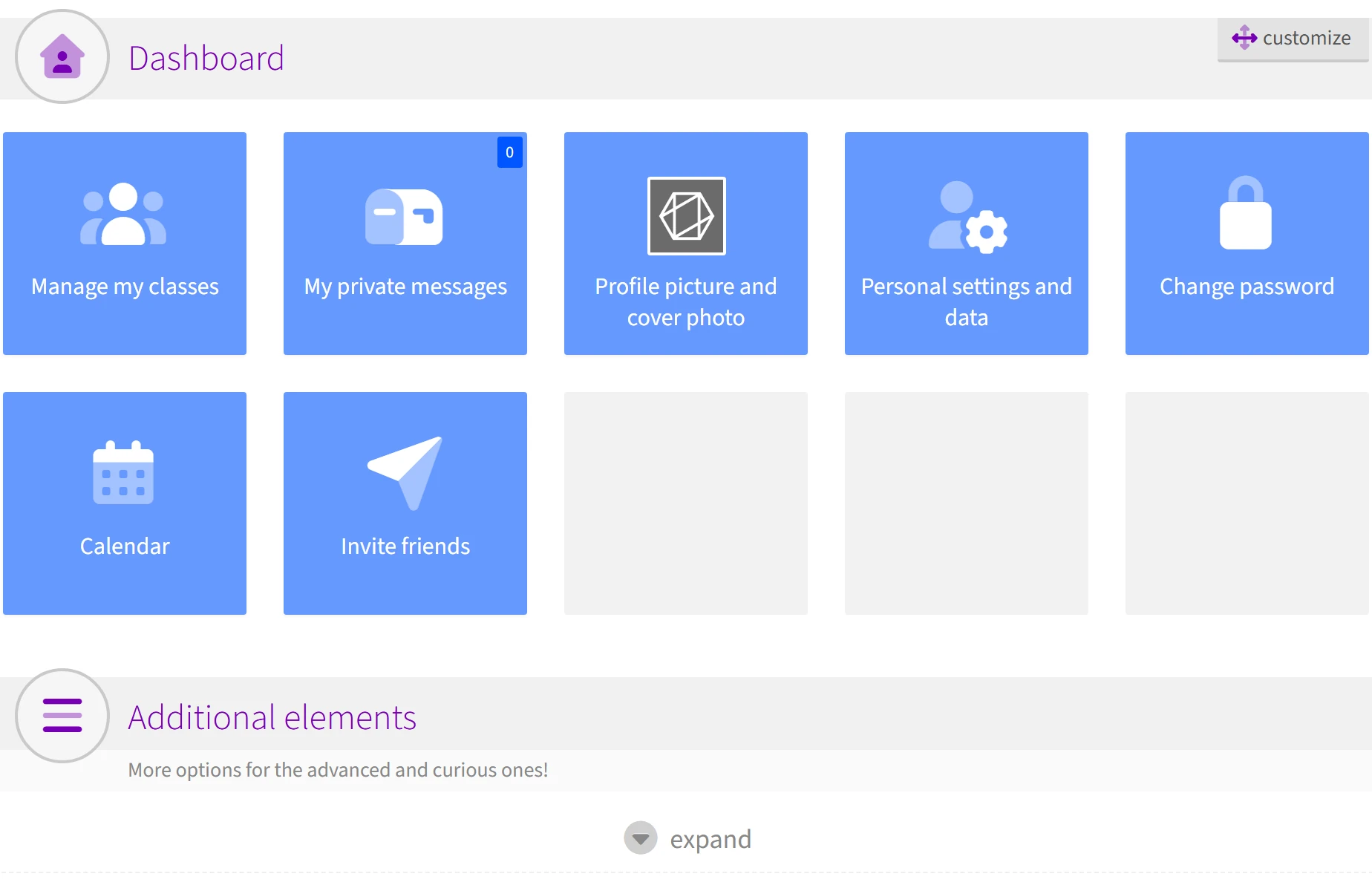
The tiles lead to the parts of your account: your classes, messages, profile picture, settings, password and calendar, and further tiles for Quiz sets, exams, videos, files, organizations and more. Additional elements holds the tiles that are not on the dashboard yet; choose expand to see them.
Dashboard
Which tiles you see depends on what your account can do. Exam-only and other restricted accounts see the default tiles and cannot rearrange them.
Rearrange the tiles
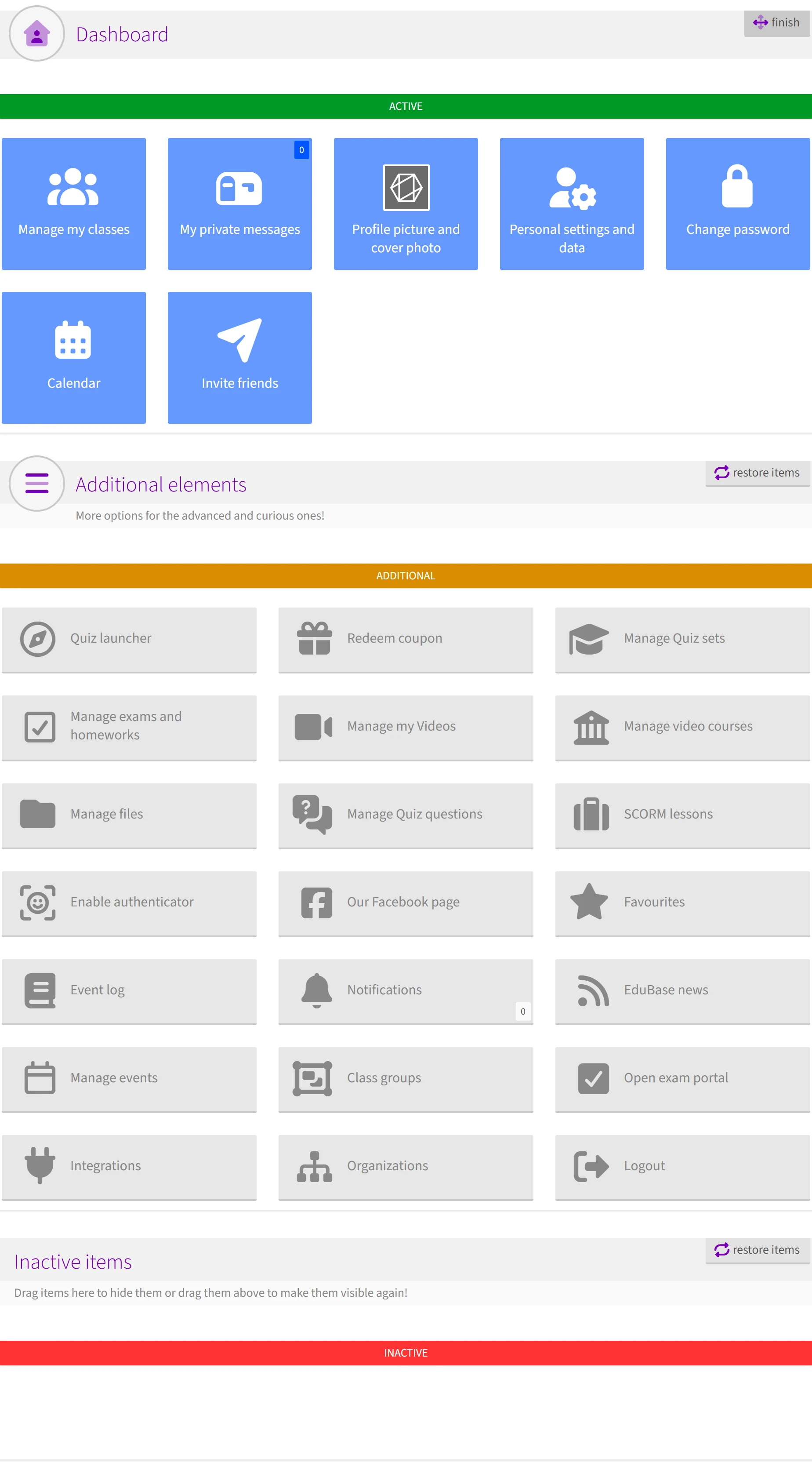
- Choose customize next to Dashboard.
- Drag tiles into the order you want. Drag a tile from Additional elements up to put it on the dashboard, or down to Inactive items to hide it.
- Choose finish.
restore items puts every tile back in its default place.
Dashboard → customize